
Service Operations Workspace – How to display the “Email” section in Compose pane for some states?
 New article articles in ServiceNow Community
·
Jan 11, 2025
·
article
New article articles in ServiceNow Community
·
Jan 11, 2025
·
article
 Sujatha V M
In this article, we will see how to hide/show the "Email" section in the Compose pane for some states.
For hiding the "Email" section permanently, please follow this link : Service Operations Workspace – How to hide the “Email” section in Compose pane?
➡️ Navigate to UI Builder and select “Service Operations Workspace” experience.
➡️ Make sure the “Application” is as per the scope you wanted it to be added.
➡️ Select and the clone the “SRP Record” page variant and deactivate the out-of-the-box.
Note : To know the process of how to clone the page, follow this : Service Operations Workspace – How to clone the landing page?
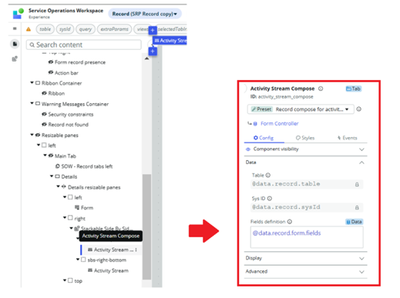
➡️ In the cloned SRP record, select “Activity Stream Compose” which holds Component visibility, Data, Display & Advanced sections.

In the Advance section, use the below script to display/hide “Show email mini compose” section.
For demo purpose, I have used incident "Resolved" state.

Note: The reason for scripting by replacing the data resource syntax [IF(@data.record.isEmailClientEnabled, "ALWAYS", "NEVER")] is because by default email client is enabled for Incident table.

Reference: https://support.servicenow.com/kb?id=kb%5Farticle%5Fview&sysparm%5Farticle=KB1650420
By doing this modification, we are going to display the email section in “Resolved” state instead of “On Hold – Awaiting Caller” section.

But why doesn’t display as “Inline” section as out-of-the-box? Because the mode validates the display of the components, modify it accordingly as per your needs or you can toggle the “Stacked View” on the compose section.

Kindly mark this article as "Helpful" if this resolves your query.
ServiceNow #ServiceNowCommunity #ServiceOperationsWorkspace
https://www.servicenow.com/community/service-operations-workspace/service-operations-workspace-how-to-display-the-email-section-in/ta-p/3146876