
Service Operations Workspace – How to “Edit” the preview pane on the list view?
 New article articles in ServiceNow Community
·
Jan 03, 2025
·
article
New article articles in ServiceNow Community
·
Jan 03, 2025
·
article
 Sujatha V M
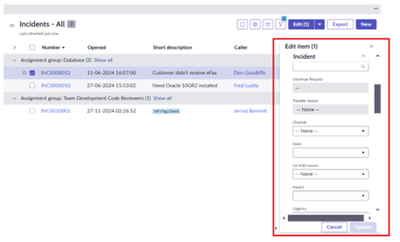
In this article, we will see how to edit the preview pane on the list view of the workspace.
➡️ In Service Operations Workspace, on the incident list view, select the record(s) and click on the “Edit” button. The Edit preview pane lists all the fields on the pop-up window.

➡️ Make sure the “Application” is as per the scope you wanted it to be added.

➡️ Open the form layout of the incident record and select the “Workspace” view. Validate the fields on the selected slush bucket vs the “Edit” preview pane.

➡️ Now add/remove the fields which you would like to display on the “Edit” preview pane. For illustration purpose, I have added “Active” field on the workspace view.

Note: “Edit” preview pane helps to update multiple records at a time but need to be used carefully and vigilantly.

Kindly mark this article as "Helpful" if this resolves your query.
ServiceNow #ServiceOperationsWorkspace #ServiceNowCommunity
https://www.servicenow.com/community/service-operations-workspace/service-operations-workspace-how-to-edit-the-preview-pane-on-the/ta-p/3140599