
Service Operations Workspace – Maximum Tabs Reached
 New article articles in ServiceNow Community
·
Dec 27, 2024
·
article
New article articles in ServiceNow Community
·
Dec 27, 2024
·
article
 Sujatha V M
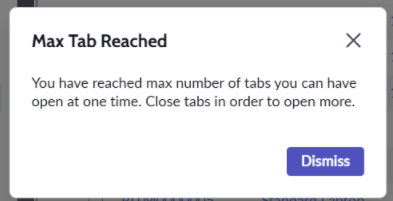
In this article, we will see when does the pop-up message "Max Tabs Reached" appear on the workspace and how to increase the tabs limit to avoid the pop-up prompt.

➡️ Navigate to UI Builder -> and select “Service Operations Workspace”.

➡️ Make sure the “Application” is as per the scope you wanted it to be added.
➡️ Navigate to UX Page Properties [sys_ux_page_property] related lists and open the “chrome_tab” record.

➡️ Modify the “Main” and “Sub” tab(s) limit values to ignore the pop-up message. For testing purpose reduced the limit and the pop-up appears post two of the main tabs limit,


⚠️ IMPORTANT: Please note to not change this to a very high number as the more tabs a user has opened the greater the performance degradation would be. Please test with a moderate number first (i.e. 15 or 20), and then monitor users' experience while having/using this many tabs and adjust accordingly.
References : KB1333495
Kindly mark this article as "Helpful" if this resolves your query.
ServiceNow #ServiceNowCommunity #ServiceOperationsWorkspace
https://www.servicenow.com/community/service-operations-workspace/service-operations-workspace-maximum-tabs-reached/ta-p/3136339