
A (user-)friendly reminder
 sys.properties
·
Sep 03, 2024
·
article
sys.properties
·
Sep 03, 2024
·
article
These days everyone is talking about Xanadu release, and there are good reasons for that. The new version of the ServiceNow platform is full of great features that are going to further transform the way we work. While being totally excited about all the new stuff being released, I am trying to guess which of the features are going to enjoy a higher adoption rate and which ones are going to be forgotten after a while. Strange as it may sound, it does happen sometimes because as the platform expands, no customer is able to use every feature. Nor can we, ServiceNow professionals, keep up with the pace of the system’s growth.
In this post, I am going to remind you about one of the most underused features of all times. It has been available for at least 15 years, yet I haven’t seen it used a lot.
Many processes involve notifications that remind participants about an outstanding action. They are preconfigured by an administrator and are triggered by specific events in the record’s life cycle. I have seen numerous implementations of such reminders, but all of them lacked flexibility because the recipient had no influence on their timing and contents. Few people know that ServiceNow has native functionality for reminders that can be very handy for support agents and other kinds of fulfiller users.
Using out-of-the-box reminders
Reminders functionality is active by default in every instance and is available for all tables that extend Task [task]. All you need to do to start using it is add the corresponding related list to the appropriate form view.

Once you have added the related list to the form, clicking on the New button will open the Reminder form, with Task and User fields on the left-hand side prefilled with references to the parent task and the current user respectively.

On the right-hand side, you can use Before and Remind me choice fields to tie the reminder to a date and time selected in either the Due date or the Follow up field in the parent task and indicate how much in advance you would like to be reminded.
The list of fields selectable in the Before field is predetermined by its special field type (Reminder Field Name) and is not configurable. Moreover, according to the product documentation, two legacy fields (Activity due and SLA due) although still visible should not be used. Choices in the Remind me field, on the contrary, are customizable. Just make sure to use minutes as the Value.

Finally, you can choose between a simple email and a meeting invitation, which you can add to the calendar in your email client.
What happens in the background
There are three events associated with Reminder [reminder] table and three notifications that react to them, one of type EMAIL and two of type Meeting Invitation.
If your choose to be reminded using Outlook Calendar option, reminder.notify event is fired immediately and triggers Reminder Insert notification that delivers a meeting invitation to the email address specified in your user record. Or in the user record of whoever you have selected in the User field on the reminder form. Yes, by default, you can create reminders for other users too! And, surprisingly, you can also delete reminders of other users as well as they can delete yours because there are no ACLs for Reminder [reminder] table in the base system. Consider configuring them if you decide to use this functionality.
If the Task, to which the reminder belongs, becomes inactive (i.e. Active changes to false), reminder.notify.delete event is fired, and a meeting cancelation is sent out. Sadly, this doesn’t happen if you change the reminder type from Outlook Calendar to Send an Email, delete the reminder or delete the Task itself.
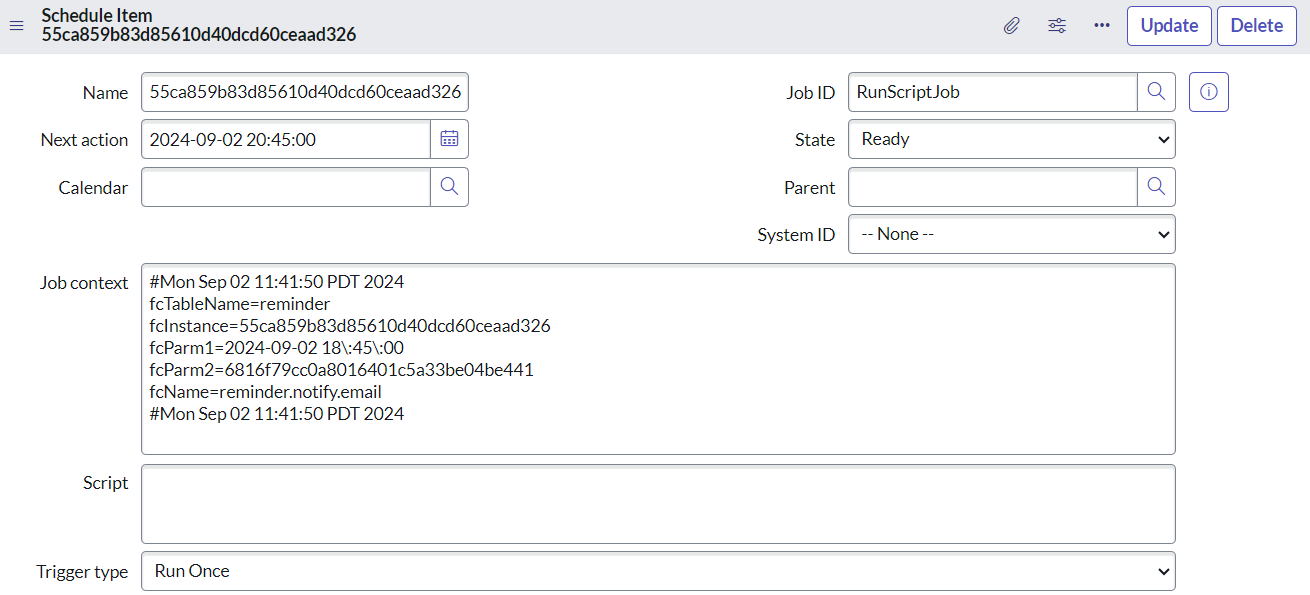
Reminders using Send an Email option work differently. When you set up such a reminder, a one-time scheduled job is automatically created and scheduled for the date and time of your reminder. At the specified time, that job is going to fire reminder.notify.email event, which in turn will trigger Reminder Insert Email notification. If at some point you change the value of the field your reminder is based on (i.e., Due date or Follow up) in the corresponding Task record, the system will delete the old scheduled job and create a new one for the new date and time.

Notably, fcParm2 parameter in the Schedule Item [sys_trigger] entry contains the sys_id of the user record referenced in the reminder, so if the email address of that user changes by the time the reminder needs to be sent out, it will use the correct email address anyway. By the way, if you want to learn more about schedule job parameters in ServiceNow, check out this article by Dirk Redeker.
Conclusion
Although it has certain limitations, ServiceNow’s native reminders functionality can be quite helpful if you want to keep things simple. In a matter of minutes and with minimal effort, you can roll out a feature that can make lives of support staff in your organization much easier.
Did you know about this functionality? Have you ever used it or seen it used? Let me know in the comments.
https://sys.properties/2024/09/03/a-user-friendly-reminder/