
Service Operations Workspace – How to hide the “Email” section in Compose pane?
 New article articles in ServiceNow Community
·
Dec 21, 2024
·
article
New article articles in ServiceNow Community
·
Dec 21, 2024
·
article
 Sujatha V M
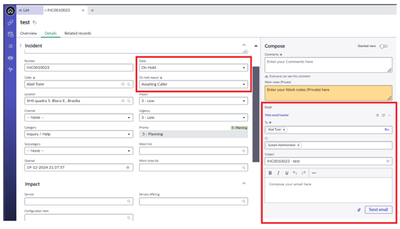
In this article, we will see how to hide the email section on the Compose pane of the Service Operations Workspace landing page.
On observation in Service Operations Workspace, the email section gets displayed when the record is put “On Hold” with the reason as “Awaiting Caller”. Also, the page alignment gets changed to “Stack” view instead of “Side by Side” tabs.

➡️ Navigate to UI Builder -> and select “Service Operations Workspace”.
➡️ Make sure the “Application” is as per the scope you wanted it to be added.
➡️ Select the “Record” page variant -> Clone SRP Record and deactivate the out-of-the-box.
Note: To know how to clone, follow this link Service Operations Workspace – How to clone the landing page?
➡️ In the clone SRP record, select “Activity Stream Compose” which holds Component visibility, Data, Display & Advanced sections.

➡️ In the Advance section, click on “Use static input” and select “Never”.

➡️ By doing this, the email mini compose section is hidden on the “Compose” pane.

However, if required you can select from the dropdown menu of the record.

ServiceNow #ServiceOperationsWorkspace #ServiceNowCommunity
https://www.servicenow.com/community/service-operations-workspace/service-operations-workspace-how-to-hide-the-email-section-in/ta-p/3133552