
How to use 10 new Flow or Flow logic Features of Washington Release - demo (step by step)
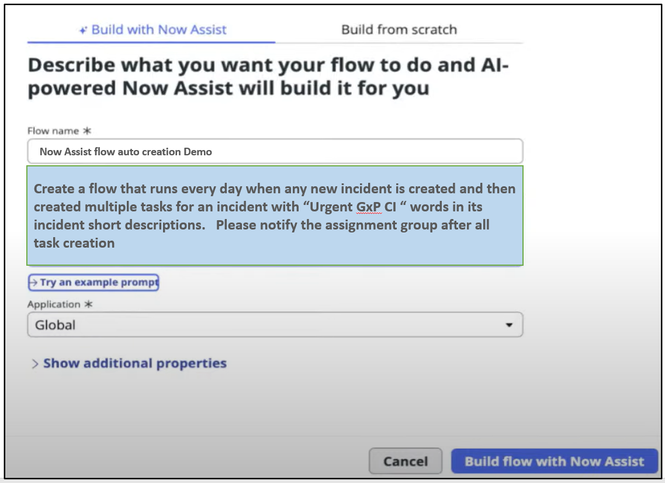
Steps
- Navigate to All > Process Automation > Flow Designer.
- Select the Flow Designer tab.
- From the Flow Designer home page, select Create new > Flow.
- From the Build with Now Assist tab, enter a name and description for your flow. ...
- Select Build with Now Assist.

Try Catch (Error handling)
Washington release has added additional feature to flow try catch block by allowing a flow to continue running when an error occurs within a flow logic block. Run a sequence of actions in response to errors within the flow logic block.
- From the Flow Designer home page, select Create new > Flow.
- Complete Flow properties (Flow name, and Description)
- Open Diagramming View
Step 1 - Create try block.

Step 2 - Define the monitoring actions within try catch block

Step 3 - Alert if error occurs using email notification (You can use log too)

Flow - Go Back to Flow logic
This is new feature of Washington release so you can only add Go back to flow logic to new flows created from the Washington DC family release and forward, not other versions.
The condition to use this feature are follows:
- Within try and catch block
- Within flow logic make decision
- Within then branch of If, Else If, or Else flow logic
Steps to Create

Fire Event Action
I have mentioned h4 ways to trigger an email notification through Flow in my blog- (https://www.servicenow.com/community/in-other-news/four-flow-notification-approaches-action-script-t...) . However, Washington release release has new feature -"Fire Event" action, which we can trigger any event via your flow like below:

Flow Change revert - Undo/Redo
Washington has added your feature to revert flow changes. You Undo or Redo all your changes.

Annotation/Detail Condition View/Auto Save
You need to enable both Annotation and Flow action detail within Diagramming View below, but you can undo as well for both (see below)

Step 1 - Create annotation

Step - Auto Save
You can create any flow actions or flow logic without clicking "Save" and your change will be auto saved by system

Download whole flow within Diagramming View to an image report
Step 1 -Click "Downloads diagram an image" icon to generated a report
Step 2 - Go "Download folder" to open a report

If you enjoy my ServiceNow posts, please be sure to follow me on LinkedIn and my ServiceNow YouTubes Channels
https://www.servicenow.com/community/in-other-news/how-to-use-new-flow-or-flow-logic-features-of-washington-release/ba-p/2875162