
How to lock down a ServiceNow app *very* securely (Part 1 of 3)
| Part 1 (you are here) | Part 2 | Part 3 |
|---|
The CEO of your company asks you to write a ServiceNow app. Cool. “Fame and fortune await me, because I love writing apps on the platform”, you say. CEO says it needs to be secure. “No problem” you say, “I know how to protect tables with roles.”
Then your CEO drops the bombshell: she wants the app to be so secure that not even ServiceNow admins are able to inspect your app’s tables.
You see, this app will contain very sensitive corporate data: mergers and acquisitions, meetings with heads of state, private phone numbers of celebrities. To make things even harder on you, dear developer, the app will be used by lots of different departments in your company, and the data cannot be shared between departments, but must be easily shared within a department.
This is starting to sound tougher than expected.
What’s the solution? We’re going to borrow a technique called “Application Administration” that the developers of ServiceNow’s HR Service Management app used to solve very similar requirements (as you can imagine, HR deals with lots of highly private information about employees). In part 2 of this series, we’ll lean on another technique from Domain Separation.
There are two key takeaways for this blog series:
- The app is locked down so hard that even other admins can't see the data.
- Row-level security, so multiple groups can use the app without data leaking across teams (see part 2 of this blog series).
Prerequisites
You must have admin access to an instance, and you must have the role “security_admin”. You're building a very secure app, which means you need elevated privileges to do so. You will also need to have experience with Studio: writing apps on the platform, creating and assigning roles, changing form layouts, etc.
Let's get started!
- Log in to your ServiceNow instance as an admin so that you have the necessary rights to create apps.
- Open Studio and create a new app called “Secure Data”. Click the [Create] button to begin.
- On the next page, click the link in the lower-left corner that says “Continue in Studio (Advanced)”.
- Configure Application Administration:
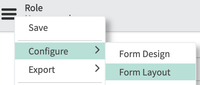
- In Studio, start to create a role, but before entering any information, choose Configure > Form Layout
.
- Click edit this section in Global and add “Application Administrator” to the form layout.
- Now you can finish creating the special role on this form. Enter suffix “admin”, and tick [x] Application Administrator, then click [Submit] to save the role.
- Edit your own sys_user record (you are probably logged in as “admin” right now) to give yourself the role you just made. The role name begins with “x_”, so you can type that to help you find it. (This is a very special requirement that is important for secure apps). Also make sure you have the role “security_admin”.
- In Studio, start to create a role, but before entering any information, choose Configure > Form Layout
- Log out, and then log back in as admin. This step is very important!! If you don't, you won't be able to accomplish the next steps.
- Open Studio again, and open the “Secure Data” app you created earlier.
- Choose File > Settings, tick [x] Application administration, then click [Update].
- Create a table in the app, name it “Secure Data”.
- Add a simple string column named “comment”.
- Click [Submit] to create the table.
- Add one or two sample records to the table.
That's it! You've created an app with table data that other admins cannot see
...but I'm sure you'd like to test it out, just to be sure. Let's try to break the security by seeing what other admins can view:
- Create a whole new user “Normal Admin” and give that user both “admin” and “security_admin” roles.
- Log out and back in as that new “Normal Admin” user; notice you cannot see the app in the left nav. Why not? Normally, admins can see everything, but in this case, because this app is locked down with “[x] Application administration” only admins with the special app admin role you created earlier can see the data.
- Enter .list in the left nav, and press return. Notice you cannot see any records in the secure table.
- Let's get tricky for a second: impersonate System Administrator (or whichever admin user you were logged in as when you created the app). Still can't see the app's data? Good! ServiceNow engineers made sure you can't sneak around protections easily.
- Impersonate Abel Tuter; notice you cannot see the app module or any of its records. Why not? This one's simpler to explain: regular old-fashioned role-based access prevents normal users from seeing data. We'll delve deeper into this in part 2 of this blog series.
What's next?
In part 2 of this series, we'll implement row-level security, so users from different groups can only see data from their own group. Let's go check it out now!
| Part 1 (you are here) | Part 2 | Part 3 |
|---|

https://www.servicenow.com/community/developer-articles/how-to-lock-down-a-servicenow-app-very-securely-part-1-of-3/ta-p/2432397