
Virtual Agent – How to add a "Link" as menu item on the support options?
 New article articles in ServiceNow Community
·
Dec 06, 2024
·
article
New article articles in ServiceNow Community
·
Dec 06, 2024
·
article
 Sujatha V M
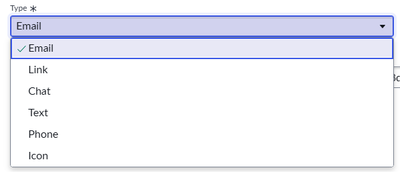
In the Virtual Agent, on the branding editor by default we have the below menu item types but mostly we can see only Email, Phone and Chat being used in the support options.

We can even add a "Link" and route to the desired site/portal from chat bot without initiating a conversation.
➡️ Click on the 'Chat' icon on the portal page and click on the support options and it lists the default option.

➡️ Navigate to Conversation Interfaces -> Settings -> General -> Display Options (Branding)

➡️ Select the branding as per your requirement but for now we will select "Default Branding".

➡️ Scroll down to the "Menu" items section, click on the "New" button and add the link and give it an order to display on the support options.

➡️ Click on the "Raise Ticket" option and it routes the desired page.

ServiceNow #ServiceNowCommunity #ServiceNowLearning # Virtual Agent #Chatbot
https://www.servicenow.com/community/incident-management-sow-articles/virtual-agent-how-to-add-a-quot-link-quot-as-menu-item-on-the/ta-p/3121299