
Service Operations Workspace (SOW) - How to add a VIP Flag?
 New article articles in ServiceNow Community
·
Nov 27, 2024
·
article
New article articles in ServiceNow Community
·
Nov 27, 2024
·
article
 Sujatha V M
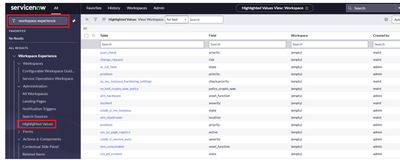
Problem Statement: VIP Flag is not visible on the “Caller” field in Incident record.
1. Navigate to the instance and type “Workspace Experience -> Administration ->Highlighted values”.

2. Make sure the “Application” is as per the scope you wanted it to be added.

3. Create a new record on incident table for the “Caller” field.


4. Add the conditions to display the VIP flag in “Highlighted Value Conditions” tab

5. In “UX Highlighted Values Configurations” tab, click on “Edit” and select the “SOW Highlighted Value Config” from the existing list and save the record.


6. Validate if the user to be added in the caller field of the incident record, has the VIP flag set to true.

7. On saving the incident form, VIP flag gets added above the field.

Note: By default, the flag wasn’t showing up on the Service Operations Workspace, led to the creation of a new record.
#SOW #ServiceOperationsWorkspace #ServicenowRisingStar
https://www.servicenow.com/community/incident-management-sow-articles/service-operations-workspace-sow-how-to-add-a-vip-flag/ta-p/3114411