
Vendor Risk Management
 Blog - ServiceNow Elite
·
Nov 22, 2020
·
article
Blog - ServiceNow Elite
·
Nov 22, 2020
·
article

The Vendor Risk Management (VRM) application provides a centralized process for managing your vendor portfolio, assessing vendor risk and tiering, and for completing the remediation life cycle.
VRM assesses vendors to determine their risk to an organization and guides that process by using a consistent and powerful application.
This article is mostly just my opinion on how to implement VRM, with a small section on usage. Your implementation experience may vary of course.
Overall Process
Setup
- Plugin Install
- Establish Vendor Portfolio
- Define Engagements
- Groups and Roles
- Assessment Setup
- Scoring Setup
- Forms, Properties, and Workflow
- Reporting
- Integrations
Usage
- Tier
- Assess
- Generate Findings
- Remediate Issues
- Report risks
- Monitor
Setup
STEP 1: Plugin INSTALL
The main plugin you will install is GRC: Vendor Risk Management (com.sn_vdr_risk_asmt).
The plugin has various dependencies that will also be installed:
- GRC: Profiles
- GRC: Compliance Assessment
- GRC: Vendor Portal
- GRC: Vendor Risk Management Dependencies
- Explicit Roles
You’ll want to read about the Explicit Roles plugin if that is not already installed in your instance.
Installing the demo data is helpful when demo’ing the product. However you will want to remove that data before going to production.
Read more: Download and activate Vendor Risk Management
VIEW Vendor Record
After the VRM plugin is installed, the first place you should look at is the vendor record. It has a number of fields important to the VRM implementation. If you understand this form completely, you can understand a lot about VRM and what it does.

Vendor Record
Fields
- Parent
- Establishes the vendor hierarchy
- Rolls up Risk Ratings to Parent
- Establishes the vendor hierarchy
- Status
- Example: Prospect, Active, Active Unauthorized, Retired
- Vendor Type (Optional)
- Type of vendor
- Used for classification and reporting
- Type of vendor
- Industry (Optional)
- Type of industry
- Used for classification and reporting
- Type of industry
- Risk Rating
- The overall risk rating that stems from all of the responses that come from the vendor from assessments (questionnaires and document requests)
- Note that individual assessments have risk rating too
- Examples: Critical, High, Medium, Low
- The overall risk rating that stems from all of the responses that come from the vendor from assessments (questionnaires and document requests)
- Rank Tier (Optional)
- Type of Supplier
- Can be used in assessments
- Examples: Strategic Partner, Valued Partner, Tactical Supplier, Blacklisted Supplier
- Type of Supplier
- Vendor Tier
- Calculated by Vendor Tiering Assessments. Discussed in Step 5: Templates and Scoring
- Vendor Tiering is the first step in the VRM Usage Process (Step 7)
- Calculated by tiering score to the the vendor tiering scale
- Once Tiering assessment is closed, Vendor tier is assigned
- Can be used in later assessments to determine the frequency and type of assessment
- Can be also set manually
- Examples: Critical, High, Medium, Low
- Calculated by Vendor Tiering Assessments. Discussed in Step 5: Templates and Scoring
- Vendor Manager - The employee assigned as the manager to this vendor.
- Business Owner
- The employees using this vendor in their daily business.
- updated automatically based on related business services.
- The employees using this vendor in their daily business.
- Risk Scoring Tab
- Computed risk rating
- Shows an average of the vendor risk area risk ratings.
- Example: Critical, High, Medium, Low
Override risk rating - Allows you to override the computed risk rating for the vendor.
- Once you select the checkbox and fill in the Overridden risk rating and justification, the Risk Rating changes on the vendor form
- Shows an average of the vendor risk area risk ratings.
- Assessment risk rating
- Shows the calculated risk assessment rating
- Example: Critical, High, Medium, Low
- Shows the calculated risk assessment rating
- Engagement risk rating
- Shows the calculated engagement rating.
- Example: Critical, High, Medium, Low
- Shows the calculated engagement rating.
- Child vendors risk rating
- Shows the calculated risk rating for child vendors.
- Example: Critical, High, Medium, Low
- Shows the calculated risk rating for child vendors.
- Computed risk rating
Related Lists
- Child Vendors - This table stores all information fort child vendors. If child vendors are present, their risk ratings are automatically aggregated and shown in the Risk Rating tab on the Vendor form.
- Vendor Contacts - This table stores information for all of the vendor stakeholders. Typically, the customer creates one primary vendor contact and one or more secondary contacts. The primary contact adds other users to the list.
- Business Services - The Services table is part of the CMDB. It relates the vendors to the services they provide. For example, assume the IT team has a service called “Video Conference Services” that is used for internal employees to communicate internally and with customers. That business service, they have decided, comes from Zoom rather than building anything in-house.
- Vendor Engagements - This table stores all engagement information for vendors. If engagements are present, their risk ratings are automatically aggregated and shown in the Risk Rating tab on the Vendor form.
- Tiering Assessments - This table stores all tiering assessments performed for the vendor.
- Repeating Assessments - This table stores all repeating assessments performed for the vendor.
- Assessments - This table stores all assessments performed by the vendor. If vendor risk assessments are present, their risk ratings are automatically aggregated and shown in the Risk Rating tab on the Vendor form.
- Vendor Risk Components - This table stores all vendor risk components. If vendor risk components (that is, assessments, engagements, or child vendors) are present, their risk ratings are automatically aggregated and shown in the Risk Rating tab on the Vendor form.
- Issues - This table stores all issues performed for the vendor.
- Tasks - This table stores all tasks performed for the vendor.
STEP 2: Establish VENDOR PORTFOLIO
import vendors
How to import vendors:
- Excel spreadsheet - System Import Sets > Load Data.
- Third-party onboarding system
- Vendor table - ServiceNow data from Procurement, CMDB, or Vendor Performance
- Manual
When importing vendors, you can also import additional new fields that the customer may need as well. Some fields such as Vendor Tier can also be imported rather than have Tier Assessments.
SETUP VENDOR HIERARCHY
If you work with vendors who have subsidiaries (or sub-subsidiaries) that pose potential risk to your business, you can create vendor hierarchies by setting up parent-child relationships between parent vendors and all of their children.
This involves setting up the Parent field on the vendor and/or the Child Vendor Related List
You can then perform assessments at each of the individual companies and roll up the results to calculate an overall risk score for the parent vendor.
Read more about Vendor Hierarchy
IMPORT Vendor Contacts
Vendor contacts go through a similar import process like the vendor import
How to import vendors contacts
- Excel spreadsheet - System Import Sets > Load Data.
- User table - ServiceNow data from CSM, CMDB, or Vendor Performance
- Manual
Setup Business Services (Optional)
You may have existing business services to apply to the vendor, which can be applied in the Related List Business Services on the Vendor form
The Business Owner field on the Vendor Form is updated automatically based on related business services.
STEP 3: Define Engagements
Engagements are any products or services offered by a vendor that can be assessed as part of the vendor risk assessment process. As engagements are defined, you can define primary and secondary contacts for both vendors and engagements.
Engagements also work with Vendor Hierarchy. Engagements represent products or services provided to the parent vendor, either directly or from child vendors, which you can assess for risk. In the case where a child vendor provides engagements, the risk scores assigned to the engagements are rolled up to calculate the risk score of the child vendor, which in turn rolls up to the parent.
Examples of Engagements: Laptops from HP, Software from Adobe, HR Software from Workday
Fields
- Type
- From GRC Choices Table: Software, Consulting, Hardware, Service Outsourcing, Staff Outsourcing, Other
- Start/End Date - Engagement Start/End Date
- State
- Example: Prospect, Active, Active Unauthorized, Retired
- Risk Rating
- The overall risk rating that stems from all of the responses that come from the vendor from assessments (questionnaires and document requests)
- Examples: Critical, High, Medium, Low
- The overall risk rating that stems from all of the responses that come from the vendor from assessments (questionnaires and document requests)
- Engagement tier
- Calculated by Tiering Assessments. Discussed in Step 5: Templates and Scoring
- Calculated by tiering score to the the vendor tiering scale
- Once Tiering assessment is closed, Engagement tier is assigned
- Can be used in later assessments to determine the frequency and type of assessment
- Can be also set manually
- Examples: Critical, High, Medium, Low
- Calculated by Tiering Assessments. Discussed in Step 5: Templates and Scoring
- Value
- Engagement manager - List of vendor managers
- Business Owner
- The employees using this vendor in their daily business.
- updated automatically based on related business services.
- The employees using this vendor in their daily business.
- Risk Scoring Tab
- Computed risk rating
- Shows an average of the risk ratings.
- Example: Critical, High, Medium, Low
Override risk rating - Allows you to override the computed risk rating for the vendor.
- Once you select the checkbox and fill in the Overridden risk rating and justification, the Risk Rating changes on the form
- Shows an average of the risk ratings.
- Computed risk rating
Related Lists
Similar to the vendor related lists
- Engagement Contacts
- Business Services
- Tiering Assessments
- Repeating Assessments
- Assessments
- Vendor Risk Areas
- Issues
- Tasks
Read more about Engagements
STEP 4: Groups and Roles
As a minimum, you should setup a Vendor Risk Manager group or assign roles to an existing similar group, so the the client can use VRM. This group would likely have the sn_vdr_risk_asmt.vendor_risk_manager role.
Here are the roles that ServiceNow supplies:
Roles
- Vendor assessment reviewer [sn_vdr_risk_asmt.vendor_assessment_reviewer]
- The vendor assessment reviewer reviews and edits vendor assessments and responses.
- Contains roles: compliance_reader, risk_reader, task_editor, vendor_reader
- The vendor assessment reviewer reviews and edits vendor assessments and responses.
- Vendor assessment assessor [sn_vdr_risk_asmt.vendor_assessor]
- The vendor risk assessor can do everything the vendor assessment reviewer can do, plus users with this role can:
• manage vendors, vendor contacts, vendor risk assessments, and issues
• complete vendor risk assessment requests - Contains roles: compliance_reader, vendor_assessment_reviewer, vendor_editor, vendor_reader
- The vendor risk assessor can do everything the vendor assessment reviewer can do, plus users with this role can:
- Vendor risk manager [sn_vdr_risk_asmt.vendor_risk_manager]
- The vendor risk manager can do everything the Vendor assessment assessor can do, plus users with this role can create:
• vendor assessment templates
• questionnaire templates
• document request templates
• scheduled assessments - Contains roles: assessment_admin, vendor_assessment_reviewer, vendor_assessor
- The vendor risk manager can do everything the Vendor assessment assessor can do, plus users with this role can create:
- Vendor Contact [snc_external]
- The external vendor answers questionnaires regarding risk. Primary contacts can manage other contacts for the vendor.
- This happens as part of the explicit roles plugin install
- The external vendor answers questionnaires regarding risk. Primary contacts can manage other contacts for the vendor.
Order of Roles (from weak to strong)
- Vendor contact [snc_external]
- Vendor assessment reviewer [sn_vdr_risk_asmt.vendor_assessment_reviewer]
- Vendor assessment assessor [sn_vdr_risk_asmt.vendor_assessor]
- Vendor risk manager [sn_vdr_risk_asmt.vendor_risk_manager]
Read more about Group and Role Setup
Step 5: Assessment SETUP
Tiering Questionnaire
Organizations use vendor tiering to classify their vendors into categories of potential risk posed at the time of on-boarding. The vendor tier is based on a pre-defined scale from the tiering assessment score. The Vendor Tier is calculated based on a questionnaire provided to assessors.
Read more about Managing Risk Tiering Assessments
Assessments (Questionnaire, Document Request)
Vendor risk assessments are sent to vendors to determine the risk they pose. Assessments may happen during the early stages of the procurement process to help select the best qualified vendor from a pool of candidates, but it is also recommended to do this on a continuous basis on existing vendors to determine their long-term viability as a partner.
Read more about Configuring vendor risk assessments with templates
Assessment Submission Rules
Tier Based Submission
Use the tier-based assessment submission rule to trigger a risk assessment from any changes to the vendor tier.
Fields
- Vendor - Name of the vendor to apply the rule.
- Tier
- Select the tier scale which will automatically generate the risk assessmentvendor risk can override this value.
- Examples: Critical, High, Moderate, Low, Minor
- Select the tier scale which will automatically generate the risk assessmentvendor risk can override this value.
- Assessment Template - Template that will be sent when the risk tier scale changes to the tier specified in the rule.
- Auto submit to vendor - Automatically submit the risk assessment to the vendor after it has been generated. If this is not selected, the assessment stays in Draft after being created.
Score Based Submission
You can create rules to automate the vendor risk assessment functionality based on a change to the vendor's security score.
Read more about Vendor Risk Security Ratings
Step 6: Scoring SETUP
Scoring Setup
- Risk Area Definition, Criteria, and Risk Area
- Risk Area
- Risk Area ties Criteria, Definition, Scoring Method, and Weight
- Risk areas are used to define the types of risk you want to assess for your vendors. For example, you may want to assess vendors in terms security or financial risk, or risk to reputation. Each of these can be defined as a vendor risk area.
- Risk Area ties Criteria, Definition, Scoring Method, and Weight
- Risk Area Criteria
- After you have defined vendor risk areas, you can define risk area criteria to group different risk areas based on the types of vendors you work with. Within criteria definitions, you can adjust the weight of each grouping.
- Define risk area criteria to group different risk areas based on the types of vendors you work with. When you define risk area criteria, the scoring method and weight are copied from the risk areas. These values can be overridden, as needed.
- In Risk Area Criteria, you setup different risk areas which have a scoring method and weight
- After you have defined vendor risk areas, you can define risk area criteria to group different risk areas based on the types of vendors you work with. Within criteria definitions, you can adjust the weight of each grouping.
- Risk Area Definition
- Risk is often calculated by examining the impact and likelihood of potential loss caused by an event or action. You can better understand the risk your vendors pose to your business by defining the different areas of their business that they want to assess for risk.
- Definitions include fields: Default Scoring Method and Weight
- Risk is often calculated by examining the impact and likelihood of potential loss caused by an event or action. You can better understand the risk your vendors pose to your business by defining the different areas of their business that they want to assess for risk.
- Risk Area
- Component Definition and Criteria
- Components are the entities for which you can assess risk. The base system comes with three components:
- Child Vendors
- Engagements
- Vendor Risk Assessments
Although you cannot add new components or modify existing ones in version 10.1, you can define the criteria (in terms of scoring method and weight) to be used to assess these components.
- Child Vendors
- Component Definition
- entities for which you can assess risk. Risk is calculated for each component, then the risk is aggregated and rolled up to calculate vendor risk ratings.
- Definitions include fields: Default Scoring Method and Weight
- entities for which you can assess risk. Risk is calculated for each component, then the risk is aggregated and rolled up to calculate vendor risk ratings.
- Component Criteria
- Changes made to Component Criteria (for example, adding or deleting a component) may affect the risk rating score calculation for the vendor that this criteria applies to.
The risk rating for impacted vendors can be recalculated by clicking the "Recalculate risk rating" button on the vendor form.
- Changes made to Component Criteria (for example, adding or deleting a component) may affect the risk rating score calculation for the vendor that this criteria applies to.
- Components are the entities for which you can assess risk. The base system comes with three components:
- Scoring Rules (Engagement and Vendor Risk)
- Define criteria used by the system to determine which vendors require assessments based on their risk scores.
- Read more about scoring rules
- Define criteria used by the system to determine which vendors require assessments based on their risk scores.
- Risk Rating Scale, Service Rating Scale, Vendor Tiering Scale
- Read more about Risk Rating Scales and Scoring
Setup Security Scoring Configuration (Optional)
Security rating scores reflect an organization’s cybersecurity posture. Similar to personal credit scores, they provide insight on how trustworthy and safe a particular vendor can be, especially if you know that they may be handling sensitive data.
Read more about Security Scoring
Step 7: Forms, Properties, and Workflow
Form and List Modification
- Most clients will have certain fields to add to the vendor form as part of the vendor portfolio import process
Access Control
- Here are a few customizations to Access Control to consider
- Remove ITIL User ability to create and delete vendors
- If you have users with the user_admin or vendor_editor roles, you may want to adjust some ACLs to control access to certain fields used on the Vendor [core_company] form.
- Remove ITIL User ability to create and delete vendors
Vendor Portal Modification
- There is a System Property, sn_vdr_risk_asmt.company.name, that sets the Company name for messages. You’ll want to change this.
- Turning off functionality. I’ve seen in a lot of these implementations where functionality like “Issues” is turned off as the client doesn’t want to use it
- Branding - The Vendor Portal uses Service Portal functionality so you can brand it for your organization
- Navigation - I have written some widgets to provide navigational help when performing assessments
- Two Portals
- If you are using an earlier version of ServiceNow, you may be using the older (non-scoped) portal
- Old Portal /vdp
- New Portal /svdp
- sn_vdr_asmt.vendor_portal_endpoint system property controls which portal is in use
- to adjust the SSO, adjust the svdp_login page
- If you are using an earlier version of ServiceNow, you may be using the older (non-scoped) portal
Notifications
- The Paris version of ServiceNow includes 17 notifications
- They use mail scripts. Be comfortable with mail scripts before you recommend they are “easy” to modify. :)
- You may need to add notifications for when certain records are assigned to groups
- Read more about VRM Notifications
Business Rules
- ServiceNow includes many script includes that calculate scoring and assessments. I would highly advise not changing those as they are improved with upgrades
- However real life dictates you must meet requirements. Unless you can smoothly talk the customer out of changing the code. :)
- I try to use Business rules to work around these issues to avoid extending the script includes. These business rules can be easily turned off if not needed in the future
Properties
- There are a number of system properties that start with sn_vdr_risk_asmt to view. However here are two I often modify:
- sn_vdr_risk_asmt.company.name - This property sets the name when an a Vendor contact submits an assessment. It is defaulted to “ServiceNow”. You’ll likely want to change this.
- sn_vdr_risk_asmt.enable.vendor.rating.auto.recal -
- sn_vdr_risk_asmt.company.name - This property sets the name when an a Vendor contact submits an assessment. It is defaulted to “ServiceNow”. You’ll likely want to change this.
Workflow (Optional)
- ServiceNow includes one workflow for Vendor assessment reminders
- You may also want to create additional workflows for approvals or other functionality
Step 8: Reporting
Dashboards
- ServiceNow includes a vendor Risk Overview dashboard, with two tabs Vendor and Engagement
Reports
- Key Tables for Reporting
- Vendor [core_company] (Vendor = true)
- Policy Exception [sn_compliance_policy_exception]
- Vendor Tiering Reports VRA View [vendor_tiering_reports_vra_view]
- Vendor Risk Assessment [sn_vdr_risk_asmt_assessment]
- Vendor Risk Issue [sn_vdr_risk_asmt_issue]
- Vendor Risk Task [sn_vdr_risk_asmt_task]
- Vendor [core_company] (Vendor = true)
- ServiceNow includes 20 reports in the Paris release
Quick Start Tests
- If you are using the Automated Testing Framework (ATF) framework, ServiceNow provides four entire suites to get you started testing VRM. Super helpful actually.
- GRC: Create Engagement Assessment - Creates and submits an engagement risk assessment to an engagement.
- GRC: Create Vendor Assessment - Creates and submits a vendor risk assessment to a vendor.
- GRC: Vendor Portal - Answer and Return Assessment - Vendor contact answers and submits assessment in the Service Vendor Portal.
- GRC: Vendor Tiering Assessment - Selects and submits an assessment to respective assessors after changing the duration.
- GRC: Create Engagement Assessment - Creates and submits an engagement risk assessment to an engagement.
Step 9: Integrations
GRC Integration
VRM integrates with the Policy and Compliance, and Risk applications in ServiceNow
- Policy and Compliance
- Associate Control Objectives with specific questions in questionnaires
- Controls marked automatically as non-compliant or compliant
- Associate Control Objectives with specific questions in questionnaires
- Risk
- Automatically adjust calculated risk score for vendor
VRM Usage
Tier
This step is optional, as Vendor Tier can be setup manually on the vendor record. However this process seems common in my experience for VRM implementations, where a tier assessment (or internal rank) is supplied by internal stakeholders (assessors).
Organizations use vendor tiering to classify their vendors into categories of potential risk posed at the time of on-boarding. The vendor tier is based on a pre-defined scale from the tiering assessment score. The standard tiers are None, Critical, High, Moderate, Low, and Minor. Each tier has different assessment questions and document requests associated to them.
- Most organizations import their vendor portfolio through an excel spreadsheet or an integration with another onboarding solution. Vendor risk managers make on-going updates to the vendor information, including risk security scores and vendor tiering scores.
- The vendor risk manager or vendor risk assessor determines the risk tier or categories of risk exposure for the vendor.
- The vendor risk manager selects the vendor, assigns the tiering questionnaire template, and assigns the internal assessor that is required to complete the assessment.
- Internal stakeholders navigate to Self-service > My Assessments and Surveys > to complete and submit the assessment.
- After assessors have responded to the questionnaire, the tiering score is calculated from an average of all scores. This tiering score is measured against the vendor tiering scale and when the assessment is closed, the tier is assigned to the vendor. The responses to these tiering assessments are calculated and the risk tier is assigned. The vendor risk manager can initiate the risk assessment or one can be automatically sent using a configured business rule.
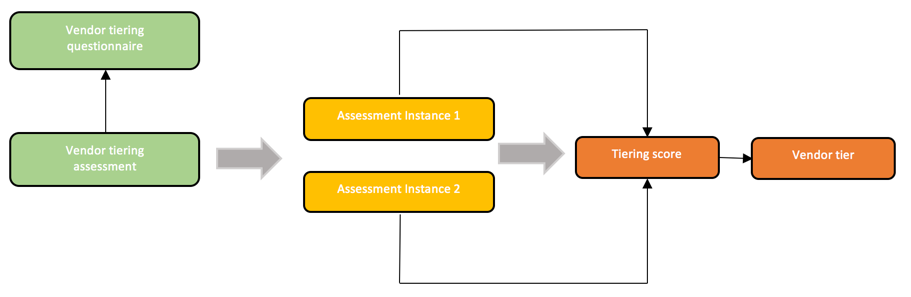
Vendor Tiering Process
- The tiering assessment initiates one assessment instance for each assigned assessor. The assessor sees only the sections assigned to them based on their role.
- The response scores from all assessment instances are averaged to provide the tiering score.
- The tiering score is mapped to the vendor tiering scale providing the vendor tier.
- This tier is assigned to the vendor when the tiering assessment is closed.
Security Scores
Starting in version 10.1.3, each third-party risk score provider can now have multiple scoring services. Each scoring service can be a set of number ranges, in ascending or descending order, or a set of ratings. Third-party scores are automatically mapped to the normalized scores and normalized ratings in Vendor Risk Management.
Third-party scores can also contribute to the final score/rating of vendors. Provider-based submission rules can be defined to monitor the third-party risk score changes. When the rules are triggered, a series of actions can be taken automatically, such as creating and sending an assessment, issue, or task.
After third-party provider scores have been added to a vendor, the External Risk Rating appears on the Vendor form. You can modify the default scoring method and/or the default weight on the Component Definition form. The Default scoring method can be modified to define how multiple scores for each risk area are calculated.
Assess
Setup and Generate Assessments
Vendor risk assessments are sent to vendors to determine the risk they pose. Assessments may happen during the early stages of the procurement process to help select the best qualified vendor from a pool of candidates, but it is also recommended to do this on a continuous basis on existing vendors to determine their long-term viability as a partner.
Read more about Configuring vendor risk assessments with templates
Security Scores
Continue to use security scores to assess vendors
Generate Findings
Vendor contacts use the Vendor Portal to:
- View and respond to current assessments
- Delegate responses to other contacts
- Manage teams - view, create, update, and delete contacts (Non-primary contacts may only view contacts)
- Update notification preferences
- Change a password or request a new password
What does the vendor see in the the vendor portal?
- Issues and tasks at the assessment level
- Issues and tasks at the vendor level
- Vendor contacts assigned to the assessments
Issue Remediation
Issue Management
States - New, Analyze, Finalize with Vendor, Review, Close
Generated by
- Issue Generation Rules
- Assessment Related List
- Vendor Response form
Remediation workflow
Report Risks
GRC Integration
VRM integrates with the Policy and Compliance, and Risk applications in ServiceNow
- Policy and Compliance
- Associate Control Objectives with specific questions in questionnaires
- Controls marked automatically as non-compliant or compliant
- Associate Control Objectives with specific questions in questionnaires
- Risk
- Automatically adjust calculated risk score for vendor
Monitor
Monitor vendor by security score, repeating assessments and tier-based submission
Retire Vendor
Retire vendor as needed
https://www.servicenowelite.com/blog/2020/11/22/vendor-risk-management