
Now Assist in AI Search - Nov 2024 release
 New article articles in ServiceNow Community
·
Nov 14, 2024
·
article
New article articles in ServiceNow Community
·
Nov 14, 2024
·
article
 Andre Ramsarran
Introduction
Now Assist in AI Search combines the power of platform AI Search with Retrieval Augmented Generation (RAG) to transform the search experience for a variety of use-cases. Today, RAG and vector embedding go hand-in-hand. But RAG is more than just vector embeddings, it's about Retrieving the "right stuff" (user context, security controls, other meta-data...) in order to Augment the Generation step. For example, consider a requestor searching via a portal or Virtual Agent (VA) conversation. Rather than returning a long list of search results, Now Assist in AI Search generates an answer (Genius Result) based on the most relevant knowledge articles, considering both user intent and relevancy of keyword terms. In the Nov'2024 release, Now Assist in AI Search has been enhanced to:
- Unify search results across content-types (Articles, VA topics, and catalog items)
- Generate article summaries while peering into knowledge blocks
(snippets of re-usable content embedded across articles) and attachments - Improve hybrid search techniques, including keyword, semantic vectors, and chunking
- Combine responses using relevancy re-ranking
Under the hood
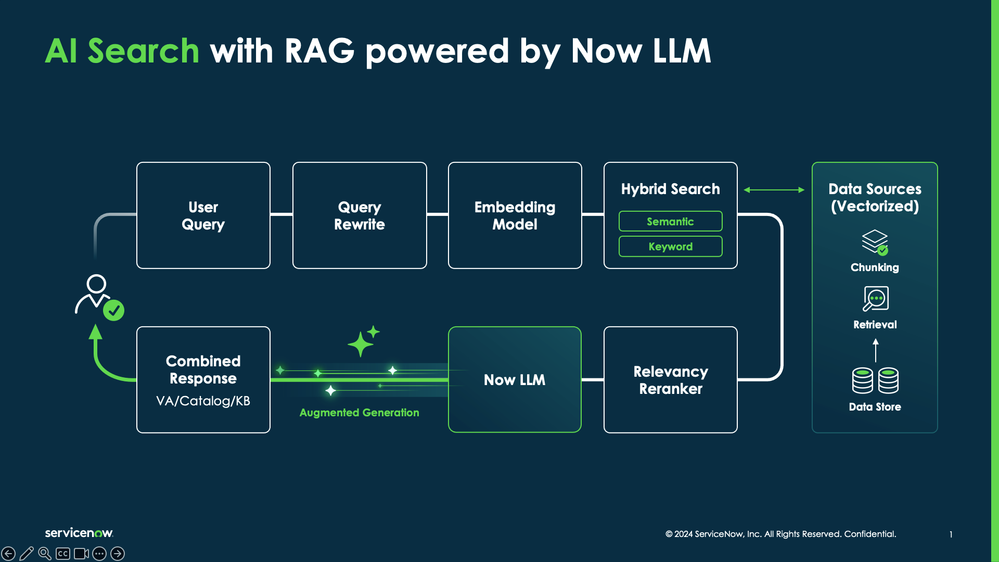
Let's look at the the inner workings of Now Assist in AI Search. Consider the following flow diagram:

- User Query - Requestor (employee or customer) via a portal of VA conversation enters a search query (utterance).
- Query Rewrite - The query is reformatted from natural language into embedding objects for submission to a embedding model.
- Embedding Model - An embedding model is used to convert high-dimensional data into low-dimensional vectors.
- Hybrid Search - Hybrid search uses a combination of keyword and semantic techniques.
* Keywords are ranked using not only counts, but word proximity (based on Best Match 25 method).
* Semantic meaning is derived by finding relevant passages from a large amount of unstructured text (based on Dense Passage Retrieval). - Data Sources - A vectorized data source is queried with chunking. For example, the top 10 articles related to a query may be retrieved and using ~750 words per/chunk reduced to the top 5 most relevant articles.
- Relevancy Reranker - A relevancy reranker is used to combine the influence of both keyword and semantic scores when ranking combined results.
- Now LLM - Now LLM is used to generate answers based on top KB articles, to suggest top VA topics, and most suited catalog items.
- Combine Response - Top articles are summarized into an answer, surfaced in the Genius Result card. Top content types (VA, Catalog, and Articles) are surfaced in a self-service interface.
Configuration & Setup
Let's walk through the steps of setting of Now Assist in AI Search.
- Note: Now Assist in AI Search can only be installed as a dependent app; as part of Now Assist for HRSD, ITSM, or CSM.
- Begin by installing the Now Assist for CSM (or preferred Now Assist offering).
- All > System Defintion > Plugins
- Search Now Assist for CSM
- Click Now Assist for CSM > Under "Get started" click Install
- You may need to install dependent applications first, such as "Glide Virtual agent".
- Note: Now Assist for Platform (dependency) is installed.
- You may need to install dependent applications first, such as "Glide Virtual agent".
- Review Installation Details > Check "Load demo data" > Click Install
- All > System Defintion > Plugins
- Next enable AI Search
- Under All > AI Search > AI Search Status
- If disabled, click Request AI Search
- The following dialog appears
- After 10-15 mins, you'll see...
- Under All > AI Search > AI Search Status


4. Next we will enable a specific AI Search application, for the Service Portal.
5. Before picture...
* Let's look at the portal experience before Now Assist of AI Search is enabled
* Navigate to .service-now.com/sp for the Service Portal
* Under the search, "How can we help?", type the search "Email scams".
* You get basic, keyword based, search results. Note, no Genius Q&A result card is generated.

6. Let's enable Knowledge Q&A for the Service Portal
* Navigate All > AI Search Admin > AI Search Admin Home
* Home (tab) > Applications (tab) > Under Filters > Status > Check Ready to turn on
* Click Service Portal
* You are presented with a guided setup screen. Consisting of settings related to Search Profile and Search Applications
* Next we review/enable the Search Profile settings....
* * Click Search Profile > Search Sources
Note, "Service Portal Search Sources" such as knowledge base articles.
* Click Dictionaries
Note, various stop word, spell check, and synonym dictionaries
* Click Result improvement rules
Note, none are defined OOTB, customer configurable.
* Click Genius Results > Q&A toggle ON > select Now Assist Q&A (only available in portals)
* Catalog Item toggle ON > Click Save
* Now review/enable Search Application Configurations
* Click Search Application Configurations > Auto Complete Suggestions > Note auto complete is delivered for recent searches, views and suggested results
* Click Navigation Tabs
Note, OOTB "Knowledge Portal Search Source" tab
* Click Sort Options
Note no OOTB configurations
* Click Facet Filters > These define the filter tree categories appearing on the left within AI Search pages
* Click Result-card interface > Note OOTB result card
* Click on Service Portal Configuration, takes us back to a summary of all our configurations....
* If the Service Portal is not turned on, click Go to turn on
* On the Service Portal form, under AI Search (section), check On Enable AI Search, followed by Update
* Current status should now state "AI Seach is On"
* Finally, we need to map Now Assist in AI Search to various portal profiles
* Navigate to All > AI Search > Now Assist in AI Search Setup
* For the following Search profiles, enable Now Assist in Genius Results
* Knowledge Portal Search Profile - Check ON Now Assist Q&A
* Service Portal Default Search Profile - Check ON Now Assist Q&A
* Click Save Changes
7. After Picture
Let's test our newly enabled Service Portal
* Navigate to .service-now.com/sp for the Service Portal
* Under the search, "How can we help?", type the search "Email scams".
* The following results appear...
* Note: If the Genius Q&A results are not being generated, try clearing your browser cache and/or attempting browsing in an Incognito session


Summary
The RAG architecture used in Now Assist in AI Search supports ServiceNow's approach to Responsible AI that is transparent, responsible, auditable, and secure.
- The Q&A Result Card content that is AI generated will show the label: “Powered by Now Assist”. (Transparent)
- ServiceNow experts have carefully curated a handful of prompts to guide and control the inputs and outputs of the LLM to reduce hallucinations. (Responsible)
- Using RAG to focus Now Assist in AI Search on trusted content, the risk of hallucination is designed to be reduced because the responses are grounded in content that the user has permission to access. (Responsible)
- Using conditional logic exclude certain content from being sent to the LLM thereby improving performance and reducing compute cost. (Responsible)
- The Q&A Result Card includes both the AI generated answer to the user’s question, along with a link to the source article. (Auditable)
- AI Search preserves Access Control List settings, and content security is automatically enabled and isn't configurable. (Secure)
https://www.servicenow.com/community/now-assist-articles/now-assist-in-ai-search-nov-2024-release/ta-p/3074279