
Seek and ye shall find
 sys.properties
·
Jan 17, 2013
·
article
sys.properties
·
Jan 17, 2013
·
article
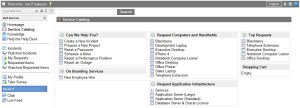
In an earlier post, I preferred not to pursue the topic of unnoticeable search boxes in ServiceNow. But let’s not put off that important discussion for too long. In this post, we will explore some ways to improve user experience by making search fields stand out.
In the era of information-oriented society, it is amazing how common it is for websites to have a search field blending into the background color. You could argue that Google also has a white search field on a snow-white page but, frankly speaking, that does not sound like a valid point. There is almost nothing else on Google’s main page except the search box placed right in the middle, so you will hardly be able to ignore it.
ServiceNow interface is not that minimalistic. Why is that, by the way? Wouldn’t it be great to have an ESS homepage with nothing but a search box? Anyway, how long do you think it would take you to spot the search box on the Service Catalog main page if you were not familiar with the ServiceNow user interface?

Based on my experience, most people start clicking here and there in a desperate attempt to find the correct item (or at least category) and only a short while later end up calling the service desk for help. Some of them will only notice the Search button, which happens not to be white, and click it without entering any search string whatsoever, probably expecting to see something like an advanced search page. Just out of curiosity, consider taking a look at the Service Catalog search statistics in your instance. The odds are that an empty search will have the highest frequency.
Now let’s see what we can do to make search functionality more obvious. Before you continue reading, forget about technicalities and think about how you would alter the search box if everything were possible.
Here is a list of things that came to my mind at once:
- Resize the search box
- Increase margins around it
- Place it in the center of the page
- Change the border style
- Change text color and font weight
- Change the background color of the search box
- Change the background color of the page behind it
Of course this is not an exhaustive list, so feel free to share your ideas in the comments to this post. Meanwhile, I will show you how you could leverage suggestions from my list. Let’s review several technical possibilities one by one:
Option 1: Modify the code of the UI page or macro
This would work for the Knowledge Base search box but not for Service Catalog. Some parts of UI page code in ServiceNow are XML templates and therefore cannot be customized. This is exactly the case with the Service Catalog search box. Besides, it should always be borne in mind that customizing an out-of-box record will prevent it from being updated during upgrades.
Option 2: Add a client script to the UI page
Service Catalog and Knowledge Base search boxes appear on multiple UI pages. Adding the same client script to each page is not practical. Moreover, a search box may not be part of a UI page at all. Knowledge Base search homepage widget is an example. And in terms of possible issues with upgrades, adding a client script to a UI page is no different from altering the Jelly code.
Option 3: Use a global UI script
Global UI scripts are an ideal way to create reusable client-side scripts that can then be executed on almost any ServiceNow page. Thus we will not need to change any out-of-box records. Importantly, reverting to the standard look of the search box will be as simple as deactivating the UI script.
Attention! This script was designed for Aspen and Berlin releases and may not work very well on instances using later versions.
// List all pages where you want this script to run
var myPages = new Array('/com.glideapp.servicecatalog_category_view.do', '/com.glideapp.servicecatalog_cat_item_view.do', '/catalog_home.do', '/catalog_find.do');
if (myPages.indexOf(location.pathname) > -1) {
try {
    addLoadEvent(function() {
        var searchBox = $('sysparm_search');

        // Set box width and border, text and background color, font weight and size
        searchBox.setAttribute('size', '50');
        searchBox.style.border = '3px solid grey';
        searchBox.style.color = 'grey';
        searchBox.style.backgroundColor = 'white';
        searchBox.style.fontWeight = 'bold';
        searchBox.style.fontSize = 'larger';

        // Center the search box
        searchBox.up('table').style.width = '99%';
        searchBox.up('td').style.textAlign = 'center';

        // Set a background color
        searchBox.up('div').style.backgroundColor = 'lightgrey';
        searchBox.up('table').style.backgroundColor = 'transparent';

        // Adjust margins as necessary
        searchBox.style.marginRight = '10px';
        searchBox.up('div').style.marginLeft = '0px';
        searchBox.up('div').style.paddingTop = '25px';
        searchBox.up('div').style.paddingBottom = '25px';

        // Automatically focus on the search box
        searchBox.focus();
    });

} catch(err) {}
}
With the help of this script, a custom style is applied to the Service Catalog search box on all pages where it belongs. You can use the same technique to give a custom look to the Knowledge Base search box or any other element of the user interface without interfering with the out-of-box code. I will share more examples in my future posts.

https://sys.properties/2013/01/18/seek-and-ye-shall-find/