
UniDirectional: JIRA Integration with ServiceNow using JIRA SPOKE
 New article articles in ServiceNow Community
·
Jan 20, 2025
·
article
New article articles in ServiceNow Community
·
Jan 20, 2025
·
article
JIRA Integration with ServiceNow using JIRA SPOKE
Note: There might already be articles or documents available for JIRA integration, but I wanted to create a detailed one to help those who are trying to learn or implement it. I faced some errors/issues while following other guides and have simplified the process here. Please feel free to comment if anything is wrong or needs to be corrected.
Prerequisites:
- A JIRA account should be created with an API Key. For more info, please refer the below:
https://www.atlassian.com/software/jira/guides/getting-started/basics#step-4-create-an-issue
https://support.atlassian.com/atlassian-account/docs/manage-api-tokens-for-your-atlassian-account/
Overview:
This is a unidirectional integration where ServiceNow acts as the source and JIRA is the receiver. This means that data flows from ServiceNow to JIRA.
Steps:
- Ensure Integration Hub Plugin is Installed
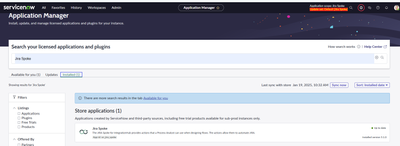
- Install the JIRA Spoke:
- Go to Plugin > Click Find in Store > Search for JIRA Spoke OR
- Open the JIRA Spoke application from the store.
- Note: Trial apps can only be installed on non-production instances. Purchased apps can be installed on any instance.
- To Install the Application:
- Log in to the ServiceNow instance where you want to install the app.
- Navigate to System Applications > All Available Applications > All.
- Search for the app you want to install.
- Click on Install. Your app will be automatically installed onto your instance.

- Note: Some other plugins need to be pre-installed as JIRA Spoke is dependent on them:
- ServiceNow IntegrationHub Runtime
- ServiceNow IntegrationHub Action Step - REST
- ServiceNow IntegrationHub Action Template - Data Stream
- Verify JIRA Spoke Installation:
- Go to All Applications, type JIRA, and check if the spoke is correctly installed.

- Create the Credential Profile:
- Navigate to Connections & Credentials > Credentials > New > Basic Auth

Credentials and create a new credential profile.

- Note: You can ignore putting the alias.
- Create a Connection Profile:
- Navigate to Connections & Credential Aliases > Connections > New > HTTP(s) Connection.

- Check Connection and Credential Alias:
- Ensure the connection profile is correctly associated with the alias.

- Clear Cache:
- Ensure you clear the cache of your instance after this setup.
- JIRA Spoke is Ready to Use:
- glide.rest.outbound.debug - true|false - true
- glide.outbound_http_log.override - true|false - true
- glide.outbound_http_log.override.level - String – all
- To troubleshoot HTTPS requests, enable the following via sys_properties. If there is none, please create an entry. To view the HTTP logs, go to Outbound HTTPS Logs in the system logs menu.
- glide.rest.outbound.debug - true|false - true

- Test the Integration:
- You may use Postman for testing purposes.

- For my use case, I created a flow for the incident table triggered when an incident is created or updated where:
- Short description starts with "Create a JIRA Record:"
- Incident state is not one of 7, 8
- Configuration item is JIRA

- The flow creates an issue on JIRA with the description: "The application crashes with an error message whenever a file larger than 10MB is uploaded. Please assign to Dev Project and contact the Team on 8987986469."

Note: The Project ID and Issue Type ID might be empty if there is an issue with the credentials. Please check the output HTTPS request logs to debug the issue. For more information, please check out: https://support.servicenow.com/kb?id=kb%5Farticle%5Fview&sysparm%5Farticle=KB1635414
- It then updates the incident table with the JIRA KEY/reference number and closes the created incident.
- For my use case, I created custom fields - JIRA Number and JIRA CI on the cmdb_ci_appl table.
- Now, let's test our flow. Please check the post for the test results, as I cannot upload more than 10 images at a time.
This integration can be used for many other use cases. I created one for my learning purposes. I will post the Bi-Directional integration next week.
If you believe the solution provided has adequately addressed your query, could you please **mark it as 'Helpful'** and **'Accept it as a Solution'**? This will help other community members who might have the same question find the answer more easily.
Thank you for your consideration.
Selva Arun
https://www.servicenow.com/community/developer-articles/unidirectional-jira-integration-with-servicenow-using-jira-spoke/ta-p/3153842