
Workplace Connectors - Implementation Guide
 New article articles in ServiceNow Community
·
Jan 13, 2025
·
article
New article articles in ServiceNow Community
·
Jan 13, 2025
·
article
This blog provides guidance to set up the Workplace Connectors. Workplace Connectors is an application that allows organisations to use data from different kinds of sensors (badging systems, occupancy sensors, environment/air quality sensors, Wi-Fi data etc.) for taking real estate design and investment decisions.
1. Plugin/App Information
App Name: Workplace Connectors
Plugin Id: sn_wsd_wc
Version History
| Version | Release | Notes |
|---|---|---|
| 1.0.2 | 3-Aug-2023 | Framework to get badging data into WSD through file processing. |
| 1.1.0 | 2-Nov-2023 | New webhook/Rest API using which badging events can be sent to WSD in real time. |
| 1.3.2 | 9-May-2024 | Framework enhancements to make it more generic and support for Occupancy Sensor Data. |
| 1.4.0 | 1-Aug-2024 | Framework enhancements to support Environmental Data (Temperature & Air Quality). |
| 1.5.1 | 7-Nov-2024 | Framework enhancements to support Wi-Fi data |
Dependent Plugins
- Workplace Core
- Workplace Connectors
- Integration Hub(com.glide.hub.integrations.professional) – For Spoke implementation.
- Spoke builder - For Spoke implementation.
- Metrikus Spoke – ServiceNow provides Metrikus spoke implementation and the configurations. So, if your vendor is Metrikus, you can install this plugin.
2. Basic Configurations for all sensor/hardware types
Install Plugin Workplace Connectors scope sn_wsd_wc.
User should have sn_wsd_wc.admin role to be able to do the required configurations.
2.1 Provider
Provider is the vendor who is providing the sensor/hardware data. Ex- Lenal Onguard, Genetec, Metrikus, VergeSense
Providers are stored in the table Provider (sn_wsd_wc_provider)
To configure a new provider, follow these steps:
- Navigate to All -> Workplace Connectors ->Administration -> Providers.
- Click on New and add a new Provider.
Important Note: If a new spoke app (Ex- Genetec Badging Integration Spoke) is being created, then the Provider record has to be in the scope of the spoke app.
2.2 Connector Configurations
Connector is the type of sensor/hardware. Ex- Badging, Occupancy etc.
Connectors are stored in the table Connector Configuration (sn_wsd_wc_connector_config).
By default the below Connector Configurations are shipped with the Workplace Connectors app.
- Badging
- Occupancy
- Environment
It is NOT expected to create a new connector configuration record.
Verify below values in the Connector Configuration table.
Target Table: the table where the connector will store the data, such as the Employee Attendance table.
Type: the type of data the connector will process, for example, badging data or occupancy data.
Extension Point Definition: the extension point that defines the implementation for processing data from the provider. This will be just an interface. Each provider must have a separate implementation. Details about how to create an Extension Point are detailed in each sensor/hardware implementation.
Stale Time (Minutes): specify the stale time of the target table data. It is the time in minutes after which the data becomes stale, and the framework would get latest data from the Provider’s cloud. The customer can modify the stale time as per the requirement.
Note: The above field “Stale Time” field On Connector Configurations table is present in V 1.4.0 (Aug 2024 release) of Workplace Connectors app. Prior to this version, it is present as a system property called “sn_wsd_wc.stale_time”.
2.3 Provider Connector Configuration
Important Note: If a new spoke app (Ex- Genetec Badging Integration Spoke) is being created, then the Provider record has to be in the scope of the spoke app.
Configure how the data from the Provider (Ex- VergeSense, Lenel OnGuard, Metrkus) is brought into WSD.
- Navigate to All -> Workplace Connector -> Administration -> Provider Connector Configuration
- Click on Create New to open the Provider Connector Configuration form
- Provide the following details and select the vendor app scope:
Provider: Select a Provider from the list
Connector Configuration: Select the connector configuration from the list
Source Type: It is a choice field with the below options
- Table: If the sensor/hardware data is being picked from a source table. (Select this option if vendor sends data through a file and the file is parsed and data is loaded into a table)
Source Table: Specify the table from which the sensor/hardware data is to be read. This field is applicable only if the source type is set to Table.
Run Frequency: Set the frequency at which the scheduled job will run to fetch data from the table. This field is applicable only if the source type is set to Table.
b. Webhook: If data is being pushed to WSD via webhook.
Token param name: Specify a token param name. It is expected that the vendor will pass the same token/client ID name while calling the webhook for authentication. Applicable only if source type is Webhook.
Token value: Specify a token value (Secret key). It is expected that the vendor will pass the same secret key while calling the webhook for authentication. Applicable only if source type is Webhook.
Callback URL: This will be auto-generated by clicking the UI action “Generate ”while editing the record. This URL will have the system ID of this provider config record. Applicable only if source type is Webhook.
c. RestApi-Pull: If the vendor exposes an API to fetch the data from their server. Make sure to set up the Action Configuration.
d. External: If data is directly entered into the sensor table. Ex - employee attendance data table
Space Filter Condition: specify the locations for which the said vendor would give you the data for the connector configuration given. It is a filter condition that runs on the table – Workplace Location. Here you can select a whole
region to a set of spaces on a floor. (Ex- Occupancy Sensors are installed only in Building B in NY campus. For Occupancy connector configuration record, set space filter condition to match building B in NY campus)
Auto Refresh Location: This column makes sure that if new locations are added which satisfies the space filter condition, then they are automatically loaded into Workplace Connectors app. If this is set to false, then new locations added later, will not be in the space occupancy table.
Active: Make sure this field is set to true, if we need the configuration to work.
2.4 Provider Space Mapping table & External ID configuration
Once you have provided the space filter condition in above step (while creating the Provider Connector Configuration record), then all the locations that satisfy the given condition are inserted into the table Provider Space Mappings (sn_wsd_wc_provider_space_mapping) using an async business rule.
You will have the entire hierarchy from region until the space. For example, if the space filter condition is given as Floor 1 of Building A, then the region, site, campus, building, floor and spaces corresponding to Floor 1 of Building A would be created.
Once all locations are in the Provider Space Mappings table, then each space record in this table needs to be updated with “External Id” (field name is external_id) against the locations. External Id is the Unique Id of the location in the Provider’s (or Vendor’s) system. The external ID field would be used to identify the space in the vendor’s system.
2.5 Scheduled Jobs
- “Process provider data record” scheduled job is applicable if on the Provider Connector Confiugration record, source type is set to “Table”. The job will pick the records from data source (ex-badging data table) and populate respective sensor/hardware data table (ex- Employee Attendance table) based on the run frequency selected in the Provider Configuration table.
- “Process webhook provider data records” scheduled job is applicable if on the Provider Connector Configuration record, source type is set to “Webhook”. The job will take all the newly created events in the connector events table and process the payloads in them via extension points and then insert data into the respective sensor/hardware data table (ex - Employee Attendance table)
- The schedule job “Refresh Provider Space Mapping records” runs daily and executes the space filter condition on the Provider Connector Configuration records for the active records and whose auto-refresh field is set to True.
Ex - Let us say vendor A is providing occupancy data for building A and the configuration exists in the Provider Connector Config table. Let us assume that building A has only 2 floors when this configuration was being created,so Provider Space Mapping table would only have locations(spaces) of only the 2 floors. If a new floor was added later, then the spaces under the new floor should also be inserted into the Provider Space Mapping table, since it satisfies the space filter condition. The schedule job mentioned here would do that job for you, provided you set the column field auto-refresh to True.
2.6 Provider Execution
The table Provider Executions (sn_wsd_wc_provider_execution) will have the last query time of the provider configuration. Every time the scheduled job “Process Provider data record” will run this table will have an entry for the last query time.
2.7 Decide how WSD Workplace Connectors app integrates with each vendor/connector
For each vendor/connector decide how event data is acquired in SN WSD. This is configured in Provider Connector Configuration table (section 3.3)
Each of the below sections describes one type of data acquisition.
Section 4 (Badging Systems Integration Implementation) describes if Type = Table. It is NOT mandatory to fetch badging data only via table copy. This is just a sample implementation.
Section 5 (Occupancy Sensors Integration Implementation) describes if Type = RestAPI-Pull. It is NOT mandatory to fetch occupancy data only via RestAPI-Pull method. This is just a sample implementation.
Section 8 describes if Type = Webhook.
How to fetch the data into WSD depends on –
(1) Provider support for a type. Ex- if a particular vendor support RestAPI-Pull, then there no option but to implement that method
(2) Is real time data required for business use-cases. Ex- if badging data would be used to analyze employee attendance and there is no need for real time bading data, then data can be fetched via file import (frequency(6 hourly or daily etc) can be set based on business use case)
SN WSD team recommends Webhook method of data acquisition since this is the fastest implementation. Configure the webhook in the Provider/vendor cloud platform to PUSH data to SN WSD Workplace Connectors at defined frequency (ex- every 5 mins). Configure the webhook as described in Section 8.
For any type of data acquisition (table copy, Webhook, RestAPI-Pull), there has to be an Extension Point Definition as described in each of the below sections.
3. Badging Systems Integration Implementation
The Badging Vendor Integration is designed to handle badging data from a specific badging vendor.
The badging data is to be stored in the table Employee Attendance Data (sn_wsd_wc_employee_attendance_data).
If the badging data from vendor to WSD is sent via a file (xls/json/xml/csv), then a “Data Source” needs to be created. Refer to section 4.1 for the same. Please note that it is NOT mandatory to get Badging data through files. This section describes the file processing method. But if the data is obtained through other methods – Webhook OR RestAPI-Pull, then refer other sections. The Extension point definition will remain same irrespective of the method.
3.1 Data Source Configuration
To set up the data source for the Badging Vendor Spoke, follow these steps:
- Navigate to All -> System Import sets -> Data Sources.
- Click on the Create New button to open the data source form.
- Fill in the following details:
Name: Provide a name for the data source.
Import Set table label: Enter the label for the table (e.g., Badging Data).
Import Set table name: Specify the name for the table (e.g., badging_data).
Type: Select the connection type from the source to the Badging Data table (e.g., File).
File retrieval method: Choose the appropriate method from the dropdown (e.g., SFTP or FTP or attachment).
Format: Specify the format of the data (e.g., CSV).
3.2 Data Transformation (Optional)
If data manipulation is required before copying the data into the Employee Attendance Data (sn_wsd_wc_employee_attendance_data) table, then create a staging table, transform data and then copy to Employee Attendance Data (sn_wsd_wc_employee_attendance_data).
3.3 Scheduled Imports
To schedule the import job and retrieve data from the badging data source periodically, follow these steps:
- Navigate to All -> Scheduled Import Sets -> Scheduled Imports.
- Click on Create New to open the form for creating a scheduled import job.
o Make sure the Data Source created in step 3.1 is selected
o Set the desired import frequency for the scheduled job.
3.4 Extension Point Definition
Navigate to Workplace Connectors > Provider Connector Configuration
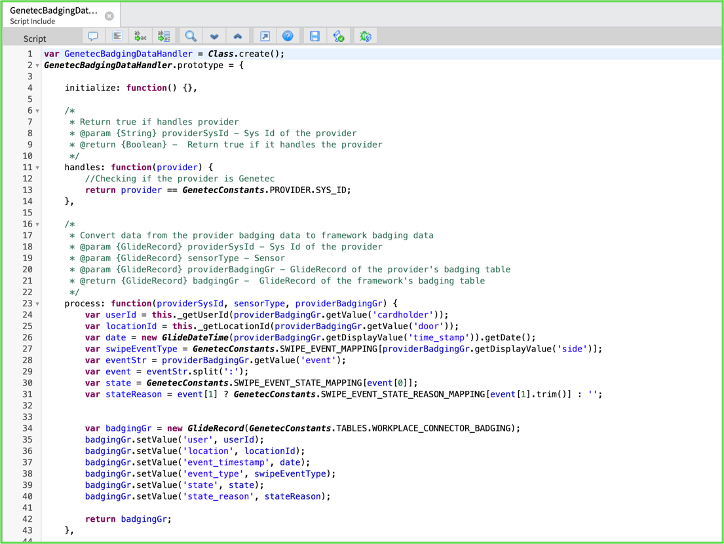
Select the BadgingDataHandler. This is an interface provided with the Workplace Connectors app. The implemenation team is required to create a new Vendor Specific Data Handler (Ex- GenetecDataHandler) that implements the methods in this interface. This vendor specific data handler would contain all the data transformation(mapping data fields from the vendor to the Employee Attendance Data (sn_wsd_wc_employee_attendance_data)) logic. This new data handler would be in the spoke app (Ex- Genetec Badging Integration spoke) that was created for the vendor. If there are multiple badging vendors, then one Data Handler should be created for each vendor – that is, each vendor will have a separate implementation.
A record needs to be made in the Extension Instance table (sys_extension_instance). Change the scope to the scope of the spoke application. In LHS navigation type sys_extension_instance.list. Select “New” button
Point – select the sn_wsd_wc.BadgingDataHandler
Class – provide the name of the new class (Ex- GenetecBadgingDataHandler)
Application – make sure it is the spoke app (Ex- Genetec Badging Integration Spoke)
Image – BadgingDataHandler (shipped OOB with Workplace Connectors app)

Image: The implementation (GenetecDataHandler) which the implementation team is expected to create.


Image: A record in Extension Instance

3.5 Badging Analytics - Occupancy Dashboard
The dashboard can be accessed from Workplace Central Application. The dashboard is shipped as part of Workplace Central app. To view the attendance analytics reports, navigate to All -> Workplace Central -> Occupancy Dashboard.
Users with the following roles can access the attendance analytics reports:
- sn_wsd_central.workplace_analytics_user
- sn_wsd_wc.manager
- sn_wsd_wc.user
Workplace managers use this dashboard to understand how many employees are coming to office. The main aim of this dashboard is to report on “Total headcount VS onsite headcount”
Filters available – Date, Location Hierarchy (region, site, campus, building, floor), Allocation (Cost Center, Department).
Ex- get emp presence (headcount) of ITSM cost center in Hyderabad office. The dashboard shows – In May 2024, out of 300 emp from ITSM CC allocated to Hydbad office, on an average 100 employees came to office.
The basis of this dashboard is “badging data”. A daily job (WSDHeadCount Daily Job) summarizes all badging data and populates the summary (or roll up) table. The summary (roll up) table name is sn_wsd_central_attendance_analytics (Attendance Analytics). If we want to see any kind of data in the dashboard, we just need to populate this single table.
3.6 Data Prerequisites
- Users should have an employee profile created.
- Users should have a workplace location assigned to their user profile.


4. Occupancy Sensors Integration Implementation
Please note that it is NOT mandatory to get Occupancy data through RestAPI-Pull. This section describes the RestAPI-Pull processing method. But if the data is obtained through other methods (ex-Webhook) then refer other sections. The Extension point definition will remain same irrespective of the method.
4.1 Action Configuration (For 'RestAPI-Pull')
In this step, you will configure the actions against the Provider Connector combination, which flows/sub flows to invoke, which transform definition to use.
Navigate to All -> Workplace Connectors -> Action Configurations
Make sure the scope is set to the scope of the Spoke App
Click on Create New to open the provider connector configuration form.
- Provide the details:
- Provider: Select the provider from the Providers list
- Connector Configuration: Select the connector configuration created in the previous steps
- Action Name: Give a meaningful action name
- Invoke: Select a Flow/ sub flow based on the implementation.
- Flow: If Flow is selected in step iv, then give the Flow to be invoked. (The flow should be in the Vendor Spoke).
- Sub flow: If sub slow is selected in step iv, then give the sub flow to be invoked. (The sub flow should be in the Vendor Spoke).
Transform Definition: For Occupancy data, we have added an extension point called ActionDataHandler. The customer needs to provider an implementation for the point for each vendor.
Create the flow or sub flow that needs to be invoked for the action – REST API pull. Once the flow is created, make sure to select it against the configuration record created in ‘ACTION CONFIGURATION’.
The flow/sub flow is responsible to call the vendor API, process the data using the transform definition and dump it into the target table – Space Occupancy Data.
An example sub flow would look like this:

An example of an action inside the sub flow would like this:

4.2 Extension Point Definition
Navigate to Workplace Connectors > Provider Connector Configuration
Select the OccupancyDataHandler. This is an interface provided with the Workplace Connectors app. The implementation team is required to create a new Vendor Specific Data Handler (Ex- XYSenseOccDataHandler) that implements the methods in this interface. This vendor specific data handler would contain all the data transformation(mapping data fields from the vendor to the Space Occupancy Data (sn_wsd_wc_space_occupancy)) logic. This new data handler would be in the spoke app (Ex- XYSense Occupancy Integration spoke) that was created for the vendor. If there are multiple occupancy sensor vendors, then one Data Handler should be created for each vendor – that is, each vendor will have a separate implementation.
A record needs to be made in the Extension Instance table (sys_extension_instance). Change the scope to the scope of the spoke application. In LHS navigation type sys_extension_instance.list. Select “New” button
Point – select the sn_wsd_wc.OccupancyDataHandler
Class – provide the name of the new class (Ex- XYSenseOccDataHandler)
Application – make sure it is the spoke app (Ex- XYSense Occupancy Integration Spoke)
Image – OccupancyDataHandler (shipped OOB with Workplace Connectors app)

Image: The implementation which the implementation team is expected to create.


5. Environmental Sensors Integration Implementation
Please note that it is NOT mandatory to get Environment data through Webhook. The data can be obtained through other methods – ex .RestAPI-Pull. The Extension point definition will remain the same irrespective of the method.
5.1 New table for holding units of the environmental data
The table sn_wsd_wc_unit_of_measure (Unit of Measure) stores the units of the air quality indicators like CO2, O2, etc. being used in the Environment Data table.
In order to view the table, go to All -> Workplace Connectors -> Administration -> Units of Measure.
5.2 Environment Data Handler Extension point
The extension point “EnvironmentDataHandler” handles data coming in from the environmental sensors. The customer has to provide an implementation for these extension points for each vendor.
Sample Extension Point Implementation

The code inside it would look similar to this:

6. Vendor Spoke Implementation
The app that integrates with the vendor system to fetch the sensor data into SN WSD is called the spoke app. The spoke app has to be created and published on the SN Store.
Below are the typical contents of the Spoke App-
- New provider record. Refer section 3
- New provider connector config record. Refer section 3
- New extension point. Refer section 3
- New record in sys_extension_record. Refer section 3
- Methods to call the APIs of the vendor. Flow implementations
- Connection & Credential Alias
- Create a Connection and Credential Alias
- Go to All ->Connections and Credentials -> Connections and Credentials Aliases
- Create a new record for the vendor integration. You will need to input details like the host name, authentication method, client secret, client id
- Go to All ->Connections and Credentials -> Connections and Credentials Aliases
- Create a Connection and Credential Alias
7. Webhook Configuration
If the Provider/Vendor is PUSHING the raw sensor/hardware event data into WSD Workplace Connectors app, then configure the webhook as described below.
Send the POST request to the below mentioned ServiceNow endpoint, including the JSON payload in the request body.
The payload can contain either a single event or an array of events. The payload should contain information about the type of data and the location where the data was captured. For instance, in the example payload below, the 'event_type' field specifies that the data pertains to environmental sensors, and the 'location' field provides details about the location. The structure of the payload may vary depending on the event type, and ServiceNow instance will parse the data accordingly.
POST " https://.service-now.com/api/sn_wsd_wc/v1/workplace_connector_webhook/event?token_name=&ni.nolog.id=&token_value="
API: /api/sn_wsd_wc/v1/workplace_connector_webhook/event
| Name | Description |
|---|---|
| ni.nolog.id | Required. Sys_id of the provider configuration record associated with the hardware that generated the event information. Located in the Provider Configuration [sn_wsd_wc_provider_config] table. Data type: String |
| token_name | Name of the security token, such as a user name or other value that identifies the security token. Used for authenticating the request. Located in the Provider configuration [sn_wsd_wc_provider_config] table. Data type: String |
| token_value | Value associated with the security token, such as a password. Used for authenticating the request. Located in the Provider configuration [sn_wsd_wc_provider_config] table. Data type: String |
Sample Payloads:


Note:
- The evnts data would be stored in Connector Events table
- The names in above payloads would be handled in corresponding DataHandler extension points.
- Ensure that any provided timestamp adheres to ISO 8601 format to avoid any issues with date parsing.
Response Codes:
| Status Code | Description |
|---|---|
| 200 | Successful. The request was successfully processed. |
| 400 | Bad Request. A bad request type or malformed request was detected. |
| 401 | Unauthorized. The user credentials are incorrect or haven't been passed. |
| 404 | Not found. The requested item wasn't found. |
| 500 | Internal server error. An unexpected error occurred while processing the request. The response contains additional information about the error. |
Sample Curl Request:

8. List of Tables and Roles in Workplace Connectors App
Below is the list of Tables
| Label | Name | Description |
|---|---|---|
| Provider | sn_wsd_wc_provider | List of vendors who are providing the sensor/hardware data |
| Connector Configuration | sn_wsd_wc_connector_config | Type of sensor/hardware |
| Provider Connector Configuration | sn_wsd_wc_provider_config | Configuration on how the data from Provider is brought into WSD for each Connector |
| Provider Space Type Mapping | sn_wsd_wc_provider_space_type_mapping | Mapping between Space types of WSD to space types of Provider (vendor) |
| Provider Execution | sn_wsd_wc_provider_execution | Run times (or log) of the “Process Provider data record” job |
| Action Configuration | sn_wsd_wc_action_config | Actions against the Provider Connector combination (used for RestAPI-Pull) |
| Connector Events | sn_wsd_wc_connector_events | All raw individual data records received from the Provider |
| Unit of Measure | sn_wsd_wc_unit_of_measure | Units to be used for Environmental Data parameters |
| Space Occupancy | sn_wsd_wc_space_occupancy | Space occupancy records |
| Archive Space Occupancy | ar_sn_wsd_wc_space_occupancy | Archived Space occupancy records |
| Environmental Data | sn_wsd_wc_space_environment | Environmental Data Records |
| Archive Environmental Data | ar_sn_wsd_wc_space_environment | Archived Environmental Data Records |
| Employee Attendance Data | sn_wsd_wc_employee_attendance_data | Badging Data Records |
Below is the list of Roles
| Role | Contains Role | Description |
|---|---|---|
| sn_wsd_wc.admin | sn_wsd_wc.manager, fd_read_flows, fd_read_actions | Admin persona - performs the Workplace Connectors app setup and configurations |
| sn_wsd_wc.manager | sn_wsd_wc.user | For the workplace manager persona who can read the Occupancy (and other) dashboards and has READ access to underlying data |
| sn_wsd_wc.user | sn_wsd_core.workplace_user, sn_wsd_central.workplace_analytics_user | End user persona who can read the Occupancy (and other) dashboards. |
9. Abbreviations used
| Abbreviation | Full Form |
|---|---|
| SN | ServiceNow |
| WSD | Workplace Service Delivery |
10. Links to other resources
- WSD Documentation
- Workplace Connectors Documentation
- SN Spoke/App Creation Process
The course in the below link help to understand the step by step process on how to build, test, certify, and publish applications and integrations on the ServiceNow Store.
The partners need to be logged in to access the above course. I would recommend first logging into the following URL using their ServiceNow account before accessing the above course. If not they will not get an error message saying the course could not load.
https://www.servicenow.com/community/wsd-blog/workplace-connectors-implementation-guide/ba-p/3145588