
Hiding workspaces from header menu in Next experience: -
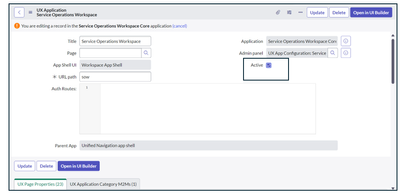
Recently, I encountered a requirement to hide the workspace menu in the Next Experience. This is necessary for various reasons, such as improving user interface, or restricting access to certain workspaces.
Here's a step-by-step guide to achieve this:
Steps to Hide a Workspace Menu
- Navigate to the UX Page Registry:
Enter “sys_ux_page_registry.LIST” in the navigator. This will display a list of all available UX applications.
- Select the Workspace to Hide:
From the list, open the workspace you would like to hide. For instance, let's consider the "Service Operator" workspace.
- Change Scope and Application:
Ensure you change the scope and application to match the workspace you are working with. This step ensures that any changes made are within the correct scope and update set.
- Deactivate the Workspace:
Uncheck the "Active" field in the form. This action deactivates the workspace, making it hidden from the header menu.

Click on the "Update" button to save your changes.

Go back to the workspace menu in the header and check to see if the respective workspace has been hidden.
References:- Need to Hide Workspace Tab in the Unified Navigation in Next Experince - Support and Troubleshooting...
https://www.servicenow.com/community/itsm-blog/hiding-workspaces-from-header-menu-in-next-experience/ba-p/3001351