
Impact customers can now see all of their subscriptions in one place!
Up until now, the only way to see your subscriptions was to log into your ServiceNow instance. If you have multiple production instances, this was a big effort, requiring you to log into each of your instances. If you then wanted an overall view of your subscriptions, you had to manually combine this data.
We’ve got good news! If you’re an Impact customer, you can now view all of your subscriptions in one place. As of the Washington release, we’ve added Subscriptions to the Impact IDE. This gives you a combined view of subscriptions across all of your instances, including information such as contract start and end dates, subscription types, and number of licences. You can also easily drill into the capabilities that come with each subscription, giving you insights into new capabilities that you’re entitled to implement.
Note that Subscriptions is available for all commercial customers, but it isn’t available for GCC customers.
Let’s take a closer look at how the new Impact Subscriptions feature works.
Accessing Subscriptions in the IDE
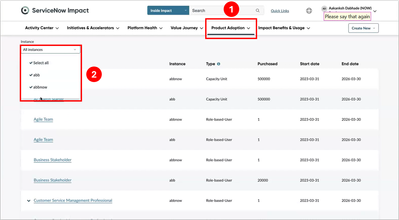
It’s easy. Just open up the Impact IDE and select “Subscriptions” from the “Product Adoption” dropdown menu (see “1” in the screenshot below). Then choose the instances for which you want subscription information (see “2”). You can select any combination of instances or click on “Select All”. By default, subscriptions on all of your instances are shown.

Viewing your subscriptions
You’ll then see a scrollable list of the subscriptions for your chosen instances. Each subscription shows the instance, subscription type, the purchased quantity, and the subscription start date and end date. Note that if you have the same subscription on multiple instances, you’ll see a separate subscription line for each instance. By default, the subscriptions are sorted alphabetically, but you can sort the view by clicking on any of the column headers.

Seeing secondary subscription meters
If the subscription has secondary meters, you can also easily view these by clicking on the down arrow next to the subscription. This displays the secondary meters directly underneath the subscription. For instance, in the screenshot below, we’ve expanded a “Customer Service Management Professional” subscription to show there are three secondary meters. To close the list of secondary meters again, click on the up arrow next to the subscription.

Viewing the details of a subscription
To see the details of any subscription, just click on the subscription. A flyout will appear with information about the subscription. There’s a summary bar at the top that shows the same information that’s in the main subscription list. Below that, you’ll see an alphabetically sorted list of all of the capabilities that come with that subscription. For example, in the screenshot below, we can see that the “Customer Service Management Professional” subscription comes with five capabilities.

Getting more information about a capability
If you want to find out more about a capability—for example, if it’s a capability you haven’t already implemented—simply click on the capability in the subscription details flyout. You’ll get another flyout that contains a description of the capability along with a link to product documentation. If the capability is one that’s been recommended by your Impact Squad, you’ll also get links to additional useful resources, such as release notes and training (see “1” in the screenshot below).

You can also add your own notes about the capability by clicking on the Notes tab in the flyout screen (see "2" above). For instance, you can include your thoughts on how the capability might address some of your specific business issues, or make a note to talk to your Impact Squad about the capability the next time you meet with them.
Note that this capabilities flyout is the same one that appears in your Impact Capability Map and Product Adoption Roadmaps, so any notes you make here will also appear there, and vice versa.
https://www.servicenow.com/community/servicenow-impact-articles/impact-customers-can-now-see-all-of-their-subscriptions-in-one/ta-p/2987959