
Making Condition type fields human readable
 Mark Roethof
Articles, Blogs, Videos, Podcasts, Share projects - Experiences from the field
Hi there,
Ever came across situations where Condition type fields are not human-readable, and are just displayed as the encoded query code? Wondering if we can do something about this? Yes we can! There's a Dictionary Attribute for that  .
.
Condition type fields on List Lay-out or Form Lay-out for a read-only record
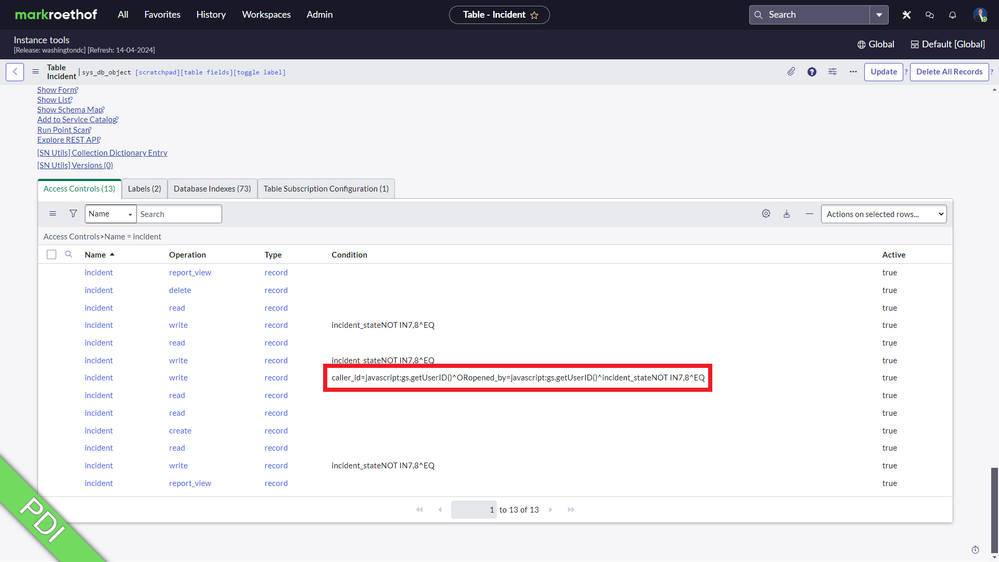
When viewing Condition type fields on a List Lay-out, by default these would display as the encoded query. Like this example:

Condition type fields also are displayed as encoded query when viewing a Form Lay-out for a read-only record. Like this example:

"Readable" Dictionary Attribute
The examples given in the previous section are not very human-readable. While most of the encoded queries can be understood, you will get lost in translation when values are used. We can do something about this. There is an out-of-the-box Dictionary Attribute available to be used on the Dictionary Attribute Collection record for the specific Dictionary Entry. On an out-of-the-box fresh Washington DC Patch 3 Hotfix 1 instance, this Dictionary Attribute is applied 58 times.
The Dictionary Attribute I'm referring to, "Readable" with value "true" or "readable=true".

Applying the Dictionary Attribute isn't that difficult and a case of seconds.
1) Go to the Dictionary Entries List Lay-out (sys_dictionary) and search for the field you are after using the "Column name" field and select "Type" "Collection"
2) Using the "Attributes" Related List, add Attribute "Readable" with value "true". Or add "readable=true" directly to the "Attributes" field on the Dictionary Entry.
The Related List and the Attributes field are out-of-the-box kept in sync through Business Rules, so you only have to apply one of the two methods.

After saving the changes, this should be effective immediately.
Result
Navigating to your Condition type field again, the result should now look something like:


---
That's it. Hope you like it. If any questions or remarks, let me know!
Kind regards,
Mark Roethof
Independent ServiceNow Consultant
9x ServiceNow MVP
---
https://www.servicenow.com/community/developer-articles/making-condition-type-fields-human-readable/ta-p/2970709