
You can now get detailed Health Assessment findings right in the Impact IDE
Because the ServiceNow platform automates some of your most important business processes, it’s critical to keep it healthy. One of the key ways to do this is to get a regular Health Assessment. This is an Impact Accelerator where ServiceNow experts carry out a technical assessment of one of your ServiceNow instances to identify any health issues, giving you a detailed analysis of technical debt based on ServiceNow’s library of best practice checks and definitions, along with remediation recommendations.
Until now, there was only summary information in the Impact IDE about the results of Health Assessments. If you’re familiar with the Health Scorecard, this provides a statistical analysis of your Health Assessment results, but it doesn’t give you detailed insights into the individual findings. Instead, your Impact Squad would document the detailed findings and recommendations externally in presentations and spreadsheets.
Now, there’s good news! In response to customer feedback, we’ve added a Health Assessment Dashboard to the Impact IDE. Once you request a Heath Assessment and the scan is complete, your Impact Squad will publish the complete results in the dashboard. This lets you can see all of your summary and detailed findings in one place, making it easy to organize your findings and recommendations, and prioritize which areas of technical debt you want to focus on.
Let’s take a deeper look.
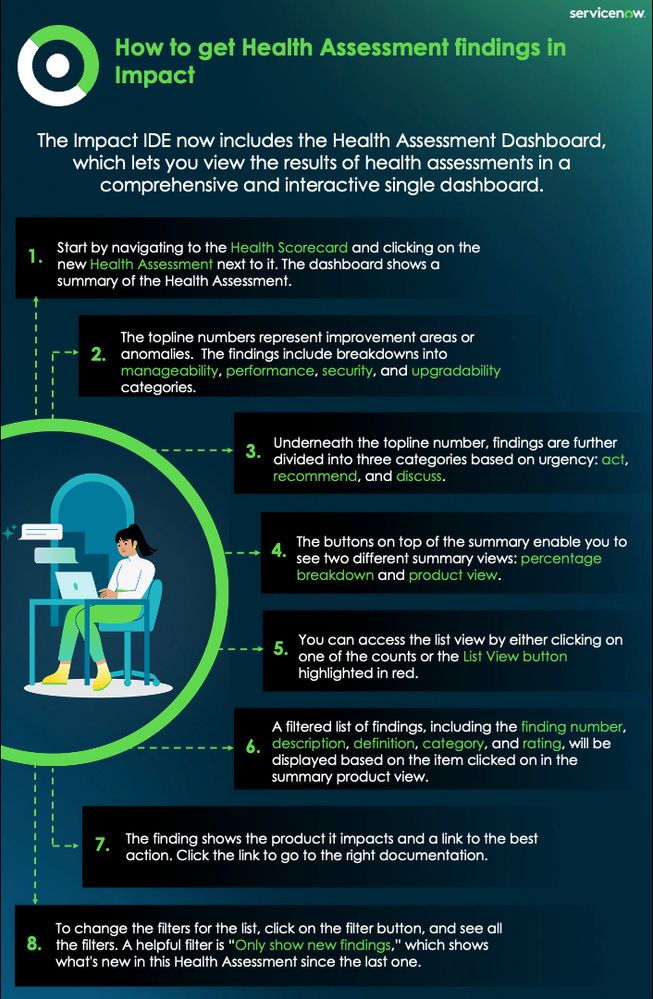
Start by navigating to the Health Scorecard and click on the new Health Assessment next to it, as shown below. You’ll see a dashboard that shows you a summary view of your Health Assessment. The topline numbers represent findings, which are areas in need of improvement or anomalies that require attention. There’s a total number of findings, along with breakdowns into manageability, performance, security, and upgradability categories. Underneath the topline number, findings are further broken down into three categories based on urgency—act, recommend, and discuss. Just like with the Health Scorecard, you can also choose which instance and Health Assessment you want to look at.

There are also two other summary views available that you can select by clicking on the buttons above the summary. The first is a percentage breakdown, which gives you the same information that’s in the Health Scorecard.

The other view is a product view, which gives you a breakdown by product, showing you the number of findings for each product in each category. In the example below, there are only two products, but you will see all of your products listed here.

Click on one of the counts and it will take you directly to the list view shown below (you can also go to the list view at any time by clicking on the List View button highlighted in red above.

You will now see a filtered list of all of your findings based on which item you clicked on in the summary product view, including the finding number, description, definition, category, and rating. You’ll also see which product the finding is for, as well as a link to information about the best action for that finding. Click on the link, and you will be taken right to the correct documentation.

Finally, you can easily change the filters for the list. Just click on the filter button, and you’ll see all the filters. One really useful filter is “Only show new findings”, which only show new findings In this Health Assessment compared to the previous one.

And that’s it! Isn’t that better than getting your findings in a spreadsheet?

https://www.servicenow.com/community/servicenow-impact-articles/you-can-now-get-detailed-health-assessment-findings-right-in-the/ta-p/2958793