
Upgrading to the latest version of Now CLI (SNC UI-Component) for ServiceNow Component Dev
There is a new version of the "now-cli", aka SNC UI-Component command line tools for ServiceNow custom component dev that was released recently. The configuration profiles have finally been fixed--you can setup a profile once and re-use it without having to login with both snc and ui-component! It will require a few changes to get it working. This pertains to the Vancouver and Washington DC releases.
What version of SNC and UI-Component am I using?
Use this command to determine which now-cli version you are using:
snc version
This will show you the version of the snc app as well as the ui-component extension.
If you are using less than v26.4.1 you can upgrade (that was released on Monday, May 6 2024 and, of course, this article will age).
Upgrading to the latest version of UI-Component
snc extension update
Upgrade your project
If you are using an existing component using prior versions of the now-cli you need to do a few bits of tidying before reinstalling dependencies, rebuilding and deploying.
Delete package-lock.json
Well, not much more to say. This file is an old version so just delete it and let npm rebuild it.
Tweak package.json
Open your package.json and find the dependencies and devDependencies section.

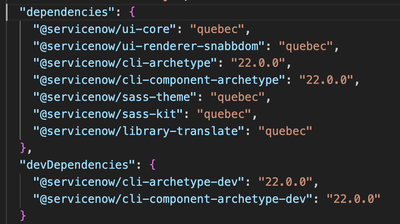
You're going to remove all of the lines in both sections that mention "archetype". That is, the new version will look like this.
NOTE: You must change the version to match whatever your version of "snc" is, which you can find by typing snc version.
  "dependencies": {
    "@servicenow/ui-core": "quebec",
    "@servicenow/ui-renderer-snabbdom": "quebec",
    "@servicenow/sass-theme": "quebec",
    "@servicenow/sass-kit": "quebec",
    "@servicenow/library-translate": "quebec"
  },
  "devDependencies": {
    "@servicenow/cli": "26.4.1" /* CHANGE THIS TO MATCH WHAT YOU SEE WHEN YOU RUN snc version */
  }
Change your now-cli.json
You may get a gnarly error message when running the dev server locally, such as the following:
Compiled with problems:

WARNING in ./.tectonic/theme.scss (../../.snc/.extensions/ui-component/node_modules/@servicenow/cli/node_modules/css-loader/dist/cjs.js??ruleSet[1].rules[2].use[1]!../../.snc/.extensions/ui-component/node_modules/@servicenow/cli/node_modules/postcss-loader/dist/cjs.js??ruleSet[1].rules[2].use[2]!../../.snc/.extensions/ui-component/node_modules/resolve-url-loader/index.js??ruleSet[1].rules[2].use[3]!../../.snc/.extensions/ui-component/node_modules/@servicenow/cli/node_modules/sass-loader/dist/cjs.js??ruleSet[1].rules[2].use[4]!./.tectonic/theme.scss)
To fix this modify the now-cli.json, which is also in the root of your project folder, by adding a "devServer" section under "development", to instruct the server to not overlay warnings (only errors).
{
  "development": {
    "devServer": {
      "client": {
        "overlay": {
          "warnings": false
        }
      }
    },
    "proxy": {
      "proxies": ["/api"]
    }
  },
  "styles": {
    "themes": [
      {
        "module": "@servicenow/sass-theme",
        "main": ["theme.scss"]
      }
    ]
  }
}
Clear your npm cache
1. Delete the folder "node-modules"
2. Run the following commands to clear your npm cache and install the latest dependencies.
npm cache clean --force

npm install
Baby, you were born to run
That should be it! Run the project.
snc ui-component dev --open
Pro Tip: If you have not done so yet, consider adding this to the "scripts" section of your package.json so you can easily run it with commands like "npm run dev" or "npm run deploy".
{
"name": "@snc/myprojectname",
"version": "0.0.1",
"private": false,
"description": "My super comopnent",
"scripts": {
"dev": "snc ui-component dev --open",
"deploy": "snc ui-component deploy", /* This will be the default profile */
"configure": "snc configure profile set"
}...
The most useful change has to do with authentication and connections. You no longer need to do two auth steps--one for the snc app and one for ui-component. Instead you just use a single named profile that also contains the URL for the instance.
That is, you do NOT need to do this step any more: "snc ui-component login {instance_url} basic {user_name} {password}"
Instead, create a profile. In my case my dev instance for Washington DC release is "wiffleball", so I use this:
# List current profiles
snc configure profile list

# Add or change named profile
snc configure profile set -p wiffleball

#Set default profile
snc configure profile set
Deploying
Now you can use the named profile to deploy your app. Just do this!
# Deploy to a profile by name
snc ui-component deploy --profile wiffleball
Why are you here?
You, like me, may have experienced errors after upgrading the CLI such as the following. Following these steps should correct the errors that lead to a variety of issues, such as:
Failed to download Chromium r662092! Set "PUPPETEER_SKIP_CHROMIUM_DOWNLOAD" env variable to skip download.

# Or this one:
npm WARN old lockfile The package-lock.json file was created with an old version of npm,
npm WARN old lockfile so supplemental metadata must be fetched from the registry.

# Or a series that look like this:
npm WARN ERESOLVE overriding peer dependency
npm WARN While resolving: @webpack-blocks/core@2.1.0
npm WARN Found: webpack@5.74.0
npm WARN node_modules/@servicenow/cli/node_modules/webpack
npm WARN   webpack@"5.74.0" from /cli@26.4.1
npm WARN   node_modules/@servicenow/cli
npm WARN     dev /cli@"26.4.1" from the root project
npm WARN   13 more (babel-loader, clean-webpack-plugin, ...)

https://www.servicenow.com/community/next-experience-articles/upgrading-to-the-latest-version-of-now-cli-snc-ui-component-for/ta-p/2941694