
8. Localhost logs
Explanation -
The localhost log captures the following information:
- Transaction information
- Login information
- Application node errors:
1. Stack traces
2. Null pointer exceptions
- Script debug messages
- Script errors
- Database errors
Node Log File Download list
If you are not logged into the same node where the transaction took place
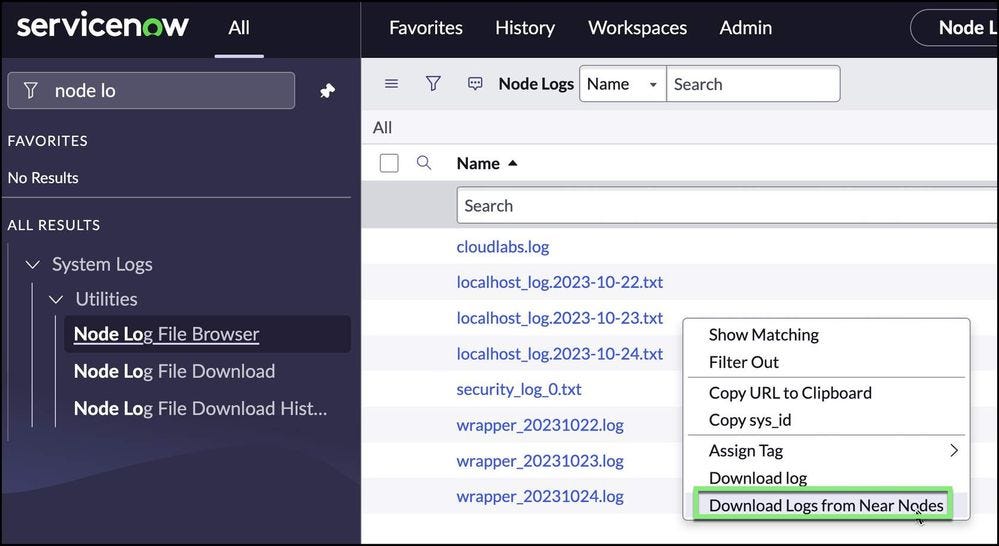
- Navigate to System Logs > Utilities > Node Log File Download.
- Right-click on the appropriate log file as determined by the node and date.
- Select Download logs from Near Nodes to view the log data as shown.
- Based on the information collected from the transaction log, perform a search for vital log data.
System Logs > Utilities > Node Log File Browser
If you are logged into the same node where the transaction took place
- Navigate to System Logs > Utilities > Node Log File Browser.
- Based on the information collected from the transaction log:
- update the start and end times to start and end 1 to 2 minutes before and after the created_by time stamp from the transaction log
- update the Session Id with the value collected from the transaction log
- increase the Max rows to at least 10,000 to allow an adequate number of results to display
VERY IMPORTANT: If you download a customer’s node logs, make sure you delete them from your machine once you are done because they contain private information.
After the search parameters are added, click Submit. If the search parameters are accurate, more information will be obtained to help solve an issue. If the start and end times are too restrictive, it may be necessary to update them to more than 1 minute before and after the sys_created_on time stamp from the transaction log.
https://medium.com/@LearnITbyPrashant/localhost-logs-50046ea4eadf?source=rss-d005fc598f0a------2