
Seamless Deletion: ServiceNow Spoke for SuccessFactors To-Dos Deletion
Introduction:
Handling data transfer between SuccessFactors (SF) and ServiceNow (SN) is a common practice, but what about efficiently deleting data in SF initiated by ServiceNow? This guide aims to elucidate the process of identifying, fetching, and deleting ServiceNow-created todos in SuccessFactors.
Fetching existing Todos created by SN in SF:
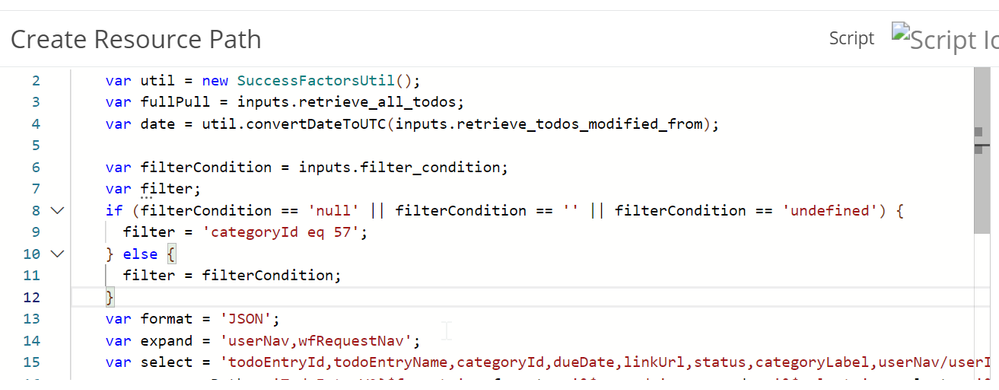
Action:You can make a copy of the OOTB action "Retrieve Todos". This action queries and fetches all "non-3rd Parties" todos from SF.Since ServiceNow todos are 3rd party todos for SF they will be stored under catogyId 57.
In the "Create Resource Path Step", modify Line 9 to change from " filter = 'categoryId ne 57';" to
filter = 'categoryId eq 57';
You can leave the rest of the action as is.
The modified step will look like below:

Slow/Subflow to call the actions:
Create a dedicated flow/subflow mirroring existing ones. Utilize the "Retrieve all data or just the todos created from a certain date" parameter. Store the fetched data using the "Outbound Todos staging table" or an appropriate table.

Deleting fetched Todos:
Action:
Absolutely! Here's a revised version that incorporates the feedback:
Title: Streamlining Data Deletion in SuccessFactors using ServiceNow
Introduction: Handling data transfer between SuccessFactors (SF) and ServiceNow (SN) is a common practice, but what about efficiently deleting data in SF initiated by ServiceNow? This guide aims to elucidate the process of identifying, fetching, and deleting ServiceNow-created todos in SuccessFactors.
Fetching ServiceNow-Created Todos in SF:
Action:
- Duplicate the OOTB action "Retrieve Todos" to capture all "non-3rd Party" todos from SF. Since ServiceNow todos classify as 3rd party under categoryId 57, tweak Line 9 in the "Create Resource Path Step" to filter by "categoryId eq 57."
Slow/Subflow for Action Calls: Create a dedicated flow/subflow mirroring existing ones. Utilize the "Retrieve all data or just the todos created from a certain date" parameter. Store the fetched data using the "Outbound Todos staging table" or an appropriate table.
Deleting Fetched Todos:
Action:
- Deleting a record in SF typically requires passing the entity and its key value. For "TodoEntryV2," acquiring the key value (ToDo Entry ID) suffices.
- Action Steps:
- Pre-processing: Script to create the URL. Eg.
TodoEntryV2(todoEntryId=<entryIDValue>M). - Delete Record: Mimic the URL structure to delete records.
- Post-processing: Include error handling if needed.
- Pre-processing: Script to create the URL. Eg.
1. Pre-processing: This is a script step, you can keep the code as:
(function execute(inputs, outputs) {
 var key = "";
 // key = "'" + inputs.KeyFields + "'";
 key = inputs.KeyFields;

    outputs.keyfields = key;

})(inputs, outputs);
2. Delete:
The delete step should mimic as shown below. The URL you are trying to create is "TodoEntryV2(todoEntryId=M)."
Eg. TodoEntryV2(todoEntryId=12345M).

3. Post-processing step:This is good to have, if there is no error you will receive a status code of 200. The system will not give a response body for delete but just the status code of 200.
Flow/Sub-Flow:
Create a flow to call the action you created. You can do a "Look up records" action to narrow down your records if applicable and then use a for loop to delete the records that you want to delete.

Conclusion:
In my research, I found that the SF API documentation might lack explicit steps for such queries and I therefore hope this article helps you.
Labels:

https://www.servicenow.com/community/hrsd-articles/seamless-deletion-servicenow-spoke-for-successfactors-to-dos/ta-p/2766564