
How to Create or Update records using Excel template - Easy Import
Use case : You have an excel file with records or you would like create/update bulk records in a table??
you don't have to write transform scripts or do a manual creation/update (unless it requires validation logic before insert/update) use Import option (Easy Import) on the table 
How to do it??
A)To Create records :
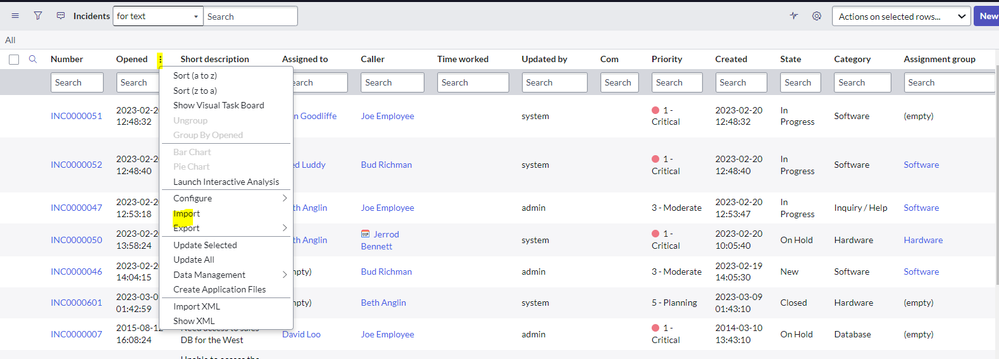
1*)Go to list view of the table (be in the current applications scope)>right click on any column>select import option*

2)You would get below option
a)You can select insert or update
b) chek the option "Do you want to create Excel template to enter date?" to create template
c)Check "include all fields in the template" to include all the fields (this will not include read only fields and field defined in the system property "glide.import_template.field_types_to_ignore")
d) if check is not checked it would only extract fields visible on the list view
e)click on create Excel template and down load the template

3)Below is the sample excel template
First tab explains instruction how to insert/update the records

Second tab contains fields from the table:
few things to consider here>>
since this has been exported from the table this would give easy options to fill the fields below you can see active field gives options to select true/false below
if you would lile to see options under reference fields , add this attribute "easy_import_ref_as_choice=true" to the field

3)lets insert a record and upload to the table :

4)Go back to import option >Click upload>Upload the file>Click preview Imported data:

5)It would take you to the imported record, review for any errors/warning and click complete import:

Result: Here is the iserted record

B) To update:
Follow the same step select update as below and create a template

update Approval to Requested to test and save the file

go back the import screen and upload the file>upon load > click on Preview Import data.

you would reciev if any Errors/Warning , you can go back and review or you can ignore and complete the import, i clicked on "ignore and complete the import"

Here is the result :

Few import Properties consider
1)glide.import_template.row_limit : Controls the maximum number of rows included in an easy import template. By default, if a table contains more than 10,000 records, only the first 10,000 are exported.
2)glide.easy_import.run_business_rules: When true, business rules, workflows, approval engines, auditing, and field normalization apply when easy import inserts or updates data. This functionality is equivalent to setting GlideRecord.setWorkflow() to true or false.
3)glide.import_template.field_types_to_ignore: A list of fields that will be ignored when a record is imported with easy import feature:
Default value: table_name, order_index, collection, user_image, video, timer, translated_field, conditions, field_name, sys_class_name, journal, journal_input, due_date, user_input, image, workflow, template_value, domain_id, documentation_field, user_roles, glide_list
Let me know if any questions.
Thank you,
Hemanth
Community Rising Star 2022 & @2023
My other articles :
Set up interactive filter on UI builder (for data visualization reports and List records)
Set Up "Step Based Request Fulfillment" for Catalog Items
My ServiceNow Share Projects:
Get Record URL action in the flow designer (Use it in the Send Email action)
https://www.servicenow.com/community/developer-articles/how-to-create-or-update-records-using-excel-template-easy-import/ta-p/2702376