
Configure Additional Fields and Models in Recommended Actions for Task Intelligence ITSM
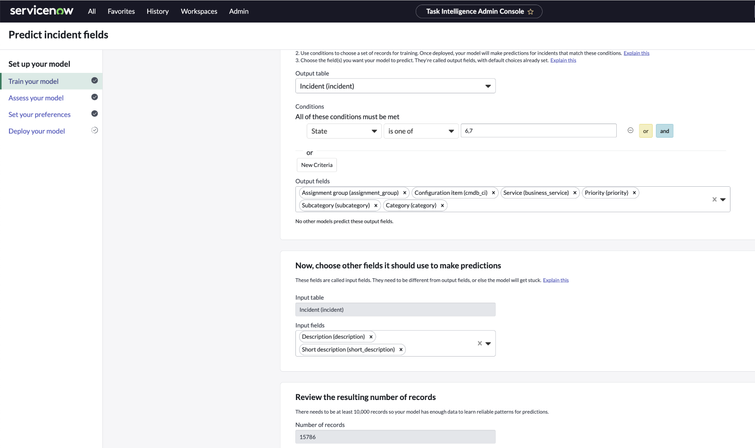
The Task Intelligence for ITSM (TI-ITSM) capability displays AI predictions from trained and deployed TI-ITSM models in Service Operations Workspace (SOW) to agents for configured incident fields. SOW uses Recommended Actions (RA) platform capability to display content including such model predictions from TI-ITSM models.
When using OOB shipped ITSM OOB TI Solution model for TI-ITSM, it comes fully pre-configured for 3 OOB fields (Assignment Group, Business Service, Configuration Item) including all needed RA configurations. When using these 3 fields with the shipped model, all an admin needs to do for the model to begin predicting in SOW is to train, deploy, and ensure associated OOB Recommended Actions (RA) records for the model are active.
In case any additional fields on incident table (either OOB or custom) need to be configured as output for any TI – ITSM model (either the OOB shipped or custom models), an admin needs to first add such fields as output fields to the model in TI Admin Console. Then once the model is trained and deployed with the additions, these additional fields need to be configured in RA application with configurations just like the 3 OOB shipped field RA configurations for Assignment Group, Service, and Configuration item fields.
Additionally, if multiple models need to be deployed, then this also needs to be handled in RA.
The configuration steps for both these scenarios as described below are detailed in this article:
- SCENARIO 1:_Additional fields added to a **_single deployed model** (either the shipped OOB model or a freshly created and deployed model).
- Note: . For this scenario, we will go with the shipped model and use Priority, Category, and Subcategory as examples for the additional fields
- SCENARIO 2: Additional fields added to 2 or more deployed models on instance
- Note: We will use the incident’s Urgency and Impact fields as examples for this scenario
Assumptions:
SN Release:
- Utah patch 5, Vancouver or later
********************************************************************************
SCENARIO 1:_Additional fields added to a **_single deployed model**
********************************************************************************
The steps highlighted in this section involve RA configurations needed when there is only a single deployed IAR model on the instance whether or not it is a the OOB shipped model or a custom one.
Notes:
- We will use the OOB ITSM OOB TI Solution model as our example, but if the OOB shipped model were not deployed and a different model was created and deployed as the single model, below steps would work for that as well once the Resource Generator record is pointed to the appropriate model.
- The additional fields we have used for RA configuration are just examples. Same will work for any fields on the incident table as long as the field types are supported as predicted output fields.
Train and deploy the model
1. Configure the shipped OOB ITSM OOB TI Solution model with the 3 additional fields we want to predict for our example: Priority, Subcategory, Category as output fields to the model.
- TIP: Both OOB or custom fields on incident table can be configured in the model as predicted output fields and recommended actions

2. Train the model.
3. Once training completes, set the preference from the Set your preferences tab in Admin Console. For our example, let’s set Service and Priority as Autofill and the rest as Recommendations so that we understand the subtleties in configuring RA. Then Save the settings.

4. Next Deploy the model and click on Configure Recommended Actions button from the popup to go to Recommended Actions. This would be same as pulling up Recommended actions -> Context module from the instance filter navigator.

Open the associated Field Recommendation action record to configure the new fields
5. From the Recommended actions -> Context module’s context list open the Incident context record.

6. From the Incident context record’s Recommendations related list, click on Incident Fields value prediction (TI) record.

7. This will open the Incident Fields value prediction (TI) OOB Recommendation associated to the Active Incident Rule.
NOTE: Here, if we had deployed a custom model with the additional fields in place of the shipped OOB model, we would need to dot-walk to the Resource Generator record from the Recommendation page and set the solution to the custom deployed TI-ITSM model solution as shown here.


8. Next, from the Recommendation record, we will dot-walk to the Action record by clicking on the ‘i’ info icon next to the Action reference field and select Command+click while hovering on the Open Record button to open the Field Recommendation (action type) record in a new tab

9. Make sure you are in Advanced Recommended actions for ITSM application scope or switch to it as shown

Create needed Field Recommendation Input records
10. Next, from the Field Recommendation record, scroll down to the Field Recommendation Inputs related list and click on New button to create 2 new Field Recommendation Input related records for each new TI model's output field, one for processing the value and another to process the preference (to determine whether it’s a recommendation or autofill predicted field).

11. Now let’s create 2 new Field Recommendation Input value and preference records each for Category, Subcategory, and Priority output fields with the settings similar to below. Since we have 3 additional fields, total 6 new records need to be created for this table.
TIPS:
- Set the Type field value based on the dictionary type for the field.
- In case of Reference type fields, refer to existing OOB Field Recommendation Input configurations for Assignment Group or one of the other reference type fields.
- Ensure that Mandatory=True and Order is set

Create needed Field Recommendation Definition records
12. Next, from the Field Recommendation record, scroll down to the Field Recommendation Definition related list and click on New button to create 3 new Field Recommendation Definitions records for each new TI model's output field. For our example we will create 3 new records for Priority, Category, and Subcategory output fields.
- TIP: make sure you are still in Advanced Recommended actions for ITSM application scope or switch to it .

13. Each new record created by clicking on the New button from the Field Recommendation Definition list will have settings similar to below.
TIPs:
- Note that the Recommended message text can be customized as per liking
- We can replicate the settings based on similar existing OOB shipped field records like Assignment Group, Configuration item, or Service as per below and ensure that the records are set to Active.

Set the Action Inputs in the Recommendation record
14. Finally, back on the Incident Fields value prediction (TI) Recommendation record make sure that the Active field is checked and set the value and preference Action Inputs as shown using the data pill picker and save the changes.


>>>>>>>>>>>>>>>>>>>>>>>>>>>>>>>>>>>>>>>>>>>>>>>>>>>>>>>>>>>>>>>>>>>>>>>>>>>>>
This concludes the guided steps for SCENARIO 1: Additional fields added to a single deployed model
<<<<<<<<<<<<<<<<<<<<<<<<<<<<<<<<<<<<<<<<<<<<<<<<<<<<<<<<<<<<<<<<<<<<<<<<<<<<<
***********************************************************************************
SCENARIO 2: Additional fields added to 2 or more deployed models on instance
***********************************************************************************
This scenario applies to where the instance needs to be deployed with 2 or more models with additional fields added to such models. The steps highlighted in this section need to be implemented for each additional model being deployed.
As an example, we will go with one additional model in addition to the shipped model as our example. We will use the incident’s Urgency and Impact fields as examples for this scenario.
To accommodate this scenario, there will be some additional prep steps that first need to be completed on the RA side as detailed here for each newly created model. Once these prep steps are completed, we can proceed to complete steps similar to scenario 1, repeating the steps for each newly created model.
The pre-steps outlined here involve creating a new Resource Generator and Recommendation records for each newly deployed model. Since Resource Generator record has a 1:1 mapping with a trained and deployed TI-ITSM model, we will be creating a new Resource Generator record for each new TI-ITSM model that is trained and deployed. Similarly, Recommendations have a 1:1 mapping with Resource Generator, so we will need to create new Recommendation records for each new model that is deployed in the order outlined here.
Create and deploy the new model
1. Configure the new model with the additional fields we want to predict for our example: Urgency and Impact as output fields to the model.

2. Train the model.
3. Once training completes, set the preference from the Set your preferences tab in Admin Console. For our example, we will set Impact as Recommendation and Urgency as Autofill. Then Save the settings.

4. Next Deploy the model and click on Configure Recommended Actions button from the popup to go to Recommended Actions.
- Note: This would be same as pulling up Recommended actions -> Context module from the instance filter navigator.

Create a new Resource Generator record for the any additionally deployed models
5. Make sure you are in Advanced Recommended actions for ITSM application scope or switch to it as shown.

6. Go to Recommended Actions > Resource Generator module and click on New from the Resource Generator list.
7. Enter the values as shown below in the Resource Generator New record form and click Save.

8. Once the record is saved, we will see the Generator Input section on the form. Set the Solution Name field to your newly deployed model’s name.

Create a new Field Recommendation record for any additionally deployed models
9. Next, create a new Field Recommendation record that is associated to the recommendations for the 2 new fields Impact and Urgency
10. Go to Recommended Actions > Field Recommendations module and click on New button from the Field Recommendations list.

11. Create a new Field Recommendations record by giving it a Name and make sure Table is set to incident and save the form
Create new Field Recommendation Inputs records for the additional output fields
12. From the new Field Recommendation record, scroll down to the Field Recommendation Inputs related list and click on New button to create 2 new Field Recommendation Input related records for each new TI model's output field, one for processing the value and another to process the preference (to determine whether it’s a recommendation or autofill predicted field). Overall, we will create 4 new records, one each for value and preference for our 2 example output fields Impact and Urgency as shown here.

Create new Field Recommendation Definition records for the additional output fields
13. Next, from the newly created Field Recommendation record we created in step 11, scroll down to Field Recommendation Definition related list and click on the New button to create 2 new definition records for Impact and Urgency for our example.
- TIPs:
- Make sure you are still in Advanced Recommended actions for ITSM application scope or switch to it.
- Make sure that the new records are created from this form's related list so that the reference association is handled appropriately by the system.
- Note that the Recommended message text can be customized as per liking.
- The settings can be replicated to be similar to existing OOB shipped field records like Assignment Group, Configuration item, or Service as per below and ensure that the records are set to Active.
- Make sure you are still in Advanced Recommended actions for ITSM application scope or switch to it.

Create new Recommendation record for any additionally deployed models
14. Next, make sure current application scope selected in the Application picker is Incident Management for Service Operations Workspace

15. From the Recommended Actions > Rules module open the Active incident Rules record.

16. Scroll down to the Recommendations list and click on the New button to create a new Recommendation record that will map to the Resource Generator record we created above.
- Tips:
- The New button will only show if the Application scope is set to Incident Management for Service Operations Workspace as per step 14 above.
- New Recommendation records can only be created from Rules record.
- The New button will only show if the Application scope is set to Incident Management for Service Operations Workspace as per step 14 above.

17. Select A field value to use as the Recommendation type as the option on the New recommendation wizard page.

18. In the Recommendations form, set the Resource Generator to the new record we created in step 7 of this section.
19. Set the Name field to a value that describes this recommendation.
20. For the Action field, click on the reference search icon and select the new Field Recommendation record we created in step 9 of this section.

21. Make sure that the Active flag is checked. The Recommendation form should look something like the screen shot here.

Set the Action Inputs for the new Recommendation record
22. Lastly, set the Action Inputs for the Recommendation as shown here by picking the values from the data pill picker.

>>>>>>>>>>>>>>>>>>>>>>>>>>>>>>>>>>>>>>>>>>>>>>>>>>>>>>>>>>>>>>>>>>>>>>>>>>>>>>
This concludes the guided steps for SCENARIO 2 for additional output fields for more than one model
<<<<<<<<<<<<<<<<<<<<<<<<<<<<<<<<<<<<<<<<<<<<<<<<<<<<<<<<<<<<<<<<<<<<<<<<<<<<<<
https://www.servicenow.com/community/ai-intelligence-articles/configure-additional-fields-nbsp-and-models-in-recommended/ta-p/2680784