
How to Create, Manage, Edit, and Delete Articles
- Highlights of new article features
- Who can create an article
- How to create an article
- How to edit an article
- How to delete an article
- How to move an article
- Save the article as a draft so that you can get the URL needed ahead of time before publishing.
- Select and add labels (i.e., tags) to an article to make it easier for readers to find related posts. Note that you can only choose from the list of suggested labels for now.
- Schedule a post to go live.
- NEW! Add an article cover image and teaser/preview text.
- NEW! Add a co-author.
- Content that is copy-pasted from Microsoft Word will automatically include images.
- Move your article to other article pages.
While all community members can ask questions and post comments, only certain users can create an article. Those users are MVPs, Rising Stars, Thought Leaders, and Employees. If you would like to write blogs and/or articles as a Thought Leader, please email us at community@servicenow.com.
How to create an article
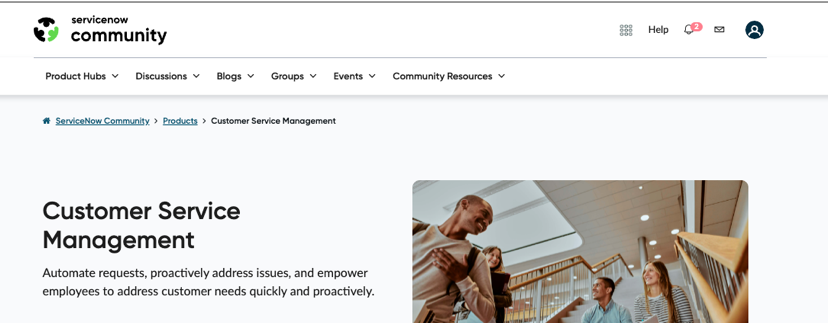
- Go to the product hub where you want to post the blog — for example, Customer Service Management.

2. Scroll down to the Contents box.

3. Click on the articles link.
4. Click the Create an article button.

5. Create a title, and then add labels to optimize searching. The Associate Products section is still under construction so avoid that section for now.


6. Create the article by filling in the Article Body field OR paste in existing content.


7. Click on >Teaser to open text box. The teaser, with a Read more... link, appears on the article’s front page and gives readers an idea of what the post is about. Again, you can use the editing tools to format and add media.

8. Set up search engine optimization (SEO) for the page title and a meta description by clicking on >SEO Options. Canonical URL should NOT be used at this time.


9. Use the drag and drop/browse for files to attach a document to the article.

10. To add a cover photo, which is recommended, click the + Photo icon to browse the image location to attach to the article.

11. To schedule publication for when you want to create an article in advance and set the publishing date:
- Click Schedule publication
- Select the Date and Time and time zone.

12. To add contributors’ names, enter a name in the Contributors box to find the contributor’s name and then click Add.

13. Leave the Email me when someone replies box under Subscribe checked if you want to receive emails when someone replies to your post.

14. Options for saving and publishing:
- Click Save to save the draft and resume editing later.
- The Submit for Review function is still under construction
- Click Publish to immediately publish.

How to edit an article
If you want to update an article that you created, you have the option to edit your post.

1. Click the blue down arrow above the date and time and select Edit Post, click Options, or scroll down to the bottom of your article and click Edit.

2. Once you’re done updating your article, you can save it as a draft, publish it right away, or schedule the publication if you need to publish the changes at a later time. Note that the “Submit for review” function is still under construction and will not work at this time.

3. Wait for the confirmation before you close/exit the page.
How to delete an article
If you create an article in error or you want to remove it, you can delete the post.
1. Click the blue Options link and select Delete Post.

2. You will need to confirm deletion of the article and if the author and/or people who publicly replied to the post should be notified.

3. After you click Confirm, wait for the confirmation.

How to move an article
NOTE: You can only move an article that you created.
1. Click on your article

2. Click on the down arrow on the right to expand options.

3. Click Move Post.

4. Choose the location where you want your article to be moved. Note that you can only move your article to other article pages.

5. Select confirmation options (people to notify), then click “Move Article”


6. Wait for the confirmation before you close/exit the page.
https://www.servicenow.com/community/community-resources/how-to-create-manage-edit-and-delete-articles/ta-p/2630391