
How to use Set Loading State to Block a Page Until It's Completely Loaded
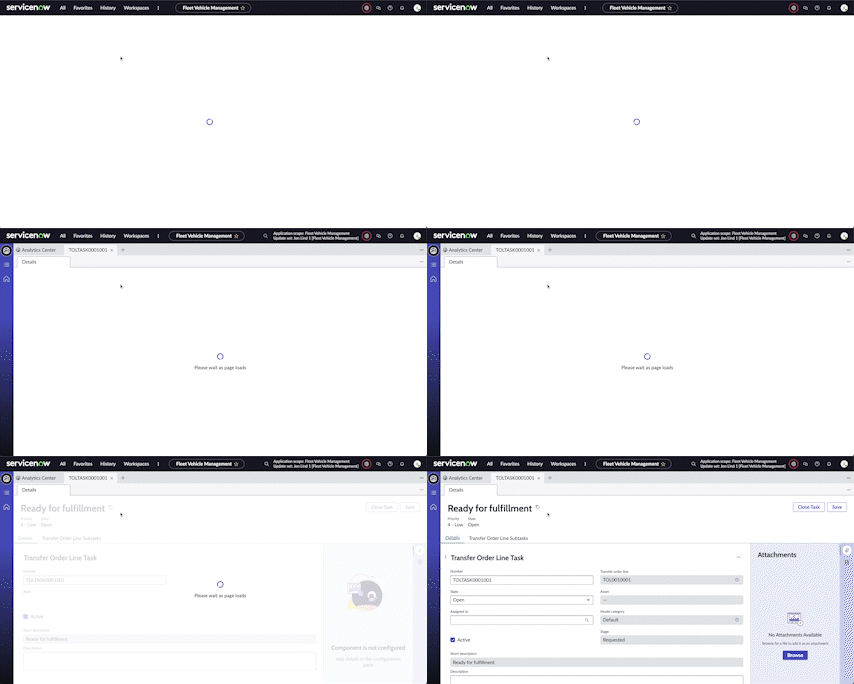
The Set loading state event handler in UI Builder (UIB) is really good, and it blocks for you and looks natural and doesn't require fiddling with the structure of the page to make it work.
The issue is that the first place to start blocking the page is the "Page Ready" event mapping (on the Body node of the content tree). By then the page may be "ready", but your data loads and other activities might not be complete. You need a way to control when the loading of the page is is truly done and to cancel the block when you are ready.
The trick is getting it plugged in early enough. The good news is that you have more options than the events listed--you can plug in to undocumented events.
Here is the objective I was working toward. Note the transition from the default plain spinner to my spinner with the "Please wait" message.

Create Two New Client Scripts to Set Loading State On and Off
One is for Setting Loading State On and another for Off (you have to use custom script because we are using the extra field called "id").
1. Name: Setting Loading State On
function handler({ api, event, helpers, imports}) {
    api.emit("NOW_UXF_PAGE#SET_LOADING_STATE", {
        id: "page_load_blocker",
        loading: true,
        label : "Please wait as page loads"
    });
}
2. Name: Set Loading State Off
function handler({ api, event, helpers, imports }) {
        helpers.timing.setTimeout(()=> {
            api.emit("NOW_UXF_PAGE#SET_LOADING_STATE", {
            id: "page_load_blocker",
            loading: false
        });
    }, 2000);
}
Now we want to be able to bind to an event called SEISMIC_COMPONENT_CONNECTED, which is one of the earliest events triggered when a macroponent is loading. The thing is, it's not an option available from the UI by default so we will need to add it.
1. Go to the Body in the content tree and then open the Events tab.
2. Go to "Handled Events" at the very bottom of the tab and click Add.
3. Set the "Name" property to SEISMIC_COMPONENT_CONNECTED and add a payload field called "event" and save it.
4. Open the newly added handled event again (due to a bug in the UI you have to re-open the record) and change the type of event to "JSON".

5. Go back to the top of the Events tab and click Add Event Mapping.
6. Choose Seismic Component Connected and bind to the Set Loading State On script. Note that it delays 2 seconds before closing the loader--this gives time for the page to settle down but also can help in situations where you have multiple data resources loading that may complete in similar time periods but in an unknown order.
7. Go find your baddest, gnarliest, longest running data resource and go to its Events tab.

8. Find an event like Data Fetch Completed (this way it will fire if the data request succeeds or fails—you just don't want to leave the spinner up forever) and select Set Loading State Off.
Warning: After adding the Handled Event it may not immediately work. Add "console.log" to your scripts to verify whether or not they are being executed, but if not try hitting the path "/cache.do" in your instance and logging out and back in.
That's it. You can call Set Loading State Off from a variety of events, and perhaps even multiple events if it's necessary to make sure that it doesn't inadvertently stay on.

https://www.servicenow.com/community/next-experience-articles/how-to-use-set-loading-state-to-block-a-page-until-it-s/ta-p/2506886