
Guide for writing accessible knowledge base (KB) articles
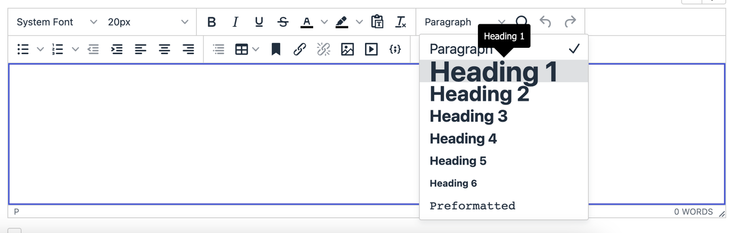
This document will guide you on how to write ServiceNow knowledge base (KB) articles so that they are accessible and user-friendly. This article introduces some basic considerations to help you get started writing web content that is more accessible to people with disabilities. These tips are good practice to help you meet Web Content Accessibility Guidelines (WCAG) requirements.
Structure
Prioritize the actionable information that people need. Keep it brief, specific, and clear. Don’t overload people with information they already know or don’t need to know.
Use lists: Use numbered lists for step-by-step instructions or hierarchical information. Separate steps into logical chunks, with no more than two related actions per step. Use bullets when the list’s order doesn’t matter.
Abbreviations and acronyms: If it’s likely your reader won’t recognize an abbreviation or acronym, spell it out the first time you mention it and include the abbreviation in parentheses. Then use the short version for all other references.

Mark up information structure using heading levels. When you add headings for sections of content, make sure they’re identified as headings. Styling text to be bigger and bolder than the rest may make it look like a heading, but for people who don’t see that visual change the text won’t be identifiable as a heading. Use short headings to group related paragraphs and clearly describe the sections. Good headings provide an outline of the content.
Mark up ordered and unordered lists. If you have content that’s a list, identify it as a list in markup. Don’t use asterisks, dashes, or numbers as lists item markers. If you use proper list markup, bullets or numbers will be added automatically.
Use table markup for data tables. If you have tabular data, make sure it’s presented as an HTML table, with column and row headers.
More Information
Voice and Tone
Use plain language that makes content easy to read, easy to understand, and accessible to everyone. Write short sentences and use simple words and phrases. Avoid jargon, acronyms, and unfamiliar technical terms.
Use active voice: Active voice is direct and easy to read. Talk to the person who’ll be reading your content.
- Yes: Follow these instructions to upgrade your app.
- No: Users can upgrade their app by following the instructions.
Use positive language: Positive language is energetic and supportive. One way to detect negative language is to look for words like “can’t,” “don’t,” etc.
- Yes: Upgrade your app to start using this new feature.
- No: You won’t be able to use this new feature unless you upgrade your app.
Inclusive language: Avoid using terms that may have racist, gendered, ableist, or other negative connotations, like “blacklist”, “whitelist”, “grandfathered”, “slave”, “master”, “deaf”, and “blind”. Learn more about inclusive language in technology.
Identify headings, lists, and tables
Identifying headings, lists, and tables not only ensures that people have access to that important structural information, but assistive technologies like screen readers can help users easily locate these features and navigate between and within them. By adding structure, you automatically make it easier for screen-reader users to explore and understand your content.
Avoid using structural elements for anything other than their intended use. For example, do not use table elements for layout, such as to create columns. Screen-reader software announces the structure of a table and users may believe they are navigating through tabular data when they are not.
Describing graphs with accessibility in mind
Some people understand complex information best when it's presented visually, such as a chart or diagram, while others find that reading the information suits them better. For people who use screen readers, a good text equivalent of the information that’s presented graphically is essential for their understanding.
For simple graphics, providing a succinct, informative text alternative is usually fine. But for complex graphics, it's not enough to provide a screen reader user with only short alternative text, such as "population graph." You also need to think about the information that the graphic conveys, such as the categories of data being shown, trends, and maximum and minimum values.
Writing link text with accessibility in mind
Link text is the text you select for a link that describing what happens when a user activates it. It needs to clearly and accurately convey the link's purpose. Commonly, link text is the name of the linked page or document. When a link leads to a document that's not a web page, such as a PDF or Word document, that should be clarified in the link text. Avoid overly terse, ambiguous link text, and avoid reusing the same link text within a page for links that lead to different destinations.
Good link text helps all users find the information they need, and is particularly helpful for screen reader users, who might navigate pages by moving from link to link, hearing only the text of each link in turn. If the link text doesn't indicate the destination or purpose of the link, screen-reader users have to rely on listening to the surrounding text for context.
Use plain language
Plain language benefits all users, including people with cognitive disabilities, low reading literacy, and people who are encountering an unknown topic or language. For websites and web applications, people need to be able to find what they need, understand what they find, and use that to accomplish tasks.
Write helpful links
Links allow users to navigate a website or web application. An effective link is self-explanatory, telling the user where they will go if they click on the link. Links are also easy to distinguish from other content.
Put key words at the beginning of the link phrase. Links that begin with key words are easier to scan, because the important words appear early in the link phrase. For people who have content read aloud by software, unique and descriptive links with keywords at the start of the phrase make it easy to find a clear path to the information they are seeking. In the absence of effective links, users may have to follow links to ascertain their destination.
Use underlines, especially for inline links. Typically, links are colored and underlined so that they can be easily distinguished from other text. Underlines are helpful for people who have color perception impairments that may cause difficulty identifying links that are only identified through.

More Information
Write meaningful text alternatives for images
Icons: alt text for icons should be the equivalent to the information intended by the icon, such as “Download PDF” or “Visit our Facebook Page”
Images as Links: If the image is being used to link to another page, the alt text should describe what will happen when the image is clicked (rather than what it looks like). For example, the alt text for an image of a question mark that links to a help page should be “Contact Support” rather than “question mark.”
Images with complex information: If the image is a chart, diagram, or illustration, consider how to convey the information contained in the image using both the alt-text and the adjacent page text.

Alternative (Alt) Text is meant to convey the “why” of the image as it relates to the content of a document or webpage. It is read aloud to users by screen reader software, and it is indexed by search engines. It also displays on the page if the image fails to load, as in this example of a missing image.

More Information
References:
Academy Software Foundation https://www.aswf.io/blog/inclusive-language/
Harvard Digital Accessibility Guide https://accessibility.huit.harvard.edu/
U.S. General Service Administration - Plain Language https://www.plainlanguage.gov/guidelines/words/use-simple-words-phrases/
Web Accessibility Initiative https://www.w3.org/WAI/tips/writing/
https://www.servicenow.com/community/now-platform-articles/guide-for-writing-accessible-knowledge-base-kb-articles/ta-p/2471138