
UI Policies
Like Client Scripts, UI Policies are client-side logic that governs the form and forms field behavior. Unlike Client Scripts, UI Policies do not always require scripting.
Creating UI Policies
The procedure for adding files to an application in Studio is the same regardless of file type:
- Click the Create Application File link.
- Choose the file type, in this case, UI Policy.
- Configure the new file.
UI Policy Configuration
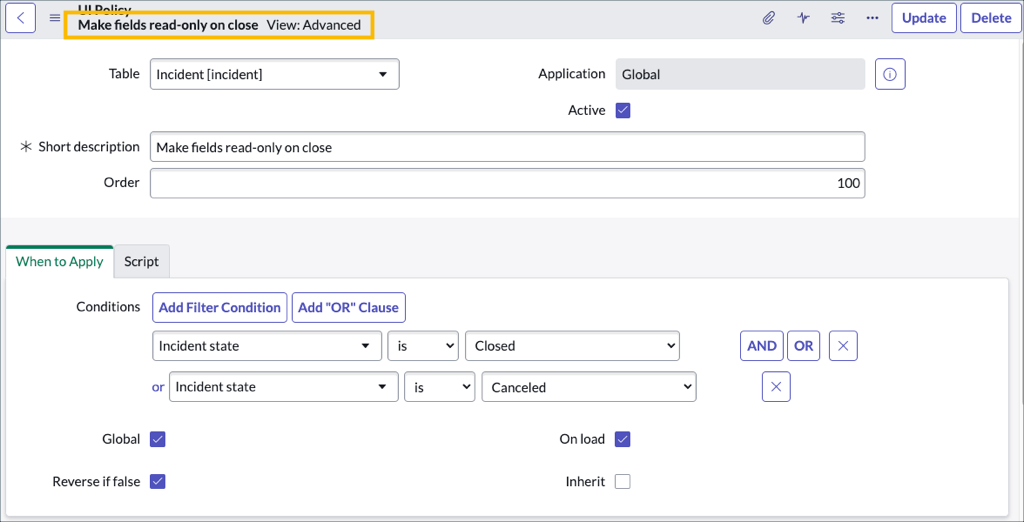
UI Policies have two views: Default and Advanced. The fields in the UI Policy configuration are different depending on which View is selected. The Advanced view displays all of the configuration fields. The Default view displays a subset of the fields.
- Table: Form (table) to which the UI Policy applies.
- Application: Identifies the scope of the UI Policy.
- Active: Controls whether or not the UI Policy is enabled.
- Short description: A short explanation of what the UI Policy does.
- Order: If multiple UI Policies exist for the same table, use the Order field to set the order of evaluation of the UI Policy Conditions.
- Condition: The condition(s) that must be met to trigger the UI Policy logic.
- Global: If Global is selected the script applies to all views for the table. If the Global field is not selected you must specify the view.
- View: Specifies the view to which the script applies. The View field is only visible when Global is not selected. A script can only act on fields that are part of the selected form view. If the View field is blank the script applies to the Default view.
- On load: When selected, the UI Policy condition field is evaluated when a form loads in addition to when field values change. When not selected, the UI Policy Condition is evaluated only when field values change.
- Reverse if false: Take the opposite action when the Condition field evaluates to false.
- Inherit: When selected, executes the script for forms whose table is extended from the UI Policy’s table.
DEVELOPER TIP: Enter a descriptive value in the Short description field because UI Policies do not have a Name field. When debugging, identify UI Policies by the Short description field value.
If the Condition field does not have a value, the condition returns true and the UI Policy logic will execute every time there is a change to a field value on the form.
The Order field sets the order of evaluation of UI Policy conditions for UI Policies for the same table. The order of evaluation is from the lowest number to the highest number (ascending order). By convention, Order field values are in round values of one hundred: 100, 200, 300, etc. This is not required.
DEVELOPER TIP: Avoid ordering UI Policies as 1, 2, 3, etc. Leave a gap between Order field values to make it possible to insert a new UI Policy into the existing line-up without re-ordering the existing UI Policies.
https://medium.com/@LearnITbyPrashant/ui-policies-1731aa92a24e?source=rss-d005fc598f0a------2