
How to configure Lists in strategic planner workspace (fka Alignment planner workspace)?
Import
·
Feb 02, 2023
·
article
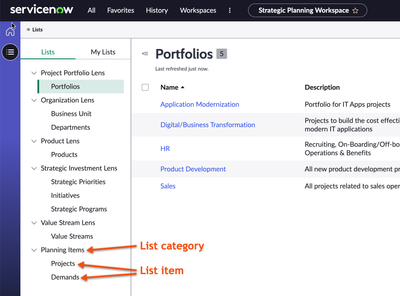

Create / Edit a list category
- Navigate to sys_ux_list_menu_config.list.
- From the UX List Menu Configurations list, select APW List Menu Configuration.
- Select a new category or a new list.

- To create a new list category, click on New and fill the following fields
| Field | Description |
| ------------- | ------------------------------------------------------------------------------------------------------------- |
| Title | Display name of the category in the workspace. |
| Application | Application scope. Ensure that this is set to Portfolio Planning. |
| Order | Order in which this category is displayed in the workspace. |
| Active | Option to enable the display of this category in the workspace. |
| Description | Brief description of the category. |
| Configuration | Configuration that the category is referencing. By default, this field is set to APW List Menu Configuration. |
- If you want to hide any list category, change the Active to false.
##
## Create or Edit a list item - To create a new list item, go to UX Lists and create new by filling the following fields.
- To hide any list items, change the Active to false.
- If you want to hide any list category, change the Active to false.

| Field | Description |
|---|---|
| Title | Display name of the category in the workspace. |
| Application | Application scope. Ensure that this is set to Portfolio Planning. |
| Order | Order in which this category is displayed in the workspace. |
| Category | Category that this list would be displayed under, in the workspace. |
| Active | Option to enable the display of this category in the workspace. |
| Table | Source table for the list. |
| Configuration | Configuration that the category is referencing. By default, this field is set to APW List Menu Configuration. |
| Conditions | Conditions to filter the records of the source table. |
| Columns | Columns of the table that must be displayed in the list in the workspace. |
| Group by column | Attribute that would be used to group the list of records by. |
| View | View to determine which columns are displayed in the list in the workspace. If you select a view, the Columns field is disabled. |
- Navigate to .
- Create a new entry in this table for every new list item created.
- Make sure the applicability is filled with the right audience as below.
- Navigate to Workspace Experience --> Actions & Components --> List Actions
- Click New from the list to create a new action, set the following value
- Action Label : New
- Action name: create-new-uxf
- Implemented as : UXF Client Action
- Table:
- Specify client Action: Create New Record
- View: Save the record
- Action Label : New


View original source
https://www.servicenow.com/community/spm-articles/how-to-configure-lists-in-strategic-planner-workspace-fka/ta-p/2464079