
No-Hassle Visual Studio Code Theming: Building an Extension
 CSS-Tricks
·
Feb 02, 2026
·
article
CSS-Tricks
·
Feb 02, 2026
·
article

Years ago, when I read Sarah Drasner’s article on [creating a VS Code theme](https://css-tricks.com/creating-a-vs-code-theme/), I silently thought to myself, That’s a lot of work… I’m never going to make a theme…
But lo and behold, I went ahead and made one — and it took less than six hours to get most of the theme working, then a day or two to polish up my final tweaks.

In this article, I want to you walk you through my process of creating this theme — along with the actual steps I took to create it.
I think talking about the process is powerful because **I went from Nah, too much work to Oh, I can do it to It’s done..? all within a matter of hours**. (The rest is simply time spent polishing).
### I never wanted to make a VS Code theme…
I was in the middle of redesigning [my website](https://zellwk.com/about/). I’ve been rocking a super duper old design that I’ve wanted to change for years — and I finally started moving.

I used [Dracula Theme](https://draculatheme.com/spec) for code snippets in my old design and it worked since Dracula was the only thing that provided a splash of color in my otherwise stark design.
But it didn’t work well with my new site design.

All I wanted to do was to improve syntax highlighting for the code blocks so they’re more aligned with the rest of the site.
That was the beginning of everything.
### Shiki CSS variable theming made it simple
I use [Astro](https://astro.build) for my website. [Shiki](https://shiki.style) is a syntax highlighter that is built into Astro by default.
With some quick research, I realized Shiki allows you to create themes with [CSS variables](https://css-tricks.com/a-complete-guide-to-custom-properties/) — and there are only a handful of colors we need to choose.

That doesn’t sound too complicated, so I got AI to help flesh out a Shiki theme based on the CSS variables. Here’s the CSS and JavaScript you need if you’re using Astro as well:
:root {
--shiki-foreground: #eeeeee;
--shiki-background: #333333;
--shiki-token-constant: #660000;
--shiki-token-string: #770000;
--shiki-token-comment: #880000;
--shiki-token-keyword: #990000;
--shiki-token-parameter: #aa0000;
--shiki-token-function: #bb0000;
--shiki-token-string-expression: #cc0000;
--shiki-token-punctuation: #dd0000;
--shiki-token-link: #ee0000;
}
pre.shiki,
pre.astro-code {
padding: 1rem;
border-radius: 0.5rem;
color: var(--shiki-foreground);
background-color: var(--shiki-background);
overflow-x: auto;
}
pre.shiki code,
pre.astro-code code {
padding: 0;
font-size: inherit;
line-height: inherit;
color: inherit;
background: none;
}
import { createCssVariablesTheme } from 'shiki/core'
const shikiVariableTheme = createCssVariablesTheme({
name: 'css-variables',
variablePrefix: '--shiki-',
fontStyle: true,
})
export default defineConfig ({
// ...
markdown: {
shikiConfig: {
theme: shikiVariableTheme
}
}
})
I did a quick experiment with the colors I had already used for my website and compared it to various popular themes, like Dracula, Sarah’s [Night Owl](https://marketplace.visualstudio.com/items?itemName=sdras.night-owl), and [Moonlight 2](https://marketplace.visualstudio.com/items?itemName=atomiks.moonlight).
This gave me the confidence to push my own theme a little further — because the syntax highlighting was shaping up in the right direction.
But, to push this further, I had to ditch CSS variable theming and dive into [TextMate tokens](https://code.visualstudio.com/api/language-extensions/syntax-highlight-guide#tokenization). It was essential because certain code blocks looked absolutely horrendous and TextMate tokens provide more granular control of how and what gets color.
This is where the “hard” part begins.
### Getting AI to help with TextMate scopes
Thankfully, AI is here to help. If AI wasn’t here, I might have just given up at this point.
Here’s what I got my AI to do:
1. I said I wanted to make a custom theme.
2. I told it to create a scaffold for me.
3. I asked it to look for Moonlight 2’s theme files as a reference and create the TextMate scope tokens based on that.
I got it to consolidate the colors used into semantic keywords like `foreground`, `background`, `keyword` — like the Shiki CSS variable theme.
And I asked it to pull all of the colors into a `color` object so I can have a `palette` object that includes only the semantic names.
Here’s roughly what it created:
const colors = {
purple: '...',
blue: '...',
// ...
}
const palette = {
foreground: '...',
background: '...',
// ...
}
export default {
colors: {
// Used for theming the text editor
},
displayName: 'Display Name of your Theme',
name: 'your-theme-name',
tokenColors: [
{
name: 'Scope name (optional)',
scope: [/*scopes used*/],
settings: {
foreground: /* change color */,
background: /* background of the text */,
fontStyle: /* normal, bold or italic */,
}
}
]
}
You need to provide JSON for VS Code to configure things, so I also got AI to create a build script that converts the above format into a `.json` file.
You can find the build script and everything I used in the [GitHub Repo](https://github.com/zellwk/twilight-cosmos).
### Debugging locally
It was impossible to debug syntax highlighting on my website because I had to manually restart the server whenever I changed a variable.
So, I asked AI for a suggestion.
It said that I can use [VS Code’s Extension Host](https://code.visualstudio.com/api/advanced-topics/extension-host) for local development, then proceeded to created a `.vscode/launch.json` file with the following contents:
{
"version": "0.2.0",
"configurations": [
{
"name": "Extension",
"type": "extensionHost",
"request": "launch",
"args": [
"--extensionDevelopmentPath=${workspaceFolder}"
]
}
]
}
To run this, you can use F5 (Windows) or Fn + F5 (Mac) and a new editor window will pop up — in this new window, you can change the theme to your custom theme.
Spotting a window that uses the extension host is quite simple because:
- If you change your theme, that window will be a different theme compared to your other opened text editors.
- The Extension Host keyword is prominent in the title.

Now, everything has been a blur at this point, so I can’t remember if you need to include the following into your `package.json` file for theme switching to work in the extension host. If so, include it:
{
"contributes": {
"themes": [
{
"label": "Your Theme Name",
"uiTheme": "vs-dark",
"path": ".json"
}
]
}
}
### Understanding TextMate scopes
At first, I copy-pasted images and tried to get AI to adjust various tokens to the colors I chose. But it got frustrating quite quickly.
Either:
- the AI got the textmate scope wrong, or
- it was overwritten by something else.
I couldn’t tell. But thankfully you can debug the TextMate scopes easily with a “Developer: Inspector Editor Tokens and Scopes” command.

When you’re in this mode, you can click on any text and a window will pop up. This contains all the information you need to adjust TextMate scopes.

Here’s how to read what’s going on:
- **Foreground:** Tells you the current active scope. In this case, the active scope is `variable`.
- **TextMate scopes:** Tells you what are the available TextMate scopes you can use for this specific token.
TextMate scopes work in an interesting way. I figured out the following by experimenting, so it might not be 100% accurate:
1. **You can use any part of the available scopes.** `variable`, `variable.prop`, and `variable.prop.css` all work.
2. **You can increase specificity by stating more properties.** `variable.prop.css` \> `variable.prop` \> `variable` in terms of specificity.
3. **The higher scope is more specific than the lower one.** `variable` \> `meta.function.misc.css`.
4. **You can other scopes with them like CSS selectors** if you need to overwrite a higher scope. `meta.function variable` \> `variable`
### How I chose colors for the theme
This is the most important topic when creating a theme. There’s no point having the theme if syntax highlighting doesn’t support the developer in reading code.
Two articles come into my mind here:
- [Creating a VS Code Theme](https://css-tricks.com/creating-a-vs-code-theme/) by Sarah Drasner
- [Everyone is getting syntax highlighting wrong](https://tonsky.me/blog/syntax-highlighting/) by Tonsky
Essentially, the principles that I took away from both articles are:
- We want highlights to stand out.
- Colors will look very similar to each other if you make use the same lightness and chroma, and it’ll be hard to tell them apart.
- If everything is highlighted, nothing is highlighted.
- If everything is important, nothing is.
Basically, we’re talking about **the principle of contrast** when designing. Since I’m already designing for someone to read, the very next thoughts that came were:
1. How do I guide my eyes?
2. What are important elements that I have to see/know?
3. What elements are less important?
With that, I began working:
- **`Functions`** and **`methods`** were important so they had to be strong, so I used `cyan` which is the strongest color in my palette.
- The `export` keyword is also important since it signifies an export!
- **`Keywords`** like `import` and `function` can be rather muted, so `purple` it is.
- **`Strings`** can be `green` — cos they seem rather pleasing in a list of text within a JSON file.

_If text wasn’t green…this might be hard to look at._
I played around with the rest of the colors a little, but I eventually settled with the following:
- **`Constants`** are `orange` because it’s kinda easy to spot them
- **`Variables`** are `white`-ish because that’s the bulk of the text — adding colors to them creates the “Christmas Lights Diarrhea” effect Tonsky mentioned.
- **`Properties`** are `blue` because they’re like workhorses that needs color differentiation, but not enough to draw too much attention.

Then I moved onto HTML/Astro/Svelte:
- **`Tags`** are red because they’re kinda important — and red is easier to read that cyan.
- **`Attributes`** are `purple` for the same reason as `keywords`.
- **`Components`** are `orange` because they need to be different from `Tags`.
- Bonus points: **`Tags`** and **`Components`** are related — so `red` and `orange` feels just right here.

And, finally, CSS syntax highlighting. Almost everything seemed right at this point, except that:
- **`CSS Functions`** should be `cyan` like that in JS.
- **`Punctuation`** should be muted so we can easily differentiate the `--` from the rest of the text.
- **`Property`** can be `green` because blue is too dull in this context — and `green` is nice on the eyes when contrasted with other powerful colors.
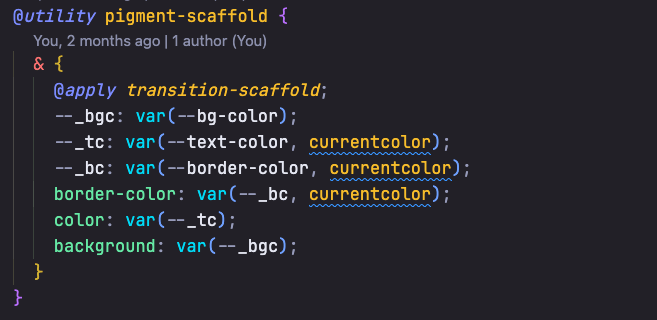
It’s a pity that syntax highlighting for nested classes goes a little bit haywire (they’re `green`, but they should be `orange`), but there’s nothing much I can do about it.

### Debugging colors
VS Code is built on [Electron](https://www.electronjs.org), so it’s easy to debug and test colors. What I had to do was fire up devtools, inspect the color I wanted to change, and change them directly to get a live update!
### Wrapping up
The most important I thing I learned during this process is to go with the flow. One opening can lead to another, then another, and something what seems “impossible” can become “Oh, it’s done?” in a matter of hours.
I call my theme **Twilight Cosmos** (AI helped with the naming). You can find it on:
- [Visual Studio Marketplace](https://marketplace.visualstudio.com/items?itemName=zellwk.twilight-cosmos-theme) if you use VS Code
- [Open VSX](https://open-vsx.org/extension/zellwk/twilight-cosmos-theme) if you use Cursor or other editors
- [npm](https://www.npmjs.com/package/twilight-cosmos-theme) if you wanna use the for Shiki
How did I publish my extension? That’s the subject of a brief follow-up article that I’m working on.
In the meantime, here’s the [GitHub repo](https://github.com/zellwk/twilight-cosmos) if you want to build upon whatever I have done. Feel free to suggest edits to improve this theme too!
Finally, [sign up for my email newsletter](https://zellwk.com/newsletter/) if you’re interested in hearing my creation adventures. :)
That’s it. Thanks for reading and I hope you had a blast!
* * *
[No-Hassle Visual Studio Code Theming: Building an Extension](https://css-tricks.com/no-hassle-visual-studio-code-theming-building-an-extension/) originally published on [CSS-Tricks](https://css-tricks.com), which is part of the [DigitalOcean](https://try.digitalocean.com/css-tricks/?utm_medium=rss&utm_source=css-tricks.com&utm_campaign=family_&utm_content=) family. You should [get the newsletter](https://css-tricks.com/newsletters/).
https://css-tricks.com/no-hassle-visual-studio-code-theming-building-an-extension/