
Hide the COE field within the Case Creation dialog in HR Agent Workspace
We often receive questions about how to hide fields on the case creation dialog of HR Agent Workspace. In HR Agent Workspace, case creation no longer uses the UI page for configuration. This article walks you through a simple use case so that you, too, can add hide fields on the case creation dialog in HR Agent Workspace.
In this use case, we have a requirement to hide the ‘COE’ field on the case creation dialog in HR Agent Workspace when creating a new case.
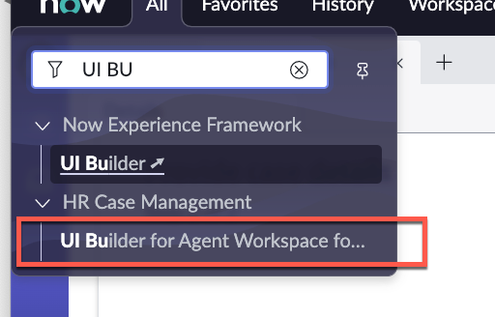
The configuration for this is present in UI Builder for Agent Workspace for HR Case Management and not from the Case Creation UI page. Here are the steps to make the modifications:
Role Required: sn_hr_agent_ws.admin
- Make sure your scope is set to the Agent Workspace for HR Case Management application .


- Expand Body (Flex) and click on COE to select it.

- On the upper right corner of the UI Builder Page click on the ‘eye’ icon as shown below.

- This action reveals the Hide component switch. Select it to make it green which indicates that the component will now be hidden from the dialog.

- Click the ‘Save’ button, log off this instance, then log on again to see your modifications.

Important: This modification does not impact the COE field getting populated since this field is populated by selection of the HR service. This configuration change can be undone at any time without impacting any data collected.

https://www.servicenow.com/community/hrsd-articles/hide-the-coe-field-within-the-case-creation-dialog-in-hr-agent/ta-p/2405359