
Service Account Management, Part VII
“Success is stumbling from failure to failure with no loss of enthusiasm.”
— Winston Churchill
Last time, we wrapped up our Catalog Item by specifying the Flow that we created as the fulfillment method. Now we just need to test everything to make sure that it all works. The easiest way to do that is to jump into the Service Catalog and place an order. Let’s do that now.

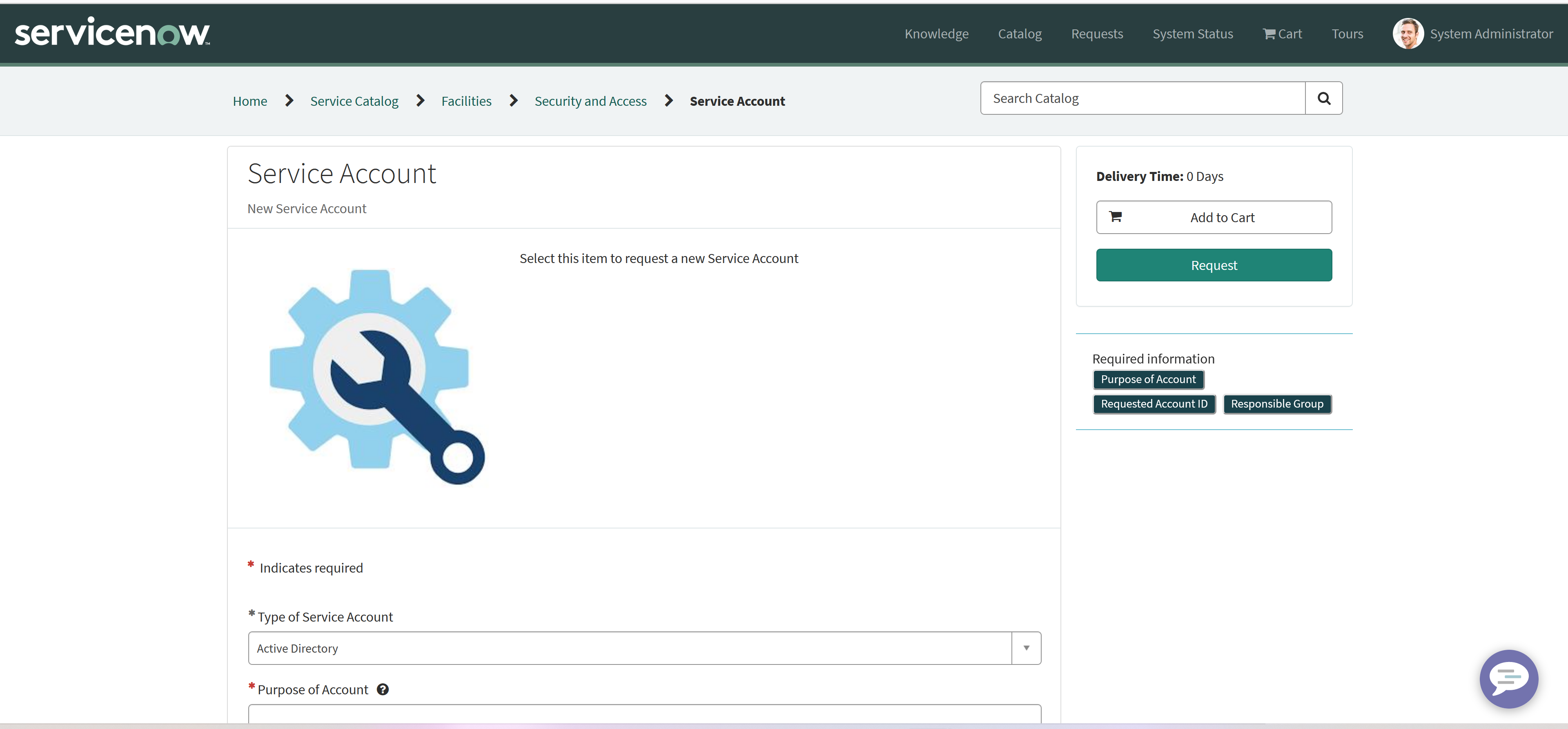
Service Account Catalog Item in the Service Catalog
To request a new Service Account, we just need to complete all of the required fields that we created for this item.

Completing the request for a new Service Account
Since the only fulfillment Subflow that we have created so far is for a ServiceNow Service Account, we will select that from the list and then complete the rest of the form. Clicking on the Request button creates the request and takes you to the summary page for the newly created request.

Newly created Service Request
Clicking on the name of the Requested Item brings you to the summary page for that item, that shows that it has, in fact, been fulfilled.

Fulfilled Requested Item
The status of the Requested Item is Closed Complete, and it includes the comment: Service Account testacct1 has been created and the requester has been notified. To verify the notification, we can jump over to the email logs and see if we can find an outgoing email for this request.

Outgoing notification email
One other thing that we will want to check is whether or not the account was actually created, so let’s pop over to the user list and see if we can find the user record.

Requested ServiceNow Service Account
So far, so good. Now let’s see if we can use the account. You shouldn’t be able to log on to ServiceNow with this account, but let’s try that anyway and see what happens.

Invalid log on attempt
Although the image above was what I was expecting to see, the only way I got that was to reset the password on the new Service Account. When I first attempted to log in directly, I got an invalid password message. What that tells us is that the method that I used to set the password when we first created the record did not work. Apparently, you cannot just set the password field to a specific value; there must be some other, more secure way to do that aside from just passing in the value. I’ll have to do a little research on the appropriate way to go about that, make a few changes, and then test again. It’s always something! Well, now we have the subject matter for our next installment.
https://snhackery.com/2022/12/07/service-account-management-part-vii/#utm_source=rss&utm_medium=rss&utm_campaign=service-account-management-part-vii