
How to use AMB Record Watcher in ServiceNow UIB
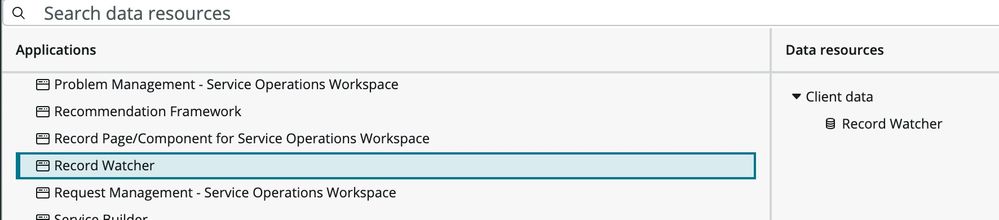
Hello! There is a new, but not necessarily easy to find, feature in Tokyo that allows you to easily monitor a table and react to events in your UI Builder (UIB) application when a record changes in that table.
This is called an AMB Record Watcher, and is a websocket feature that supports the handy little green checkboxes you see on fields on a record form when someone else is editing it. Prior to Tokyo it was quite a bit of work to setup but thanks to a new Data Resource called Record Watcher it's pretty simple now!
When to use it
You want to use a Record Watcher whenever you need your UIB page to react to a record change in the database. E.g. if a record is inserted or a value changes you may need to respond or flag the change to the user.
How to use it
1. In the UIB add a new Data Resource to the page and find Record Watcher > Record Watcher.

2. This gives you a configurable data resource. Open the config for the data resource using the little database icon in the bottom left of the UIB and specify the table which you want to watch.
3. You will need to next specify a filter. For instance, if you wish to monitor a table and be notified whenever a record changes to state = "Ready" you specify that using "Edit filter conditions".

4. Turn on "Subscribe" to have it automatically start watching when the page loads.
5. Go the Scripts and create a new script to handle messages from the Record Watcher. For now just add the code "console.log(event);" to the script so that you may inspect the output and figure out what data is returned that you may wish to use.
6. Return to the Record Watcher data resource and under the "Events" tab add your script as an event handler for "Message Received".
7. Reload the page then go modify your table record and watch the event logged to the console.
How it works
Here's how it works (and this is important to understand)--you will receive an event every time a record "enters" a state that satisfies the condition and an "exit" event whenever a record no longer satisfies the condition.
For example if the condition you are monitoring for is "State=Ready", when a record moves to that state a message will be received. In the payload you will see that "data.action" is "entry", like this:

If the state changes to "Open" you will receive another message (but without the full record data) of action "exit" letting you know that it is no longer being watched. You will no longer receive messages until the record's state returns to "Ready".
You may use code similar to this in your UIB script to check the action and decide whether to act on it:
function handler({api, event, helpers, imports}) {
    console.log("Request Record Changed!");
    console.log(event);

    const { action, sys_id : requestId } = event.payload.data;

    if(action === 'entry'){
        api.setState('requestId', requestId);
        api.setState('snapRequested', Date.now());
    }
}
Actions and Operations
The Action is the activity that occurred to engage the record watcher and fire the event. It is centered around the state of the condition in relation to the record watcher. Did it enter the state? Did it exit the state? Or did something on the record that already satisfied the state change?
Consider the following response for the "action" property for the condition watching all tasks "assigned to is me".
| entry | A change happened to cause a record to satisfy the condition that did not formerly satisfy that condition. E.g. the assigned to field changes from blank to myself or a new record assigned to me is inserted. |
|---|---|
| change | A record that already satisfies the condition changes. E.g. the description of the record changes. |
| exit | A record that formerly satisfied the condition no longer does so, e.g. assigned to field changes to another person. |
The Operation is an old-fashioned GlideRecord operation--insert, update, delete. As you can see you could have a combination of actions and operations that aren't exactly 1:1. I.e. a "change" action and "update" operation may seem like the same thing, but in fact an update operation on a record may cause it to enter the condition's parameters (such as the example of a record updated to assigned to me, triggering an "entry/update" combination).
You can use these values in combination with the filter to make sure that you only respond on the specific situations that you want to and don't cause too much noise.
Pretty sweet, no?
Once you've got the result of the Record Watcher state-change you can kick off any activity that you wish. Dig in a bit more and you'll see how to explicitly subscribe or unsubscribe (e.g. if you don't care about events any more), and you can build specific conditions to make sure that you're only targeting precisely the activities that you want to trigger the events.
Note: This feature was introduced with the Tokyo release.
https://www.servicenow.com/community/next-experience-articles/how-to-use-amb-record-watcher-in-servicenow-uib-tokyo/ta-p/2352975