
Service Portal Form Fields, Broken
“Well, if it can be thought, it can be done, a problem can be overcome.”
— E.A. Bucchianeri
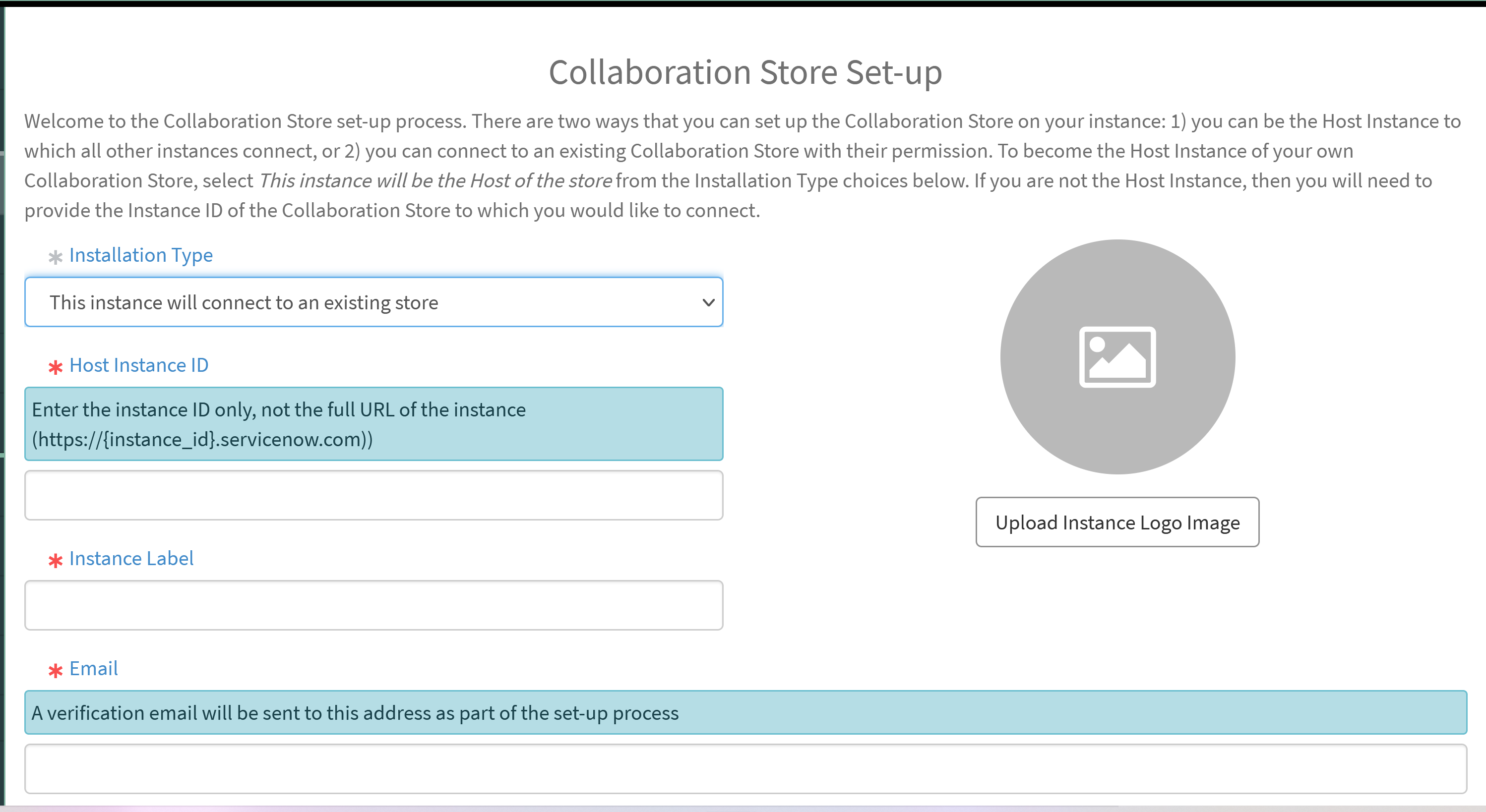
The snh-form-field tag has been around for a while in various incarnations, and has been used on quite a few projects for one thing or another, all with relative success. Several snh-form-fields make up the initial set-up screen for the Collaboration Store, which also worked out quite well for that particular effort. At least, it was working out quite well until I tried to set up a new instance that was running the new Tokyo release. Here is what the initial set-up screen is supposed to look like:

Collaboration Store initial set-up screen
Here is what it looks like on a Tokyo instance:

Collaboration Store initial set-up screen on Tokyo
As you can clearly see, a couple of very important input fields are not on the screen in the Tokyo version. This appears to be due to a flaw in the snh-form-field tag that did not reveal itself in the earlier versions of the Now Platform. At this point, I do not know the exact nature of the flaw, only that it appears that you can only have one snh-form-field tag in any given container. I would categorize this as a flaw in the tag rather than an issue with the new release of ServiceNow, mainly because of the first rule of programming. It may take me a while to figure out exactly what might be going on here, but in the interim, I was at least able to come up with a viable work around. If you are using the snh-form-field tag on a project running on a Tokyo instance and you run into this issue before the flaw in the tag has been corrected, you can simply surround each snh-form-field tag with a span. That places each snh-form-field tag in its own personal container, eliminating the issue.
Here is how I used this technique to work around the problem that I was having with the initial set-up screen for the Collaboration Store.
 The Collaboration Store Set-up cannot be completed because Collaboration Store is not selected in your application picker.
Switch to Collaboration Store
.
The Collaboration Store Set-up cannot be completed because Collaboration Store is not selected in your application picker.
Switch to Collaboration Store
.
${Wait for it ...}
${Collaboration Store Set-up}
Welcome to the Collaboration Store set-up process. There are two ways that you can set up the Collaboration Store on your instance: 1) you can be the Host Instance to which all other instances connect, or 2) you can connect to an existing Collaboration Store with their permission. To become the Host Instance of your own Collaboration Store, select This instance will be the Host of the store from the Installation Type choices below. If you are not the Host Instance, then you will need to provide the Instance ID of the Collaboration Store to which you would like to connect and the Host instance will need to be available to complete the set-up process.
${Email Verification}
A verification email has been sent to {{c.data.email}} with a one-time security code. Please enter the code below to continue.
Cancelling this process will terminate the set-up process.
${Set Up Complete!}
${Congratulations!}
The Collaboration Store set-up is now complete. Your instance has been successfully registered with the {{c.data.registeredHostName}} ({{c.data.registeredHost}}) Host and is now ready to utilize the Collaboration Store features.
The Collaboration Store set-up is now complete. Your instance has been successfully set up as a Host instance and is now ready to accept client registrations and utilize the Collaboration Store features.
It’s not the best, but it does work. If you are one of those kind souls helping out with the testing of the Collaboration Store, and you happen to be doing your testing on a Tokyo instance, you can just grab the code above and overlay the HTML for the set-up widget with this version. That should get you up and running again. This will definitely be included in the next early release for testing purposes, but if you don’t want to wait for that, just snag the code above.
The best solution, of course, is to continue digging until we find the source of the true problem here and release a new version of SNH Form Fields that does not contain this issue. Hopefully, it won’t be too long before we can make that happen.
https://snhackery.com/2022/09/16/service-portal-form-fields-broken/#utm_source=rss&utm_medium=rss&utm_campaign=service-portal-form-fields-broken