
How to Create a Data Broker Server Script to Retrieve a Specific Property Value
 New article articles in ServiceNow Community
·
Nov 21, 2025
·
article
New article articles in ServiceNow Community
·
Nov 21, 2025
·
article
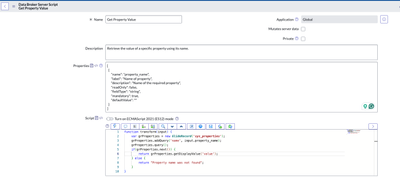
In this article, we’ll demonstrate how to create a Data Broker Server Script that retrieves the value of a specific system property by its name. This is particularly useful when building Workspace experiences that require dynamic property values through Data Resources.
Step 1: Define the Data Broker Properties
Add a property to capture the name of the system property you want to retrieve:
[
{
"name": "property_name",
"label": "Name of property",
"description": "Name of the required property",
"readOnly": false,
"fieldType": "string",
"mandatory": true,
"defaultValue": ""
}
]
This ensures the Data Broker accepts the property name as input.
Step 2: Implement the Server Script
Use the following script in your Data Broker:
function transform(input) {
var grProperties = new GlideRecord('sys_properties');
grProperties.addQuery('name', input.property_name);
grProperties.query();
if (grProperties.next()) {
return grProperties.getDisplayValue('value');
} else {
return "Property name was not found";
}
}
Key Points:
- The script queries the
sys_propertiestable. - If the property exists, it returns its display value.
- If not found, it returns a friendly message.

Step 3: Configure in UI Builder
Once the Data Broker is created:
- Navigate to UI Builder.
- Add a Data Resource using your new Data Broker.
- Pass the property name dynamically or statically.
- Bind the returned value to your component.

https://www.servicenow.com/community/next-experience-articles/how-to-create-a-data-broker-server-script-to-retrieve-a-specific/ta-p/3433639