
Fixing the Height of Knowledge Category Picker Dialog in ServiceNow (Custom Macro Approach)
 New article articles in ServiceNow Community
·
Nov 05, 2025
·
article
New article articles in ServiceNow Community
·
Nov 05, 2025
·
article
Problem
In ServiceNow, the Knowledge Category Picker (used for the kb_category field in Knowledge articles) opens a dialog window using the UI Macro kb_category_reference_lookup.
However, the dialog’s height is fixed to 150px, even when using:
dialog.setSize(width, height);
This causes the category selection dialog to appear too small, cutting off most of the content.
Root Cause
Inside the original macro, the dialog window uses a container element called .colview-container, which enforces a fixed height of 150px.
This style is applied dynamically after the dialog renders, so modifying the dialog size directly does not take effect.
Solution: Create a Custom Macro Override
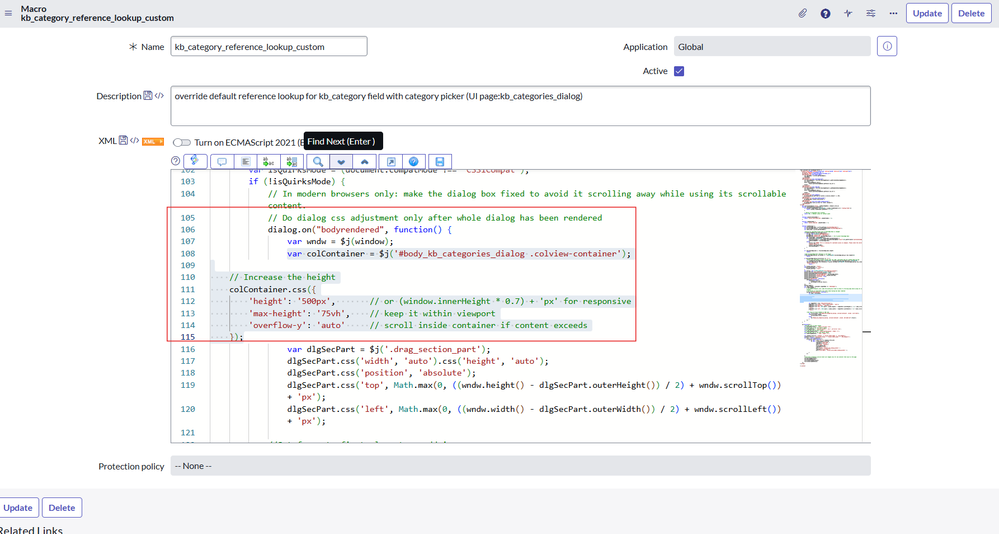
To fix this, create a cloned UI Macro and override the height of .colview-container dynamically during the bodyrendered event.
Steps to Implement
Step 1: Create a Custom UI Macro
- Navigate to System UI → UI Macros.
- Search for the macro
kb_category_reference_lookup. - Open it and click Insert and Stay to create a copy.
- Name the copy:
kb_category_reference_lookup_custom - In the XML content, locate the part where the dialog rendering logic is present:
js dialog.on("bodyrendered", function() { var wndw = $j(window); var dlgSecPart = $j('.drag_section_part'); dlgSecPart.css('width', 'auto').css('height', 'auto'); ... }); - After this (
var wndw = $j(window);) logic, add the following code snippet:
js
var colContainer = $j('#body_kb_categories_dialog .colview-container');
// Override the default height
colContainer.css({
'height': '500px',       // or use '70vh' for responsive height
'max-height': '75vh',
'overflow-y': 'auto'     // enables internal scrolling
});
This ensures that once the dialog body is rendered, the .colview-container expands to the desired height and supports scrolling if the content exceeds the visible area.

Step 2: Update the Dictionary Attribute
To make the form use the custom macro instead of the default one:
- Go to System Definition → Dictionary.
- Search for the field
kb_categoryon the kb_knowledge table.
kb_category - Open it and locate the Attributes field.
- Update or add this attribute:
field_decorations=kb_category_reference_lookup_custom - Save the record.
This links your custom macro to the Knowledge Category field.

Result
After applying the fix:
- The category picker dialog opens with increased height (500px or 70vh).
- The content is fully visible with internal scrolling.
- The change is upgrade-safe since it uses a custom macro.

Notes
- Adjust height (
500pxor70vh) as needed. - Using viewport units (
vh) keeps the dialog responsive across screen sizes. - Avoid editing the out-of-box macro directly to maintain upgrade safety.
Summary
If your Knowledge Category Picker dialog appears too small, the issue lies in the fixed height of .colview-container.
By cloning the macro and overriding the container height in the bodyrendered event, you can fix it easily.
https://www.servicenow.com/community/developer-articles/fixing-the-height-of-knowledge-category-picker-dialog-in/ta-p/3419545