
Generate multiple documents on a case - Simple flow
 New article articles in ServiceNow Community
·
Sep 03, 2024
·
article
New article articles in ServiceNow Community
·
Sep 03, 2024
·
article
ServiceNow's Advanced Forms feature is a powerful tool for HR services, enabling HR agents to generate specific documents linked to HR cases. While this functionality is robust, it has a limitation: out of the box, it only allows for the generation of one document per HR case. But what if your process requires multiple documents to be created automatically for a single case?
In this article, I'll explain a solution that overcomes this limitation, allowing you to generate multiple documents automatically based on specific conditions.
The Challenge: Generating Multiple Documents
By default, ServiceNow’s functionality restricts HR agents to generating just one document per case. This limitation can be problematic for organizations that require multiple documents for compliance, process, or other business needs.
The Solution: Custom Action and Flow
To address this, you can create a custom action within ServiceNow's Flow Designer that automates the generation of multiple documents on a single HR case. This action can be triggered by specific conditions defined in your flow, ensuring the correct documents are created when needed.
Please note that I won't be explaining the steps for creating a document template, as I assume that you already know how to do so.
Step 1: Creating the Custom Action
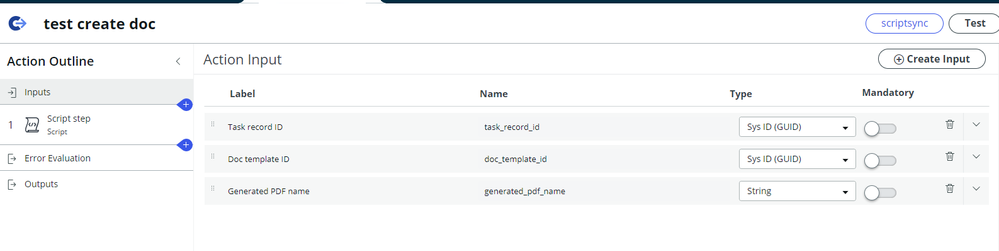
1. Create an Action in Flow Designer:
- Inputs:
- Task Record ID: SysID
- Document Template ID: SysID
- Generated PDF Name: String
- Task Record ID: SysID

- Pull the above inputs into input variables. For example:
taskRecordIddocumentTemplateIdgeneratedPdfName

3. Write the Script:
- Use the
GenerateDocumentAPIto generate the document. Here's a sample script:
(function execute(inputs, outputs) {

  outputs.generatedattachmentid = new sn_doc.GenerateDocumentAPI().generateDocumentForTask(inputs.taskRecordId, inputs.documentTemplateId, inputs.generatedPdfName);
})(inputs, outputs);
Note: The script does not require any outputs. It will generate the document and automatically attach it to the task record, in this case, the HR case.
Step 2: Creating the Flow
1. Set Up the Flow in Flow Designer:
- Define the trigger and conditions based on your requirements. For instance, you might have two fields in the HR case table,
Doc 1andDoc 2. If either or both are checked, the corresponding document templates will be generated

2. Configure the Flow:
- Ensure that the correct values are passed, particularly the SysID for the task record and document template, rather than the case number or template name.

3. Run/Trigger the Flow:
- Once triggered, the flow will generate and attach the documents to the HR case automatically.
- For example, if both
Doc 1andDoc 2are set to true, both documents will be generated and attached to the case.

Flow is triggered:, both documents got generated and auto-attached to the case:


Conclusion
By following the steps outlined above, you can effectively extend ServiceNow’s out-of-the-box capabilities to automatically generate multiple documents for a single HR case.
Final Tips:
- Ensure Consistency: Make sure that the document template table and the case table are the same.
- Set the Right Conditions: Configure your flow triggers and checks carefully to meet your specific business requirements.
- Remember: This solution focuses on document generation only. It does not handle the triggering of signature tasks or other actions.
I hope you found this guide helpful and that it enhances your ability to automate document management within ServiceNow.
https://www.servicenow.com/community/hrsd-articles/generate-multiple-documents-on-a-case-simple-flow/ta-p/3034848