
Speeding Up Flow Designer “Wait for a Duration of Time” for Testing
 New article articles in ServiceNow Community
·
Oct 16, 2025
·
article
New article articles in ServiceNow Community
·
Oct 16, 2025
·
article
When testing Flow Designer, especially flows that use “Wait for a duration of time”, it’s not practical to wait hours or days for the timer to expire - particularly when working with Lifecycle Events activity sets that are waiting to trigger.
If you’ve ever wished you could fast-forward those waits - good news, you can!
Here’s how to safely speed up the flow execution for testing purposes.
What Happens Behind the Scenes
When a flow reaches a “Wait for a duration of time” action, ServiceNow inserts a record into the Schedule [sys_trigger] table.
This record tells the system when to fire the next step in your flow.
By adjusting this trigger manually, you can make the flow continue immediately instead of waiting for the actual duration.
Steps to Accelerate a “Wait for Duration” Action
1. Go to the sys_trigger Table
Navigate to:
https://<your_instance_name>.service-now.com/sys_trigger.list
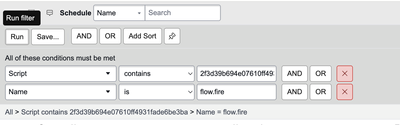
2. Apply This Filter
To locate your specific flow’s trigger record, use the following filter:
Name = flow.fire
Script CONTAINS [sys_id of your flow execution]
scriptLIKE[sys_id of sys_flow_context]name=flow.fire

3. Edit the Trigger Record
- Open the matching record.
- Update the Next Action field to the current date/time.
- This will cause ServiceNow to immediately create an event record in the Event [sysevent] table.
Wait for record to be created in sysevent table.
4. Update the Event Record
In the sysevent table, filter as follows:
Name = flow.fire
Queue = flow_engine
Instance = [sys_id of sys_flow_context]
Wait for record to be created in sysevent table.
Then:
- Open the record.
- Update the process_on field to the current date/time.
This prompts the system to resume the flow execution instantly.

Finding the sys_id of the Waiting Flow Context
If you’re unsure how to find the sys_id of the flow context that’s waiting, follow these steps:
1️⃣ Go to the Activity Set Context record that’s awaiting a trigger.
2️⃣ Click the ‘i’ icon next to the Flow Context field and choose Open Record.

Then open the flow in Operations view by clicking on 'Open in Operations View' UI Action.
3️⃣ Inside that flow context, navigate to the step where the Subflow is waiting (e.g., HR Activity Set Trigger Check) → click Open Subflow Context.

4️⃣ Again, locate the waiting step (e.g., Wait for timer and check trigger) and click Open Subflow Context.

5️⃣ The Subflow Context will open in a new tab. Copy the URL of that record.
6️⃣ Use any online URL decoder tool to decode the sys_id

or simply copy the 32-character string after “%3D” in the URL.

Notes
- This method is for testing only - not recommended for production use.
- Be cautious while editing system tables like
sys_triggerandsysevent. - Always ensure you are working in a sub-production instance (DEV or TEST).
Pro Tip:
Bookmark this post for quick reference - it’s a time-saver whenever you’re testing flows that rely on delayed triggers!
If you found this useful, don’t forget to mark this post as helpful!
https://www.servicenow.com/community/hrsd-articles/speeding-up-flow-designer-wait-for-a-duration-of-time-for/ta-p/3407136