
Employee Center - AI Search - Show Quick Links in Employee Center AI Search Results
 New article articles in ServiceNow Community
·
Aug 29, 2025
·
article
New article articles in ServiceNow Community
·
Aug 29, 2025
·
article
Introduction
Employee Center Product has faceted search widget OOB which renders content from AI search source attached to Employee Center Service Portal.
OOB AI search configuration works great with usual AI search souces e.g Service Catalog, KB articles.
What if you want to show content from Quick Links table in employee center faceted Search widget?
I had similar requirement for one of my implementations.
This article is created to document steps to implement this requirement.
Solution
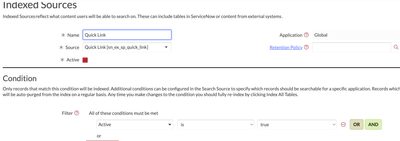
- Configure AI indexed source to point to quick link table (sn_ex_sp_quick_link).

- Scroll down to your indexed source and make sure to create field mappings like below since you would want use this in your EVAM configuration in next steps.

- Configure AI search source to use indexed source you created.

Also, make sure that search source for quick links is linked to your AI search source.

- Navigate to AI Search Search Application and navigate to ESC search application.


- Scroll down to this search application and create one record for quick link in Navigation tab related list. This is needed since faceted search result will be able to show quick links content in a separate tab.

- Create EVAM View template and use below payload in this EVAM template.

{ "component": "sn-search-result-evam-card", "staticValues": { "imageType": { "translatable": false, "key": "image" }, "imageURL": { "translatable": false, "key": "quick_link.png" } }, "mappings": { "textHeaderLabelOne": "name", "textHeaderLabelTwo": "override_short_desc", "title": "ai_search_teaser_title", "summary": "ai_search_teaser_text" }, "actionMappings": { "clickAction": "url_navigation" } }
- Create EVAM View Configuration to make use of EVAM template created in previous step.

- Last step it to index your quick link AI search indexed source for these changes to take effect.

That's it. You have just configured quick links to show up in EC,EC Pro AI search results.
https://www.servicenow.com/community/employee-center-articles/employee-center-ai-search-show-quick-links-in-employee-center-ai/ta-p/3365352