
Enhanced Requests Page Experience
 New article articles in ServiceNow Community
·
Aug 28, 2025
·
article
New article articles in ServiceNow Community
·
Aug 28, 2025
·
article
Feature Demo
Overview
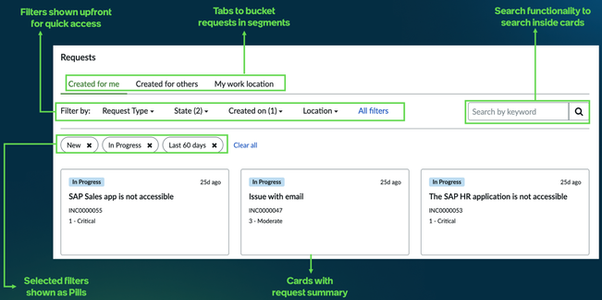
In the July 2025 release, we've overhauled the My Requests page in Employee Center to make it easier for employees to view, filter, and manage their requests.
The new experience introduces configurable tabs, filters, and a cleaner card layout, making it easier for employees to distinguish between their own requests and those submitted on behalf of others. It can also be configured to help organizations track issues by team, location, or other criteria. Admins can flexibly define how requests are organized and displayed without custom development, enabling tailored views for different regions, teams, or roles. This streamlined setup allows both managers and employees to quickly find and track what matters most to them.
Tabbed Request views: Requests are now organized into three default tabs: Created for You (requests you've submitted for yourself), Created for Others (requests made on behalf of others), and Others (all remaining requests). Admins can configure additional tabs based on organizational needs—for example, to show all team requests, workplace-specific requests, or specific types like incidents. Draft requests are displayed in a dedicated tab with quick-delete options, and users can also control pagination by choosing how many requests to display per page (e.g., 12 or 15).
Advanced Filters: Employees can filter requests by fields such as department, location, request type, status, or date. Filters are shown inline on larger screens and adapt to dropdown or modal views on smaller devices. Admins can define custom filters based on organizational needs. Each filter can be configured as single-select or multi-select, using static or reference fields. Filters can also be targeted to specific user groups and set to apply automatically on page load—for example, showing only open requests by default.
Search across all requests: The keyword search helps employees find specific requests without needing to browse through all requests.
Configurable Request cards: Each request is displayed in a card format with key information visible at a glance. Admins can configure the title shown on each card and choose up to two detail fields to display, based on what’s most relevant for their users.

To help admins tailor the new My Requests experience to their organization’s needs, configuration is simple and flexible:
- Opt-in to the New Experience: Admins can enable the redesigned My Requests page by navigating to ‘Requests Setup’ under Employee Center menu and opting in to the new experience.
- Source Configuration: Define the request data shown on the page using the Source Configuration table. Admins can:
- Select which request types appear (e.g., Incidents, Catalog Requests)
- Customize the card layout (title and up to two detail fields)
- Set destination pages for request click-throughs
- Select which request types appear (e.g., Incidents, Catalog Requests)
- Filter Definition: Use the Filter Definition table to shape how users interact with the request list:
- Create and label tabs (e.g., “Created for You,” “Drafts”)
- Define filters by department, status, date, etc.
- Control filter visibility based on user roles or personas
- Set filters to automatically apply on page load (e.g., show only open requests)
- Create and label tabs (e.g., “Created for You,” “Drafts”)

| How to get access? License & family release compatibility - The enhanced Requests experience is available for all Employee Center customers and backward compatible with Xanadu patch 7, Yokohama patch 1 and Zurich family release. Plugins required – This capability is available by downloading the Employee Center plugin (version 38.0.5). Technical details – To enable the redesigned Requests page experience, admins need to opt-in to the new experience. Admins can define the relevant tables under Source Configuration. They can also add or adjust filters in the Filter Definition table Refer to Enhanced Request Experience product documentation for additional details. |
|---|
FAQs
Q1. What’s new on the My Requests page?
A. The page has been redesigned with tabs, filters, search, and a cleaner card layout so you can more easily find and track your requests.
Q2. How are my requests organized?
A. You’ll see tabs like:
- Created for You (your own requests)
- Created for Others (requests you made for someone else)
- Drafts (saved but not submitted)
Some organizations may also have team or location-specific tabs.
Q3. Can I search for a specific request?
A. Yes, use the search bar to find requests by keyword instead of scrolling through the list.
Q4. How do I filter my requests?
A. You can filter by things like department, location, request type, status, or date. Filters adapt automatically for desktop and mobile.
Q5. What information will I see on a request card?
A. Each request shows key details like request number, status, and other important info chosen by your organization.
Q6. Can I see requests I submitted for my team or others?
A. Yes, if your admin has enabled team or “Created for Others” tabs. Managers may also see team requests if given permission.
Q7. What about draft requests?
A. Drafts appear in a dedicated tab. You can quickly delete them if they’re no longer needed.
Configuration related FAQs
Enabling & Setup
Q1. How do I enable the new My Requests experience?
A. Go to Employee Center → Requests Setup and opt in to the redesigned experience.
Q2. What is Source Configuration?
A. It defines which request types appear, how request cards are displayed (title + up to 2 detail fields), and which page opens when a request is clicked.
Q3. What is Filter Definition?
A. It allows admins to:
- Create and label tabs (e.g., Created for You, Drafts, Team Requests)
- Define filters (e.g., department, status, date)
- Control filter visibility by role or persona
- Set filters to auto-apply (e.g., show only open requests by default)
Tabs & Visibility
Q4. What are the default tabs?
A. Created for You, Created for Others, Others, and Drafts.
Q5. Can I configure additional tabs?
A. Yes. You can create custom tabs (e.g., team requests, incidents, location-based requests, requests where a user is on the watchlist).
Q6. Can managers view their team’s requests?
A. Yes, if a tab is configured for it and they have the correct roles and ACL permissions.
Q7. Can I configure tabs or filters for assignment groups?
A. Yes. Tabs/filters can be created based on assignment group or user fields.
Q8. Can configurations be targeted to specific portals?
A. Yes. Configurations can be applied per portal. However, widget instances share the same configuration across pages.
Filters & Search
Q9. What filters are available?
A. Department, location, request type, status, and date (plus any custom fields you configure).
Q10. Can filters auto-apply when the page loads?
A. Yes, for example to show only “Open” requests by default.
Q11. Can the location field dynamically pull the user’s set location?
A. No, not currently.
Request Cards
Q12. How customizable are the request cards?
A. You can configure:
- One title field
- Upto two description/detail fields
- Status, request number, and other key info
Q13. Can I switch to a list view instead of cards?
A. Not yet.
Q14. Can request data be exported (Excel, PDF, etc.)?
A. Not currently.
Q15. How are draft requests handled?
A. They appear in a dedicated Drafts tab. Admins can control its visibility via a system property. Currently, no draft count indicator is shown.
Licensing and Requirements
Q16. What versions are supported?
A. It is available in the July 2025 release and backward compatible with Xanadu patch 7, Yokohama patch 1, Zurich release, and up to N-2 versions.
Q17. What plugin is required?
A. Employee Center plugin v38.0.5.
https://www.servicenow.com/community/employee-center-articles/enhanced-requests-page-experience/ta-p/3364352