
Get Familiar with AI Agent
 New article articles in ServiceNow Community
·
Aug 11, 2025
·
article
New article articles in ServiceNow Community
·
Aug 11, 2025
·
article
We used to design services. Now we’re designing the thinking behind them.
With ServiceNow’s AI Agentic Workflows, you're not just setting up automation, you’re training digital coworkers that can plan, reason, and get things done.
This hands-on guide is your quick and easy on-ramp to AI Agents. In just a few steps, you’ll explore, activate, and test your first AI Agent, all with zero coding required. Whether you're new to the concept or ready to scale your impact, this lab will help you get familiar with AI Agents fast and confidently.
PreRequisites
- ServiceNow Instance
- License
Now Assist License (Pro Plus/Enterprise Plus) - PluginsAI Agents store app installed.Make sure dependency apps and main "Now Assist for..." store apps are also installed and updated. Ensure to Install the required dependencies and the latest version is selected, and select “Load demo data” in order to have demo data pre-configured.
If you are facing conflicts with plugin versions, repairing the following ones could solve the problem:
1. Flow designer
2. Microsoft Azure OpenAI Generative AI Spoke
3. Generative AI Controller
4. Now Assist AI Agent
5. Now Assist for [Product Name]
6. Now Assisst for spokes
7. Now Assist for Platform
8. Now Assist in AI Search
9. Now Assist in Virtual Agent
10. Now Assist Platform Skills
11. Now Assist for Creator
12. All the plugins which need update on your instance.
Important: Make sure dependent plugins are on the latest version.
- AI Search
Enable AI Search. Check status on “AI Search > AI Search Status” - Now Assis Panel
For human agents to interact with the AI Agents, we also need to enable the Now Assist Panel. This will allow a human agent to interact with the AI Agent through a conversational interface, and is particularly important when the AI Agent has to ask clarifying questions or provide responses back to the human agent.
To turn on the Now Assist Panel:
In the navigation menu, go to Now Assist Admin > Experiences.
In Now Assist Experiences > Applications > Now Assist panel, go to the Summary widget. Select Turn on to enable the Now Assist Panel.
Note that at least one Now Assist product plugin (ITSM, HRSD, CSM, SecOps, etc.) must be activated to turn on the Now Assist Panel.
- Roles
Be sure your admin user is granted with the following roles: sn_aia.admin, sn_nowassist_admin.nsa_admin - Data Quality
AI Agents use the context of your ticket and your searchable content to generate plans and actions. Ensure that your ticket data and knowledge base have the latest accurate information for the best results.
Get familiar with ServiceNow AI Agentic Workflows
Build AI Agents that plan, reason, and automate your workflows!
Enhance your team’s productivity with AI agents that orchestrate workflows, skills, and actions across your business. Learn how to activate prebuilt ServiceNow AI Agents and create custom agents tailored to your needs with minimal code.
Be sure the following are enabled:
- AI Search: Confirm that AI Search is enabled. To confirm, navigate to AI Search > AI Search Status page.
- Now Assist Panel: Confirm that Now Assist Panel is enabled.
To do so, navigate to Now Assist Admin > Experiences. Then turn on the Panel.
Exercices
Exploring the Agentic Workflow
Exploring AI Agent
Test the Agentic Workflow and AI Agent
Duplicate an Agentic Workflow
Duplicate and Modify an AI Agent
Create an AI Agent
Deploying the AI Agent to the Now Assist Panel
Troubleshooting your AI Agent
Exercise 1: Exploring the Agentic Workflow (Use Case)
In this section, you'll explore out-of-the-box use cases, referred to as Agentic Workflows in the latest release, break down their key components, and activate one of them.
Note: In recent plugin versions, "Use Case" has been renamed to "Agentic Workflow".
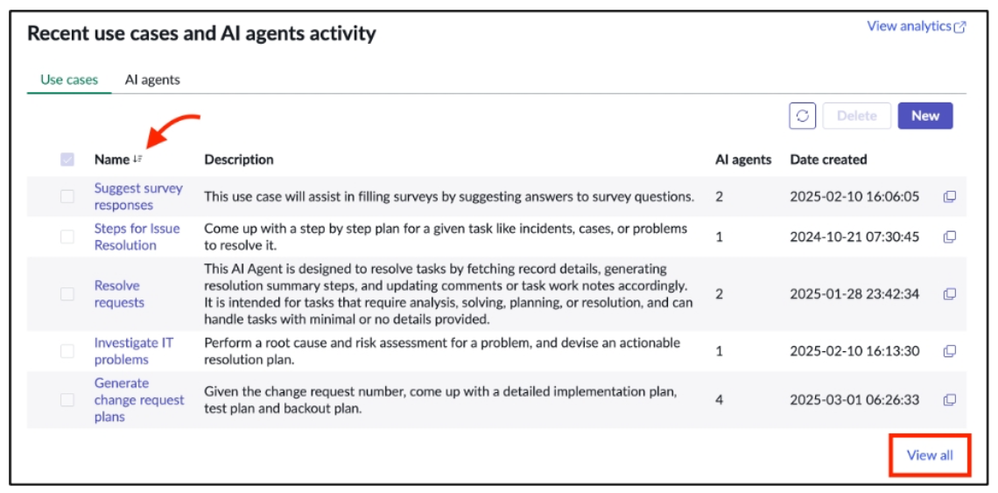
- To access the AI Agent Studio, in the navigation menu, go to: All > AI Agent Studio > Overview.
- Scroll down to the Use cases sub-tab.
In the latest AI Agents release, "Use case" may be referred to as "Agentic workflow". - Select the “Steps for Issue Resolution” use case. If necessary, sort the list by Name or click View all to display all available use cases.
- Review the AI Agent configuration. Notice that this AI Agent is available out-of-box and is, therefore, set to a read-only protection policy (unable to be modified directly).
- Under Describe the use case, examine the field values:
- Name: Business challenge that you want to solve.
- Description: Brief summary of what business problem your use case.
- Instructions: Guided actions to be followed by your AI agent.

The Instructions field is designated as AI Instruction, meaning it is directly associated to the LLM input.
- As you scroll, notice the Connect AI agents section. Here is where you map one or a team of AI Agents to execute the instructions of a use case. In this case, you see the Next Best Action Agent connected to the Steps for Issue Resolution use case.
- The Suggested AI agents to add section leverages Now Assist to help you quickly find the right AI Agents to map to your use case. Make sure the Description and Instructions fields are well-defined.
- Click Continue to review conditions for this use case to be automatically triggered.
- From the Define trigger page, click Add Trigger to explore how to build a trigger.
- Complete the fields as follows:
- Select trigger: Created or updated.
- Trigger name: . Table: Incident. As the Table field is defined, Conditions, Run as, and Objective Template fields automatically appear. To define when your AI Agent use case should run, you'll need to fill out two key fields: Conditions: This field defines when the use case should trigger. For example, you can set it to run when a new record is created, or when a certain field, like Category, is set to a specific value, such as Password Reset. Run as: This field outlines whose permissions the AI Agent should use. It controls what the AI Agent is allowed to see or do as part of the use case. For example, select a role or persona that has access to modify incident records. The Objective Template field tells the AI Agent what kind of situation should trigger the use case. It helps define the goal of the use case, such as solving a problem or answering a question. For example, ‘Help me resolve ${number}’ to let the Agent know it should guide the user through a solution. Click Cancel for now. You’ll get to define a trigger in a later section of the lab. Open the Select display page of the use case. Here is where you configure if this use case will be displayed on the Now Assist panel (NAP). It defaults to off. Toggle the Display on and click the arrow next to it further define the user roles who can trigger this use case from the NAP. In the User roles field, add now_assist_panel_user, then click Save and test. You've now activated your first use case! Before we test this use case, let's first explore the AI Agent associated with this use case: Next Best Action Agent. Exercise 2: Exploring AI Agent In this section, you'll explore the Next Best Action AI Agent. Return to the AI Agents Studio’s Overview page. Locate and open the Steps for Issue Resolution use case. From the Describe and connect tab. Scroll down to the Connect AI agents section. Note that AI agents are mapped to a parent use card record - you can have many AI agents linked to a single use case. Select the Next Best Action Agent AI agent record. Under Describe and instruct, examine the field values: Name: Unique name for the AI Agent Description: Summarizes what the AI Agent can do AI agent role: The capabilities and responsibilities defined for your AI agent; it describes your AI agent performing its required actions. Instructions: Specific, task-oriented guidelines or commands that clearly delineate what the AI agent should do in each situation, complete with conditions, steps, or constraints. Under the Add tools and information tab, you can add Tools to empower your AI Agent. Tools can come in many forms, including: Catalog item Conversational topic Flow action Now Assist skill Record operation Script Search retrieval Subflow Web search Regardless of which tool you use, the Inputs and Outputs can only be String. You may also leverage Now Assist to recommend tools with the Suggested tools to add functionality. Under Define availability, activate the AI Agent by switching the Status toggle to 'on'. Exercise 3: Test the Agentic Workflow and AI Agent From the Next Best Action Agent’s Define availability section, click Save and test. This action takes you to Testing page of the AI Agent Studio. You can also access this page by navigating to AI Agent Studio > Testing. In the Test scenario pane, select the following: What to test: Use Case (you can also test AI Agent by itself) Use case: Steps for Issue Resolution Task: Help me resolve Incident INC0009005. Click Start Test. The Use Case test begins, and you monitor the progress in the Output pane. The AI agent decision logs are recorded on the right-hand side of the panel. To view all log details, click the down-pointing arrows. You can export the decision logs report by clicking the Download logs ( ) button. 1. Verify that the steps provided by the AI Agent are appropriate to resolve the Incident. In the Output pane’s response box, enter Sounds good. This shows the thought process of the Agent. Now, let's modify the use case to turn thought into action. Exercise 4: Duplicate an Agentic Workflow Let's modify the use case and the AI Agent. We will also add a second AI Agent to the use case to perform more actions. In the banner's top-right corner, verify that you are working in the Global application scope. _Check session and switch to Global application scope, if not yet already_The selected scope itself is not vital to this lab exercise, but goes to illustrate that the Duplicate function will duplicate the selected Use Case into the session's application scope. Be consistent with your application scope usage! Navigate to AI Agent Studio > Create and manage. Under the Use cases pane, locate Steps for Issue Resolution and click the Duplicate button. From the You are duplicating a use case dialog popup box, confirm by clicking Duplicate. Duplicate use case confirmation You should now be in a new, duplicate use case called Steps for Issue Resolution (Copy). It is no longer read-only. Let's update the use case with our desired changes. Rename the use case to a preferred name, then modify the field values as follows: Name: Plan and Change Creation . (It's helpful to add a prefix of your initials so that it's easier to find in the testing panel.) Description: Come up with a step-by-step plan for a given task like incidents, cases, or problems to resolve it. Create a change request based on it. Instructions: Add a second step: ***2. Create a change record with the approved resolution plan.* At the bottom, click Save and continue. From the Define Triggers page, click Add Trigger. We will create a Trigger for an AI Agent to run whenever an incident is created by you (admin). Configure the trigger as the following: - Select trigger: Created. - Trigger name: Incident created by admin. - Table: Incident. - Conditions: Created | is | admin - Run as: Caller [incident]. - Objective template: Help me resolve ${number}. Check the Show Notifications checkbox field, then click Add. The new trigger you've created displays in the Existing triggers list. Click Save and continue. From the Select display page, enable the use case by toggling on the Display field. Click the down arrow, then add now_assist_panel_user in the User roles field. When done, click Save and test. You are directed to the Testing page of the AI Agent Studio. Before testing this use case, we need to add another agent. Exercise 5: Duplicate and Modify an AI Agent Check to make sure that you are working in the same application scope as you had duplicated the Use Case into: Global application scope. We will modify an AI Agent to add a new Script tool and make other changes. Return to the Describe and connect pane of your Plan and Change Creation . Scroll to the Connect AI agents section and open the Next Best Action Agent record. To the right of the Exit button, click the menu icon ( ) and select Duplicate. In the popup dialog window, select Duplicate. You should have a new AI Agent with the Name of Next Best Action Agent (Copy). Scroll to the Instruct the AI agent section and review the Instructions. At the end of step six (6), add a new step: 7. Output a message a message with a script with the Incident number. Note the specificity of our step - we are noting the action to be done, the tool, and what objects are involved. 1. At the bottom, click Save and continue. 2. In the Add tools and information section, open the Get similar Incidents Flow actions tool. 1. Change the Display output to Yes and set the Output transformation strategy field to Concise. As of Yokohama Patch 1, modifying a tool in a copied AI Agent also modifies the tool in the original agent. If you don't want this, manually duplicate the tool to modify it. 1. Click Save. We should now expect similar incidents to appear when this tool is triggered. 2. Let's add a Script step to the Agent. From the Add tools and information page of your AI Agent, click Add Tool and select Script. 3. Complete the Script form fields as follows: * Name: Message Output. * Description: Run a script that outputs a message that a plan has been approved for the given Incident number. * Under Script inputs, click the + Add an input button. * For Input name, enter inc_number. * For Description, enter Incident number. * In the Script block, enter: (function(inputs) { gs.info("Plan approved for " + inputs.inc_number); })(inputs); Set Execution mode to Autonomous (user will not be asked for permission), and set Display Output to No (the AI Agent will not communicate anything). Click Add. At the bottom, click the Save and continue button. In the Define availability section, click Save and test. Before we test the AI Agent, let's add another agent that can create change requests. Exercise 6: Create an AI Agent Navigate to the AI Agent Studio’s Create and manage page. (If you are already in the AI Agent Studio, click the Create and manage tab). Click the AI Agents sub-tab to display the list of available AI Agents. On the right-hand side, click New. Complete the new AI Agent’s Describe and instruct fields as follows: Name: Create Change record with Plan. Description: This agent can create change records. AI agent role: You are an expert in creating change records. Instructions: Create a change record with the generated plan from the Next Best Action Agent (Copy). After record is successfully created, you are finished. Click Save and continue. Click Add Tool, then select Record operation. Complete the Add a record operation form fields as follows: Name: Create Change Request record. Description: Create a change request record with the resolution plan. Under Script inputs, click the + Add an input button to enter the following inputs: Input name: change_title, Description: Summary of resolution plan. Input name: res_plan, Description: Resolution plan created by Next Best Action Agent (Copy). Note the input descriptions used to describe what data is needed. Table: Change Request Under Field values, click the + Add field value button to enter the following values: Field: Short description, Value: {{Change_title}} Field: Description, Value: {{res_plan}} Note the field values using double curly braces {{...}} to reference the data to be input into the fields. You can type the values or use the Tool input variable icon to fill in the fields. Execution mode: Supervised (will ask user for permission to create a change request) Display output: Yes (as we want confirmation) Output transformation strategy: Concise Click Add. At the bottom, click the Save and Continue button. In the Define availability section, click Save and test. We need to add this AI Agent to the (copy) use case previously created, on exercise five (5), and modify the use case’s instructions regarding our new AI Agent. Return to the list of use cases and open your Plan and Change Creation use case record. Double-check the second step was added to your duplicated Use Case per the previous exercise to account for this new agent. From the Connect AI agents section, click Add AI Agent. Search for and connect the Next Best Action Agent (Copy) and Create Change record with Plan AI Agents to your use case. When done, click Add. Remove the original Next Best Action Agent. Make sure your Incident created by admin trigger is set to Active, then click Save and continue. Under Define trigger, make sure your Incident created by admin trigger is set to Active, then click Save and continue. Proceed to the Testing page. Test again your Use Case copy with incident INC0009005 by checking the following steps occur: A list of similar incidents is displayed in the Output pane. A resolution plan is generated and asks for user approval. A script is run and outputs a message regarding the Incident record. We can check this by checking the system logs and searching for the incident number. A change request record is created. The AI Agent asked for approval to do so. Note in the testing panel the AI Agent switching over. Navigate to the Change Request table to confirm the record is created with the requested data. Testing may run slowly, including processing responses you provide. Exercise 7: Deploying the AI Agent to the Now Assist Panel Now, let's see the Use Case operate in the real world. Navigate to Incident > Create New to generate a new incident record. We want to create an Incident we know has existing similar incidents or a knowledge article. Note the caller should be admin (System Administrator) as this was a condition for the Use Case trigger. Fill out the form fields as follows: Click Submit. Navigate to Workspaces > Service Operations Workspace. On the banner's right side, notice the Now Assist panel has received a notification (recall you enabled notifications for the Use Case Trigger.) Click the Now Assist icon to open the Now Assist panel and look into the notification to see the AI Agent run. When prompted, respond to the AI Agent's proposed plan with Looks good. When asked, by the AI Agent, to proceed with creating a change record, enter Yes proceed. Once the change request is created, you can navigate in the Workspace to the list of Open or All changes to see the change record created. Optional: It is also possible to manually invoke your AI Agent by typing into the Now Assist Panel similar to the trigger's objective template. Navigate to AI Agent Studio > Analytics to see the usage analytics of your AI Agents. Optionally, from the AI Agent Studio’s Overview page, click the View Analytics button to access the same Analytics dashboard. [Optional] Exercise 8: Troubleshooting your AI Agent You may occasionally get an error message when testing your AI Agents, "There are no agents available at the moment. Please try again later." Here are some things to check. Check that AI Search is enabled. Check that your Use Case and AI Agent(s) are active and connected. Check that your triggers are active. Check your AI Agent's "Proficiency". This determines what your AI Agent is able to do. To check your AI Agent's proficiency, add it as a column to the list of AI Agents in the Studio. Navigate to the AI agents sub-tab and click View all to open the list of available AI Agents. Click the Update Personalized List settings button. Add the Proficiency column, then click Apply. You can then view and mouse over the Proficiency of your AI Agent. Make sure it's detailed and matches the intended goal and its ability to address the use case's Objective Template. The Proficiency is generated by the LLM and can't be modified. Conclusion In this lab, we covered the basics of AI Agent configuration on the ServiceNow platform: Tested a Agentic Workflow and AI Agent Duplicated and configured an Agentic Workflow Duplicated and configured an AI Agent Set up Trigger conditions Tested an Agentic Workflow in the Now Assist Panel We hope this article has been useful. If it truly addressed your needs, please consider marking it as helpful. If not, we’d greatly appreciate your feedback so we can improve and better support our community. Feel free to reach out with any questions. Thank you! Kind regards, Luis Estéfano Labels: Support - Customer Enablement


https://www.servicenow.com/community/developer-articles/get-familiar-with-ai-agent/ta-p/3326559