
Time Sheet Portal with Resource Assignments
 New article articles in ServiceNow Community
·
Jul 11, 2025
·
article
New article articles in ServiceNow Community
·
Jul 11, 2025
·
article
SAFE HARBOR / DISCLAIMER: This article describes a proposed solution to support this use case. Please note that ServiceNow may offer an out-of-the-box solution for the issue described below in the future.
The proposed solution requires customization; as such, there is no liability for ServiceNow to provide support, apply changes, fix defects and review impact during future upgrades.
Customers are responsible for evaluating and deciding whether to implement this solution.
What problem does this solve?
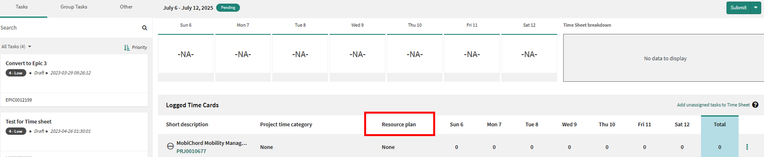
The Timesheet portal is not adapted to work natively with the resource assignment functionality at the moment.
This guide will walk you through customization to enable a workaround to align Timesheet portal to the resource assignment functionality.
To streamline the efforts for this, we have created and supplied XML records to be imported, while also detailing those configuration records in this document.
Prerequisites
- Organization is using only Resource Assignments
- Resource Management Workspace version 5.1.1 (or later)
1. Hide Resource Plan column

1.1. Open the portal widget 'Time Card Grid'
https:///sp_widget.do?sys_id=191df3b393332200ea933007f67ffbab
1.2. Comment out the 2 lines highlighted below in the 'Server script' section

Example XML provided
- sp_widget_Time_Card_Grid
2. Add Resource Assignment column

2.1. Open the portal page instance 'Time Card Portal Container'
https:///sp_instance.do?sys_id=1d7b842493532200ea933007f67ffb22
2.2. Add the resource assignment object in the Header fields object, as the example highlighted below, in the 'Additional options, JSON format' section

Example XML provided
- sp_instance_1_Time_Card_Portal_Container
3. Project and Project Tasks cards only from Approved Resource Assignments
The Time sheet cards for project and project tasks are filtered based on the Resource Plan state = Allocated. Using Resource Assignments require the Time sheet cards to be filtered based on Resource Assignment status = Approved

3.1. Open the portal widget 'Time Card Portal - Task Selector'
https:///now/nav/ui/classic/params/target/sp_widget.do%3Fsys_id%3D9c5558a493532200ea933007f67ffb37
3.2. Add filter for Resource Plan status = Approved, as the example highlighted below, in the 'Server script' section

Example XML provided
- sp_widget_Time_Card_Portal_Task_Selector
3.3. Define the Resource Assignments statuses excluded from resource availability
Make sure to define the Resource assignments statuses to be excluded from the resource availability calculations within Project Administration > Settings > Properties - Resource.
More details: Exclude resource assignments in specific states from capacity calculation
This also impacts the automatic resource assignment that occurs when a Project or Project Task time card is added to the time sheet, and time card submission is cancelled if the Resource Assignment holds any of the excluded statuses.
4. Prevent time cards from being submitted for non-approved Resource Assignments
4.1. Create Business Rule to clear Resource Plan field when Resource Assignment is not identified
If a user adds a Project or Project Task to the timesheet using the Add unassigned tasks to Time Sheet option, the out-of-the-box rules attempt to automatically populate the Resource Plan and Resource Assignment fields.

This can result in a time card where the Resource Plan is automatically filled, but the Resource Assignment remains empty. In such cases, actuals would be generated against a non-approved Resource Assignment.
This occurs because all Resource Plans are in the Allocated state (when using Resource Assignment), but only Resource Assignments that are not in one of the excluded statuses (as described in item 3.3) are considered valid.
To prevent this situation, the business rule clears the Resource Plan field if the Resource Assignment field is also empty.


Example XML provided
- sys_script_Remove_res_plan_if_assignment_is_empty
4.2 Create Business Rule to abort submission of Time cards when the Resource Assignment is not Approved
This business rule ensures that users cannot submit a time card linked to a non-approved Resource Assignment.
This scenario can occur if a user creates a time card linked to an approved Resource Assignment but does not submit it right away.
If the Resource Assignment status changes from Approved to another state before the time card is submitted, the business rule will abort the submission.


Example XML provided
- sys_script_Abort_if_assignment_not_approved_status
Make sure both Business Rules have high order to not conflict with out-of-the-box business rules.

Refer to the Quick Start Guide for Resource Management for more information about the Resource Management solution.
https://www.servicenow.com/community/spm-articles/time-sheet-portal-with-resource-assignments/ta-p/3312712