
Resource Plan Migration Utility Amendments
 New article articles in ServiceNow Community
·
Jul 11, 2025
·
article
New article articles in ServiceNow Community
·
Jul 11, 2025
·
article
SAFE HARBOR / DISCLAIMER: This article describes a proposed solution to support this use case. Please note that ServiceNow may offer an out-of-the-box solution for the issue described below in the future.
The proposed solution requires customization; as such, there is no liability for ServiceNow to provide support, apply changes, fix defects and review impact during future upgrades.
Customers are responsible for evaluating and deciding whether to implement this solution.
What problem does this solve?
Customers utilizing legacy Resource Plans to support their Resource Management processes need a solution to maintain their existing standards within Resource Assignments.
The provided migration utility does not address every change, configuration, or customization specific to each customer's setup. This walkthrough aims to offer direction of common use cases for tailoring the utility to YOUR environment, while also facilitating the adoption of the new features introduced with Resource Assignments.
What is covered ?
Amend the resource plan migration utility for three use cases:
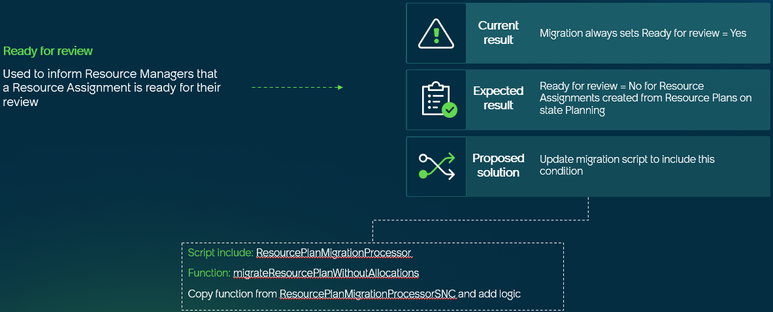
- Ready for Review = No for Resource Plans on Planning state
- Map Resource Plan Confirmed state to a custom Resource Assignment Status (if necessary)
- Map Resource Plan custom fields to the respective custom fields on Resource Assignment
Resource Plan Migration Utility
The ResourcePlanMigrationProcessorSNC script include contains all the logic behind the migration utility’s mapping logic.
We’ll need to customize the migration logic by modifying the ResourcePlanMigrationProcessor script include, which extends the ResourcePlanMigrationProcessorSNC – that extension is intended to be used for amending the main script include.
The ResourcePlanMigrationProcessorSNC is exclusively used for the Resource Plan Migration process and it does not impact other functionalities.
1. Ready for Review = No for Resource Plan on Planning state

For this purpose, we will focus on modifying the migrateResourcePlanWithoutAllocations function.
Copy the function migrateResourcePlanWithoutAllocations from ResourcePlanMigrationProcessorSNC and paste into ResourcePlanMigrationProcessor
Add the highlighted logic below. This will make the Resource Assignments as 'Ready for Review = No' when migrated from Resource Plan in Planning state.

2. Map Resource Plan Confirmed state to a custom Resource Assignment Status

**Before creating a custom Resource status for Resource Assignments, review if "state/stage/status" can be omitted from your process. If that is the case, then the change below is not required and adopting OOB should be considered
For this purpose, we will focus on modifying the migrateResourcePlanWithAllocations function.
Copy the function migrateResourcePlanWithAllocations from ResourcePlanMigrationProcessorSNC and paste into ResourcePlanMigrationProcessor
Add the highlighted logic below. This will make the Resource Assignments status = pre_approved (this is an example, replace it accordingly to the custom value defined in your instance) when migrated from Resource Plan on Confirmed state.

3. Map Resource Plan custom fields to the respective custom fields at Resource Assignment

** Before creating custom fields for Resource Assignments, assess whether they remain relevant. If they are not, avoid transferring them.
**If they are indeed needed, explore whether additional Planning Attributes could be utilized instead, before creating new custom fields.
**If custom fields still do not align with these points, the following guidance will help manage them.
For more information about Planning Attributes, review the documentation and the Quick Start Guide for Resource Management.
Make sure the custom fields created at the Resource Assignment table are identical to the custom fields at the Resource Plan table.
For this purpose, we will focus on modifying the initialize function.
Copy the function initializefrom ResourcePlanMigrationProcessorSNC and paste into ResourcePlanMigrationProcessor
Add the custom field(s) at the “commonFieldsToCopy” array, as the highlighted example below. The migration logic will copy the value of the custom field(s) added to the “commonFieldsToCopy” array.

The attached file is an example of the ResourcePlanMigrationProcessor modified to add the changes described above.
Refer to the Quick Start Guide for Resource Management for more information about the Resource Management solution.
https://www.servicenow.com/community/spm-articles/resource-plan-migration-utility-amendments/ta-p/3310653