
ServiceNow AD (LDAP) integration with Microsoft Azure
Import
·
Jun 24, 2020
·
article

Automatic User and Group Provisioning with Azure
- Create users in ServiceNow
- Remove users in ServiceNow when they do not require access anymore
- Keep user attributes synchronized between Azure AD and ServiceNow
- Provision groups and group memberships in ServiceNow
- A user account in Azure AD with permission to configure provisioning (With admin role).
- A ServiceNow instance of Calgary or latest version.
- User with admin role on ServiceNow
- Identify your ServiceNow instance name. You can find the instance name in the URL that you use to access ServiceNow. In the example below, the instance name is dev35214.

- Obtain credentials for an admin in ServiceNow. Navigate to the user profile in ServiceNow and verify that the user has the admin role.

- Check to make sure that the following settings are disabled in ServiceNow:
- Select System Security > High security settings > Require basic authentication for incoming SCHEMA requests.
- Select System Properties > Web Services > Require basic authorization for incoming SOAP requests.
This section guides you through the steps to configure the Azure AD provisioning service to create, update, and disable users and/or groups in TestApp based on user and/or group assignments in Azure AD.
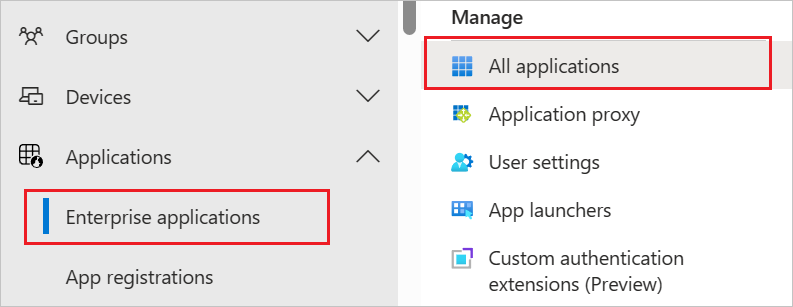
- Sign in to the azure portal. Select Enterprise Applications, then select All applications.
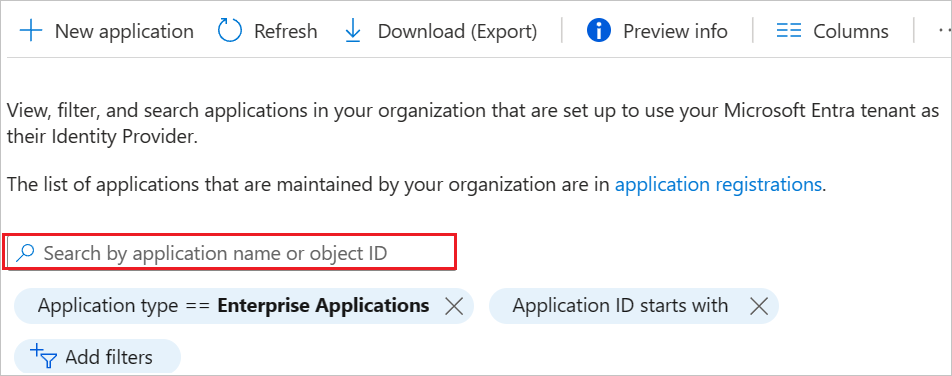
- 1. In the applications list, select ServiceNow.
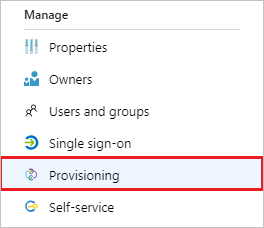
- Select the Provisioning tab.
- Set the Provisioning Mode to Automatic.

- Under the Admin Credentials section, input your ServiceNow admin credentials and username. Click Test Connection to ensure Azure AD can connect to ServiceNow. If the connection fails, ensure your ServiceNow account has Admin permissions and try again.

- In the Notification Email field, enter the email address of a person or group who should receive the provisioning error notifications and select the Send an email notification when a failure occurs check box.

- Select Save.
- Under the Mappings section, select Synchronize Azure Active Directory Users to ServiceNow.
- Review the user attributes that are synchronized from Azure AD to ServiceNow in the Attribute-Mapping section. The attributes selected as Matching properties are used to match the user accounts in ServiceNow for update operations. If you choose to change the Matching attributes, you will need to ensure that the ServiceNow API supports filtering users based on that attribute. Select the Save button to commit any changes.
- Under the Mappings section, select Synchronize Azure Active Directory Groups to ServiceNow.
- Review the group attributes that are synchronized from Azure AD to ServiceNow in the Attribute-Mapping section. The attributes selected as Matching properties are used to match the groups in ServiceNow for update operations. Select the Save button to commit any changes.
- To enable the Azure AD provisioning service for ServiceNow, change the Provisioning Status to On in the Settings section.

- Define the users and/or groups that you would like to provision to ServiceNow by choosing the desired values in Scope in the Settings section.

- When you are ready to provision, click Save.

This operation starts the initial synchronization cycle of all users and groups defined in Scope in the Settings section. The initial cycle takes longer to perform than subsequent cycles, which occur approximately every 40 minutes as long as the Azure AD provisioning service is running.
Once you've configured provisioning, use the following resources to monitor your deployment: - Use the provisioning logs to determine which users have been provisioned successfully or unsuccessfully
- Check the progress bar to see the status of the provisioning cycle and how close it is to completion
- If the provisioning configuration seems to be in an unhealthy state, the application will go into quarantine. Learn more about quarantine states.
- Select the Provisioning tab.
Resource:https://docs.microsoft.com/
if this article helped you in any way then mark it helpful and bookmark it for future use also if any help required feel free to ask in comment section.
Labels:

View original source
https://www.servicenow.com/community/itom-articles/servicenow-ad-ldap-integration-with-microsoft-azure/ta-p/2320076