
ServiceNow Integration with Google Calendar + Google Meet(OAuth 2.0)
 Stories by Vivek Verma on Medium
·
May 26, 2020
·
article
Stories by Vivek Verma on Medium
·
May 26, 2020
·
article


“It is common sense to take a method and try it. If it fails, admit it frankly and try another. But above all, try something.”
— Franklin D. Roosevelt
The integration will enable you to create a Google Meet
meeting link from an incident using the Custom UI Page via UI Action.
We are going to understand three topics here,
1.How to extend the time limit of token in Google OAuth 2.0
2.Making a UI Page without using the framework page template
3.Leverage the Google Calendar API to generate the Google Meet Invite link.
The First Step of this integration is to configure OAuth 2.0
- Setup the OAuth 2.0 Provider on Google console.
OAuth 2.0 tutorial - configure the Google service as an OAuth provider
- Create an OAuth provider and Profile at ServiceNow side using Client information and Google API URLs.
OAuth 2.0 tutorial - create an OAuth provider and profile
- List of OAuth 2.0 Scopes for Google APIs.
OAuth 2.0 Scopes for Google APIs | Authorization | Google for Developers
- Now Create Rest Message.
OAuth 2.0 tutorial - create a REST message
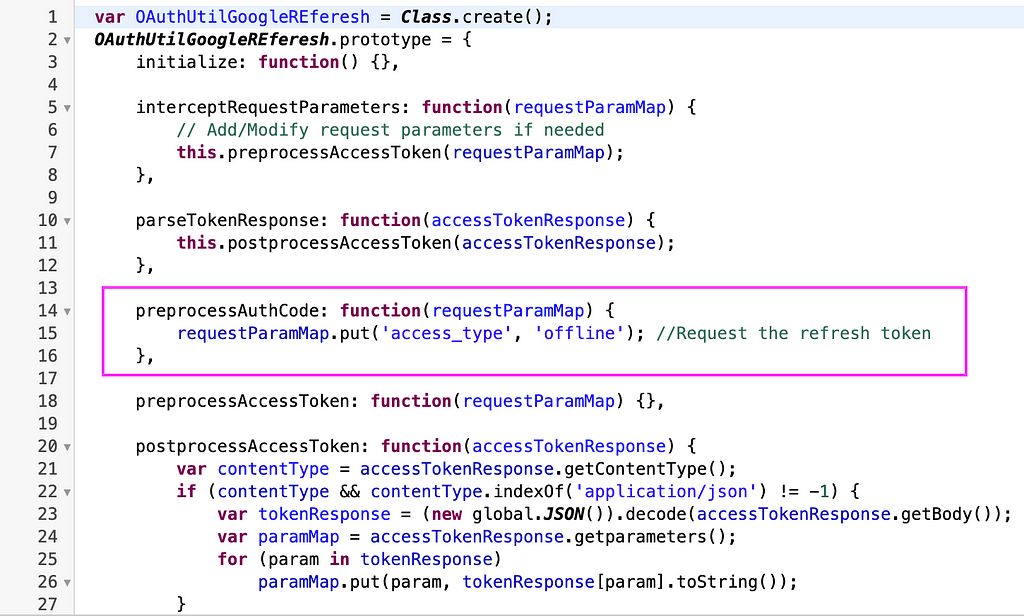
After following all these three steps. You can generate a token. One thing is always ruffled your feather is Token time limit. It’s hardly valid for an hour. Because your OAuth Credentials Type is Access Token, but you need to change it to Refresh Token Type.
Make a copy OAuthUtil Script Include and add the parameter in the function preprocessAuthCode.
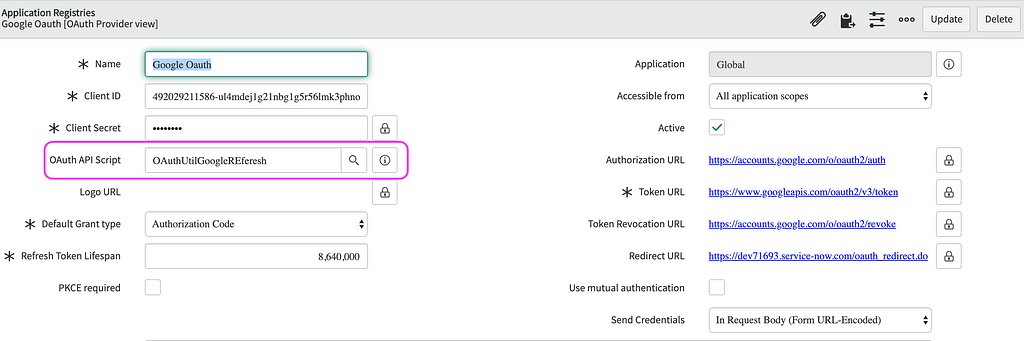
Set this script include in Your Application Registry.
Now, Check the OAuth Token in Manage token module.
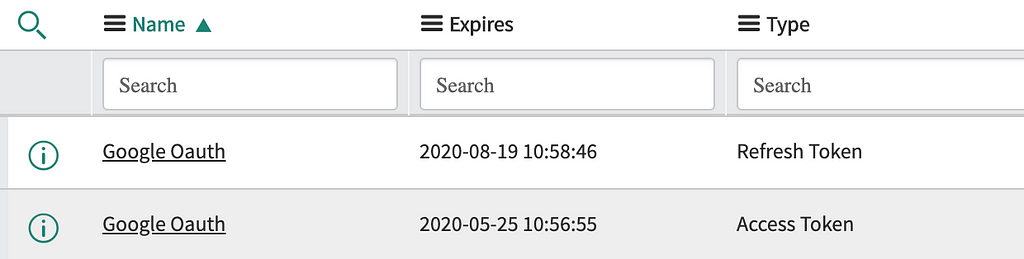
- Access Token: valid for one hour
- Refresh Token: valid for 100 days. This is the default value set by Servicenow. Google refresh tokens don’t have an expiration date. “Expires” date can be modified manually to set a time far in the future.
If the Refresh token is not showing Because You can only get the refresh token the first time you authorize the application to interact with Google.
Follow this link and remove the access. Repeat the process.

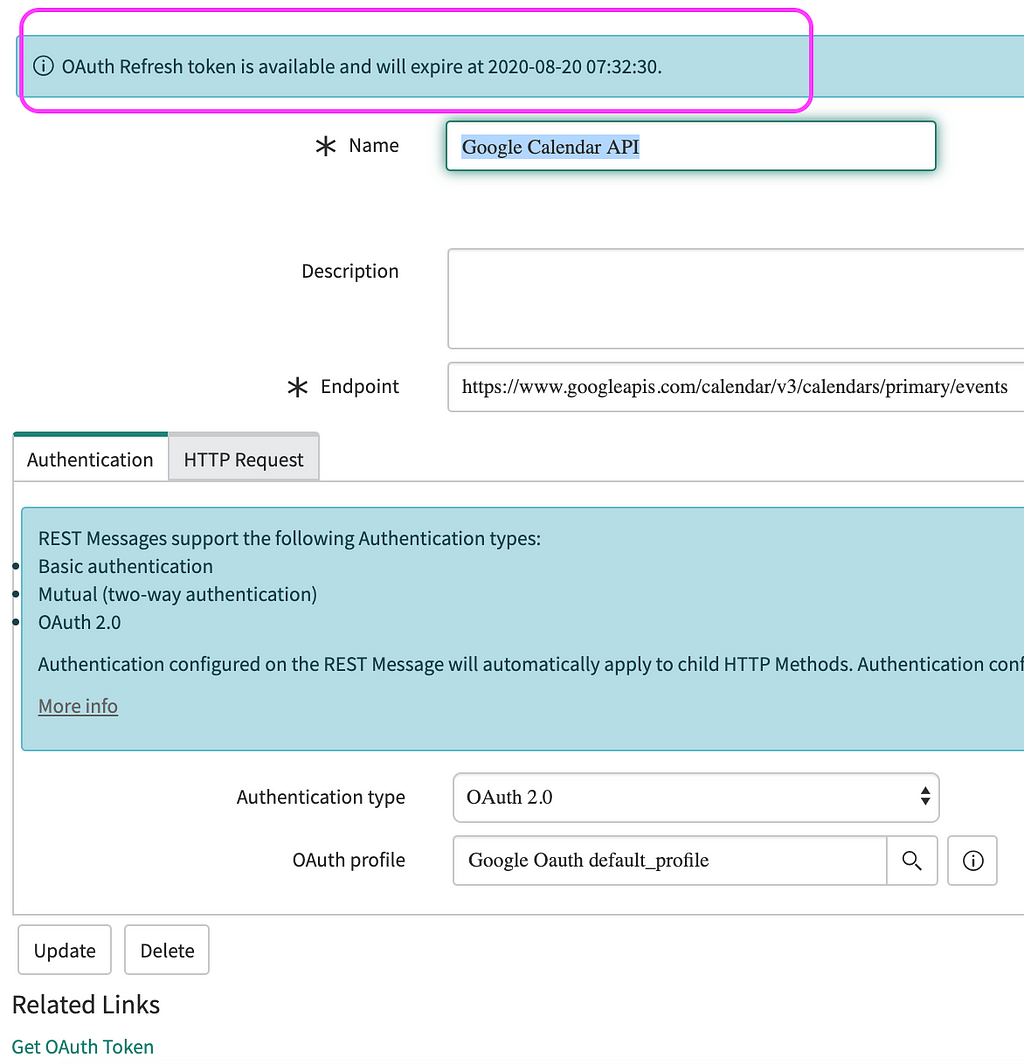
OAuth is valid up to 100days now. Have good testing time.
The Second Step of this integration is to Create UI Action, which is used to render our custom UI Page.
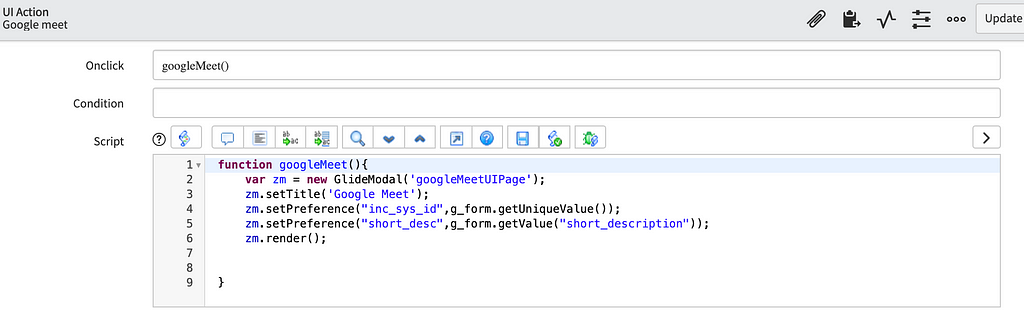
Create custom UI page.
Creating the custom UI page is totally a control freak guy job.
Step 1. Create a Form using HTML and CSS.
Step 2. Checked the “Direct” flag.
Step 3. Finally, on line 1 of the HTML field, add the following code. This tells the browser which Doctype to use when rendering the document. This example tells the browser to treat this as an HTML document.
$[<!DOCTYPE HTML>]
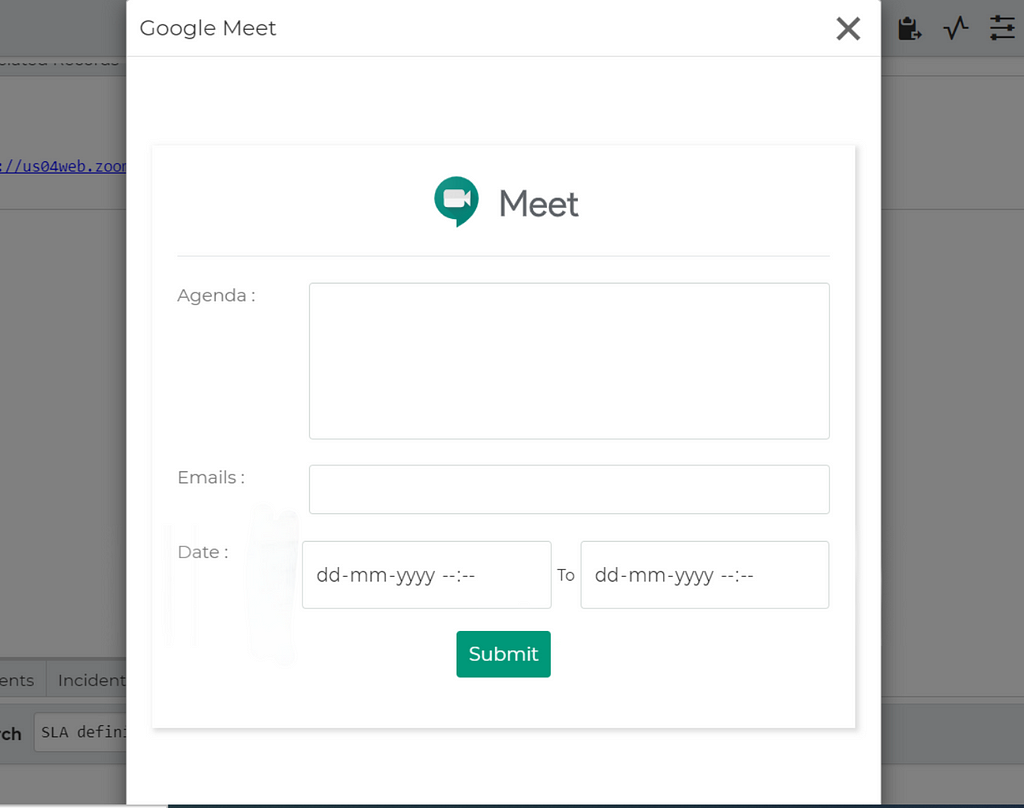
The Third Step of this integration is to sending JSON Object to Google API endpoint.
Step 1: Construct JSON Object in Processing script of UI Page. Next, send this to script include meetSNUtility (the one I have created to send data to Rest Message*).*
Script Include —
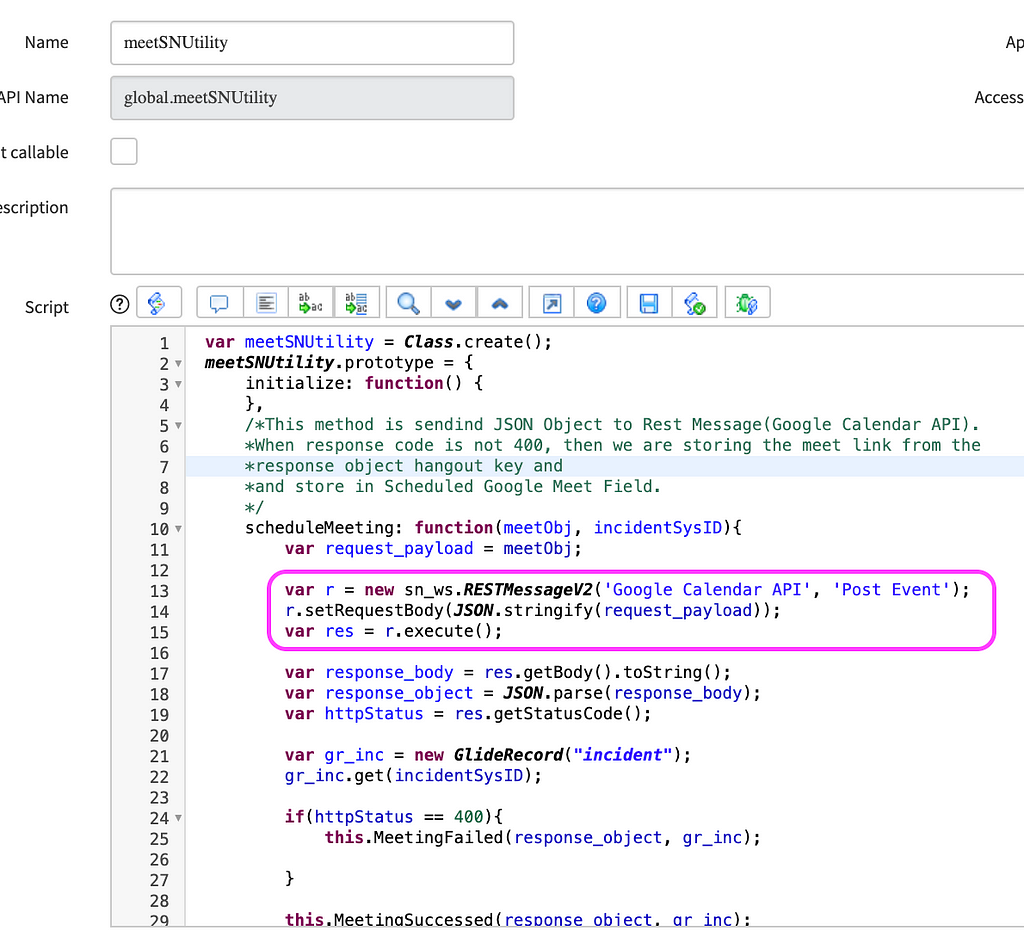
Script Include — meetSNUtility
Rest Message/Method —

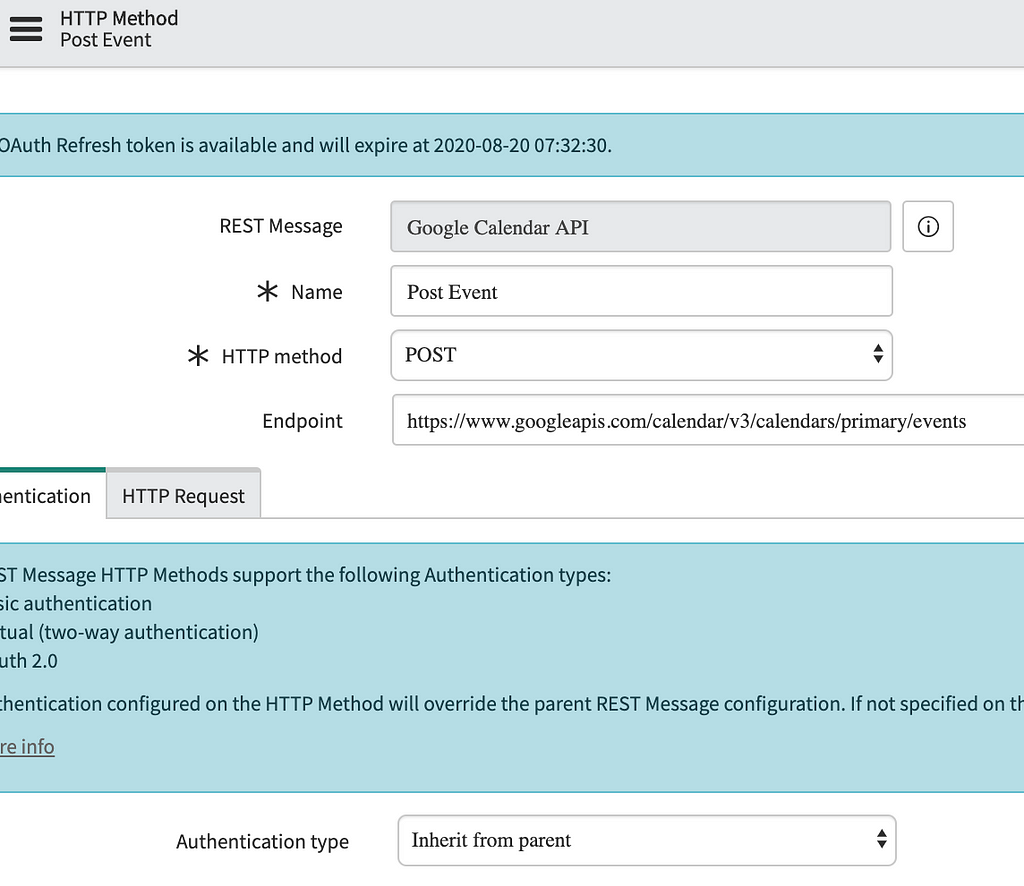
Rest Message — Google Calendar API
Let’s not make this like watching grass grow. Testing Time,
Open Incident ticket and Click on UI Action (Google Meet). Fill the meeting Agenda, Recipient Emails, and Duration.
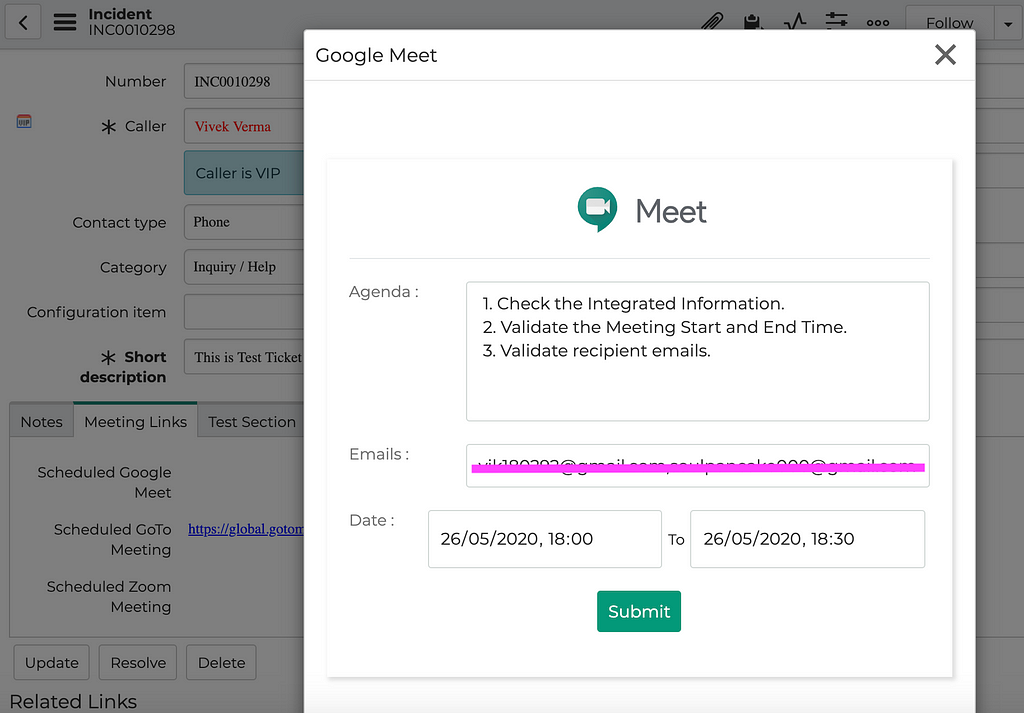
Click on submit,
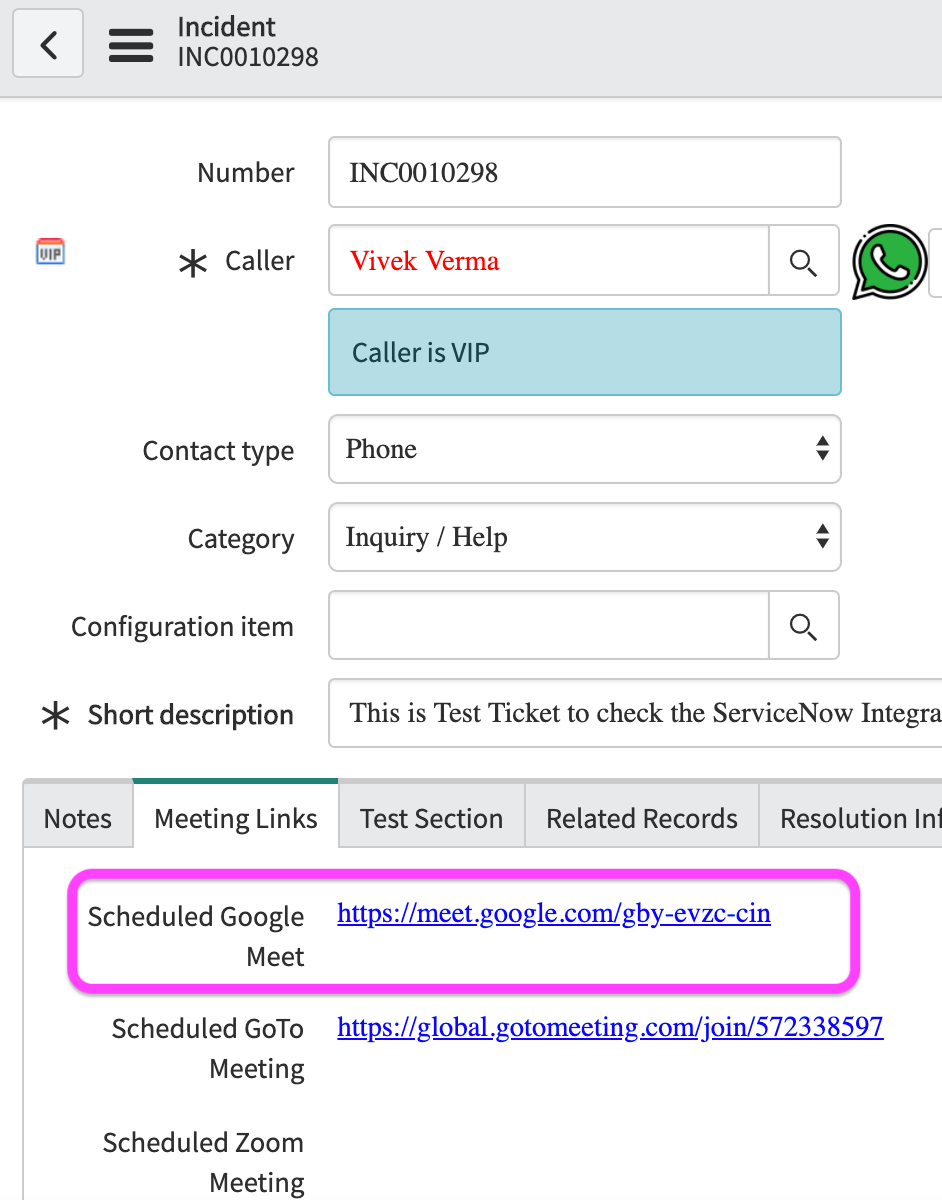
Google Meet meeting link
Now you can quickly join the meeting by clicking on this URL.
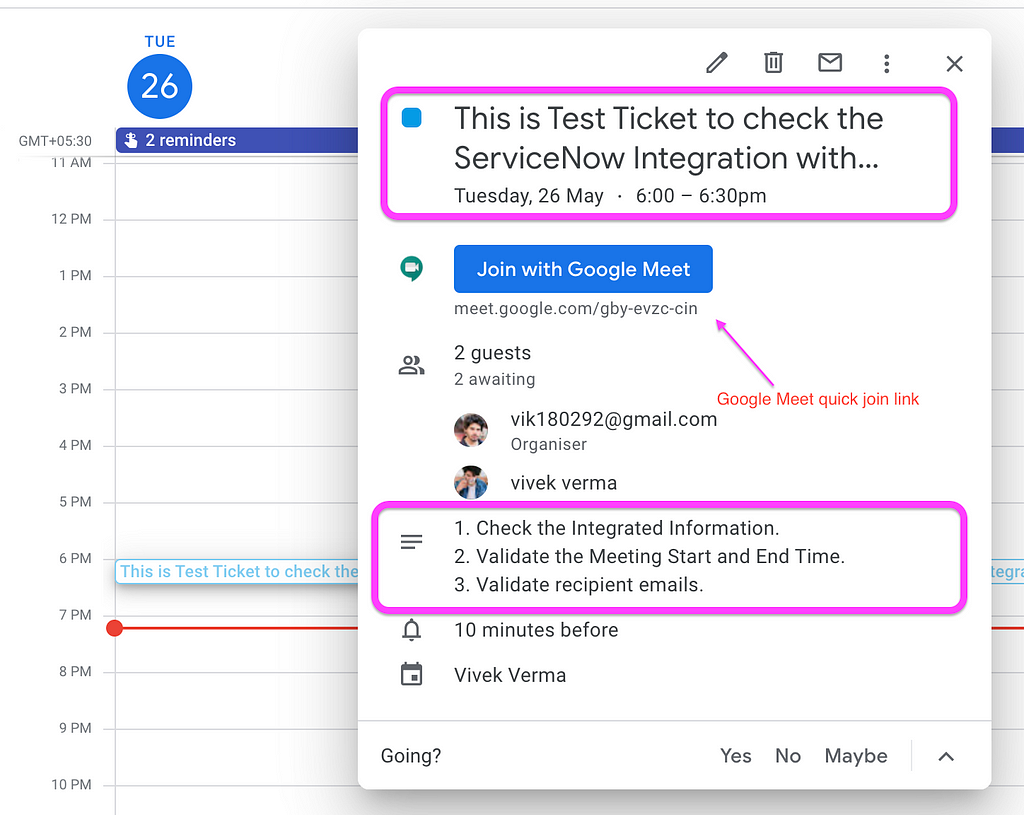
Lets Open Google Calendar check the Scheduled Meeting. Damn, it's working.
Now You can join the meeting from your calendar by clicking on “Join with Google Meet”
https://medium.com/@vik180292/servicenow-integration-with-google-calendar-google-meet-oauth-2-0-d78bc3430d4a?source=rss-24f114272fea------2