
Monitoring the London Underground with SCOM
This week I had the honour of speaking at Silect’s MP University and my hot topic was Cookdown’s free PowerShell Authoring MP.
I was looking to make the session a little fun, in homage to the original “Fun SCOM Monitoring” video from CTGlobal on monitoring a coffee machine with SCOM 2007 R2.
So, I thought what’s the next best thing after coffee? Beer! So, I decided to use the Untappd API to monitor when my local pub would start pulling pints of my favourite Christmas brew. But access to the data was declined… apparently you need a ‘legitimate’ reason for using this info.
After some more research I found out Transport for London let you pull real-time data for their whole network, for free! And the API itself is well documented and curated with Postman, making life much easier for me. So, I planned to monitor tube lines status, which I would hook up to a tri-state monitor in SCOM, raising alerts when there where service outages - bingo!
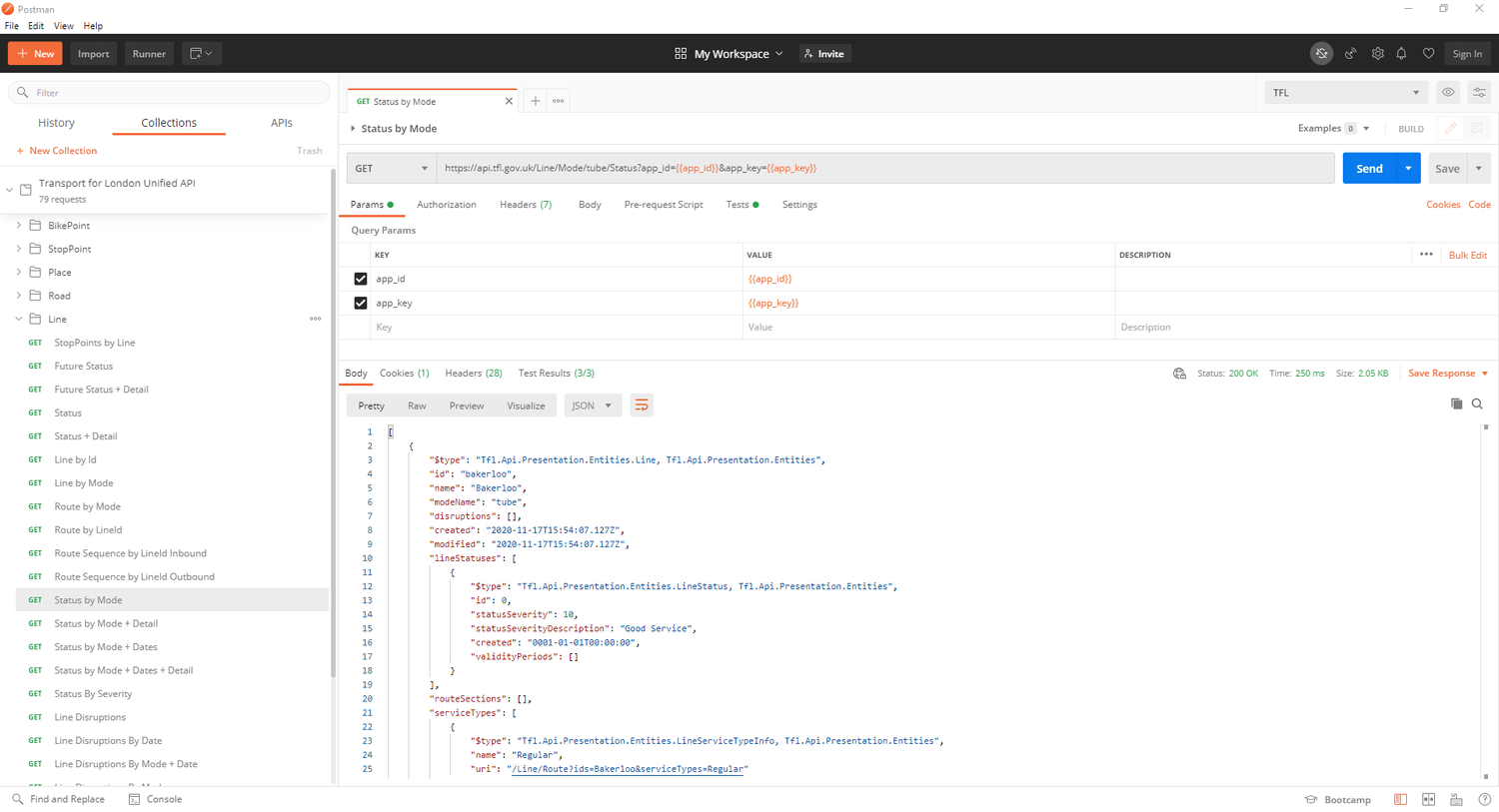
I pulled the status of each tube line, wrote some PowerShell and quickly found the right API “Status by Mode” where mode is actually a mode of transport (tube, bus, bike... speedboat?):

I imported the PowerShell Authoring MP into SCOM and began authoring my tri-state monitor but didn’t get very far - what objects would I hang my monitoring off? Damn.
Creating a custom MP to discover tube lines
After some head scratching and a chat with our resident SCOM genius (Nathan Foreman), it was clear that I would have to write a custom MP to create a class (London Underground Tube Line, or something similar) and discover the tube lines themselves, from the API. After a little while the below MP was born:
TFLMonitoring 1.0.0.4 TFLMonitoring Microsoft.SystemCenter.Library 7.0.8433.0 31bf3856ad364e35 Microsoft.Windows.Library 7.5.8501.0 31bf3856ad364e35 System.Library 7.5.8501.0 31bf3856ad364e35 Discovery 600 DiscoverLines.ps1 Param ( $sourceID, $managedEntityID, $apiKey
) $api = New-Object -ComObject 'MOM.ScriptAPI'
$tflLines = Invoke-RestMethod "https://api.tfl.gov.uk/Line/Mode/tube/Status?app_id=Monitoring demo&app_key=$apiKey" -Method 'GET' $discoveryData = $api.CreateDiscoveryData(0, $sourceId, $managedEntityId) foreach($line in $tflLines){ $TflLineInstance = $discoveryData.CreateClassInstance("$MPElement[Name='TFLMonitoring.Line']$") $TflLineInstance.AddProperty("$MPElement[Name='TFLMonitoring.Line']/LineId$",$line.id) $TflLineInstance.AddProperty("$MPElement[Name='TFLMonitoring.Line']/LineName$",$line.name) $TflLineInstance.AddProperty("$MPElement[Name='TFLMonitoring.Line']/Mode$",$line.modeName) $discoveryData.AddInstance($TflLineInstance)
} $discoveryData sourceID $MPElement$ managedEntityID $Target/Id$ apiKey f35998593e64486aad39c66f488484ed 300 TFL Line Line ID Line Name Mode Name TFL Monitoring TFL Monitoring base for use in Silect MP University Demos
While this looks complicated, there are only really two parts that aren’t MP pleasantries, syntax or structure - the class definition and the Discovery script itself. In the class definition we specify the class we will be discovering objects into for our tub lines (TFLMonitoring.Line) and the properties of each line (LineId, LineName and Mode)
In the Discovery script (PowerShell) we connect to the TFL API and iterate through a ‘For Each’ loop which pulls the properties we need for each tube line, adding the results to the class we defined earlier.
600 DiscoverLines.ps1 Param ( $sourceID, $managedEntityID, $apiKey
) $api = New-Object -ComObject 'MOM.ScriptAPI'
$tflLines = Invoke-RestMethod "https://api.tfl.gov.uk/Line/Mode/tube/Status?app_id=Monitoring demo&app_key=$apiKey" -Method 'GET' $discoveryData = $api.CreateDiscoveryData(0, $sourceId, $managedEntityId) foreach($line in $tflLines){ $TflLineInstance = $discoveryData.CreateClassInstance("$MPElement[Name='TFLMonitoring.Line']$") $TflLineInstance.AddProperty("$MPElement[Name='TFLMonitoring.Line']/LineId$",$line.id) $TflLineInstance.AddProperty("$MPElement[Name='TFLMonitoring.Line']/LineName$",$line.name) $TflLineInstance.AddProperty("$MPElement[Name='TFLMonitoring.Line']/Mode$",$line.modeName) $discoveryData.AddInstance($TflLineInstance)
} $discoveryData
Discovery MP creation complete, I imported it into SCOM and waited for the Discovery to fire…

This piece of the puzzle was really rather easy - go to the Authoring pane, create a Unit Monitor and select PowerShell three state monitor (an option added by the PowerShell Monitoring MP):
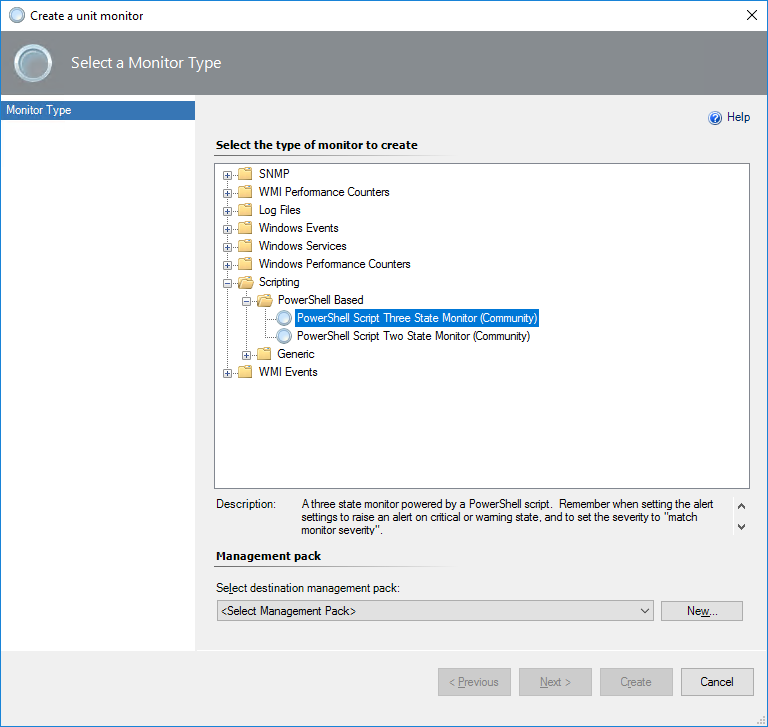
The script I created simply connects to the same TFL API and fills a property bag with the state of each line (identified by LineId)
# Any Arguments specified will be sent to the script as a single string.
If you need to send multiple values, delimit them with a space, semicolon or other separator and then use split.
param([string]$Arguments) $ScomAPI = New-Object -comObject "MOM.ScriptAPI" ##$line = $Arguments
$apiKey = "f35998593e64486aad39c66f488484ed"
$restUrl = "https://api.tfl.gov.uk/Line/Mode/tube/Status?app_id=TFLMonitoring&app_key=$apiKey"
[Net.ServicePointManager]::SecurityProtocol = [Net.SecurityProtocolType]::Tls12
$lineStatus = Invoke-RestMethod -Uri $restUrl foreach($line in $lineStatus){
$PropertyBag = $ScomAPI.CreatePropertyBag()
$PropertyBag.AddValue("State",$line.lineStatuses.statusSeverityDescription)
$PropertyBag.AddValue("LineId",$line.id)
$PropertyBag } # Send output to SCOM
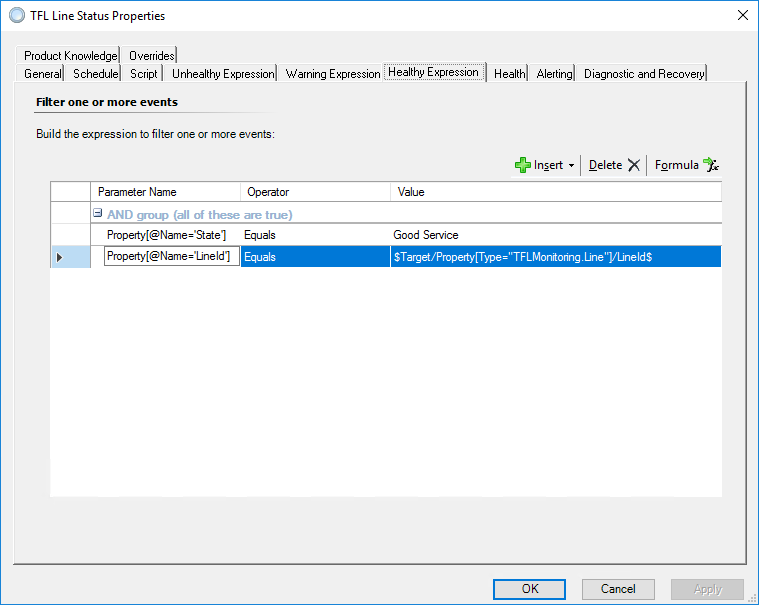


I then created a definition for each health state and defined the parameters for alerts.

After a wait for the data to be pulled, voila, my discovered object have health states:

Alerts begin to appear (it is very rare that the tube network gives good service all day, every day, so I only had to wait until rush hour for some disruption).

https://www.cookdown.com/blog/monitoring-the-london-underground-with-custom-discovery-mp-powershell-authoring-and-rest-apis