
How to Remove Unwanted Icons from the Side Navigation in Agent Workspace
 New article articles in ServiceNow Community
·
Apr 08, 2025
·
article
New article articles in ServiceNow Community
·
Apr 08, 2025
·
article
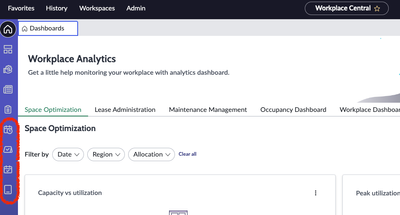
Do you have a customer who prefers a cleaner, more tailored navigation experience in Agent Workspace? For example, in our case, the customer didn’t want to display icons such as Move Management, Event Planner, or Schedule Planner in the side navigation since they hadn’t configured or used those features.

After a bit of exploration, I found that removing these unused icons is actually quite straightforward using UI Builder.
✅ Steps to Add or Remove Icons from the Side Navigation:
- Navigate to:
Now Experience Framework > UI Builder - Under the “Experiences” tab, locate and select the relevant line item (e.g., Workplace Central)
- Click on “View experience settings” in the top-right corner.
- Scroll down to the “Side Navigation” section.


Here, you’ll be able to:
- Remove icons that are not needed by clicking the trash icon next to the item.
- Add new icons by using the “+ Add” option at the bottom of the section.
This gives you full control over the navigation experience and allows for a cleaner, user-focused UI based on each customer’s specific use case.
https://www.servicenow.com/community/next-experience-articles/how-to-remove-unwanted-icons-from-the-side-navigation-in-agent/ta-p/3231763